 Discord
 Telegram

Verified buyers only
Only a confirmed buyer can leave a review
 Rob Run
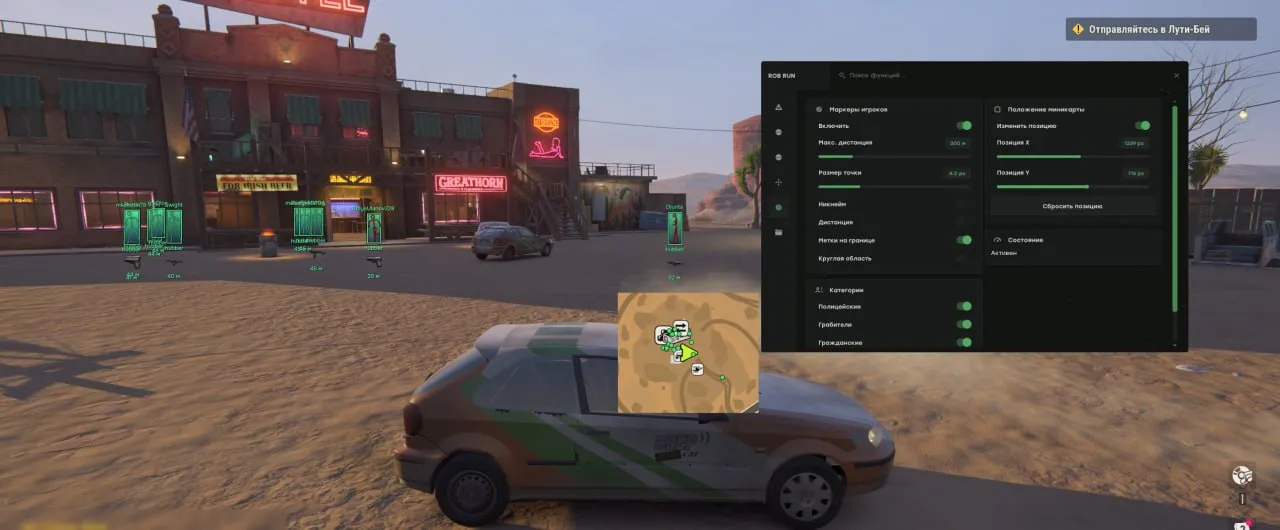
MaSoN Internal is a Rob Run cheat with separate ESP and aim controls. Group nearby loot labels and clear distractions with Battle Mode. Aimbot activation requires a recorded mouse calibration profile.
MaSoN Internal for Rob Run uses a calibrated aimbot. Record your mouse movement profile through Edit Calibration before enabling aim. The procedure has four stages with three movements each, and the completed profile is saved with your configuration.
This build supports Steam on Windows 11 x64. Intel and AMD are supported, but Xeon and FX compatibility is not guaranteed. No USB drive is required, and you can use windowed, borderless fullscreen or fullscreen mode. The overlay does not support hiding from video or screenshots.
Purchase the product to leave a review
Review integrity
Only a confirmed buyer can leave a review
A moderator checks every review before it goes live
Reviews can’t be ordered or deleted
The author can edit it at any time
Share your impressions after the purchase — it helps other players choose.
Frequently Asked Questions
Select a question from the list on the right to see the answer
MaSoN Internal for Rob Run uses recorded mouse movements in its aiming setup. Calibration, target selection and the overlay have separate controls. Start with how you want aim to behave, then decide which information belongs on screen and which player markers you need on the radar.
Start Recording runs four calibration stages with three movements each. Enable can activate aim assistance once a profile is available. Humanization Strength changes the influence of those recorded movements, while Aim Smoothing adjusts smoothing. Once the profile is recorded, you can adjust these parameters independently. Reset Profile removes the calibration and disables the settings that depend on it.
Weapon Profiles separates pistols, assault rifles and other weapons. Use Separate Settings when a weapon group needs its own setup. Selection Method chooses specified body areas or the nearest suitable point. Multipoints adds aim points with individual visibility checks, while Nearest Point selects a visible point close to the crosshair centre. Motion Prediction accounts for target movement; Prediction sets the lead time.
Battle Mode temporarily hides NPCs and civilians in ESP and radar, and removes loot, cameras and camera view areas. If a fight interrupts your item search, the switch clears several groups of markers at once. Press it again to restore the previous settings, so you do not have to rebuild the display one category at a time.
Assign a convenient key through Battle Mode Key so you can switch the displayed information during play.
Group Nearby Items combines labels for loot that is close together. Use it when several finds share a small space and their names compete for attention. Detail Distance controls how far detailed information is shown, while Max. Labels limits the number of names. Adjust both if the text remains crowded, keeping the item categories you actually want to see.
Crosshair Area sets the focus area around the crosshair, so you can control where detailed information matters while setting the category's overall ESP range through Max. Distance. Hide Empty excludes empty objects. Sell Price accounts for item quantity, and Container Marker Color uses the highest known rarity inside a container to make that information visible before you read every label.
The radar places characters on the built-in minimap. Categories controls police, robbers, civilians and NPCs. Edge Markers shows targets outside the radar area. If markers are crowded, adjust Point Size and range. Move Minimap lets you position the map around the part of the screen you need to keep clear, and Reset Position restores its original location.
Use Create or Save once you have a setup you want to keep. Load restores visual settings and radar alongside weapon settings, Aimbot profiles and calibration. A saved configuration therefore gives you a way back before you experiment further with aim. When comparing the Rob Run cheat catalogue, consider the calibration step and whether restoring that recorded profile fits how you want to configure aim.