
How to Disable Virtualization Based Security in Local Group Policy Editor or Registry Editor
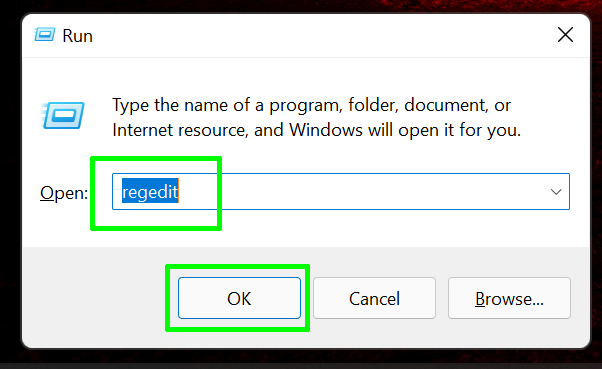
1) Open regedit. The easiest way is by hitting Windows + R, entering regedit in the text box and click Ok.
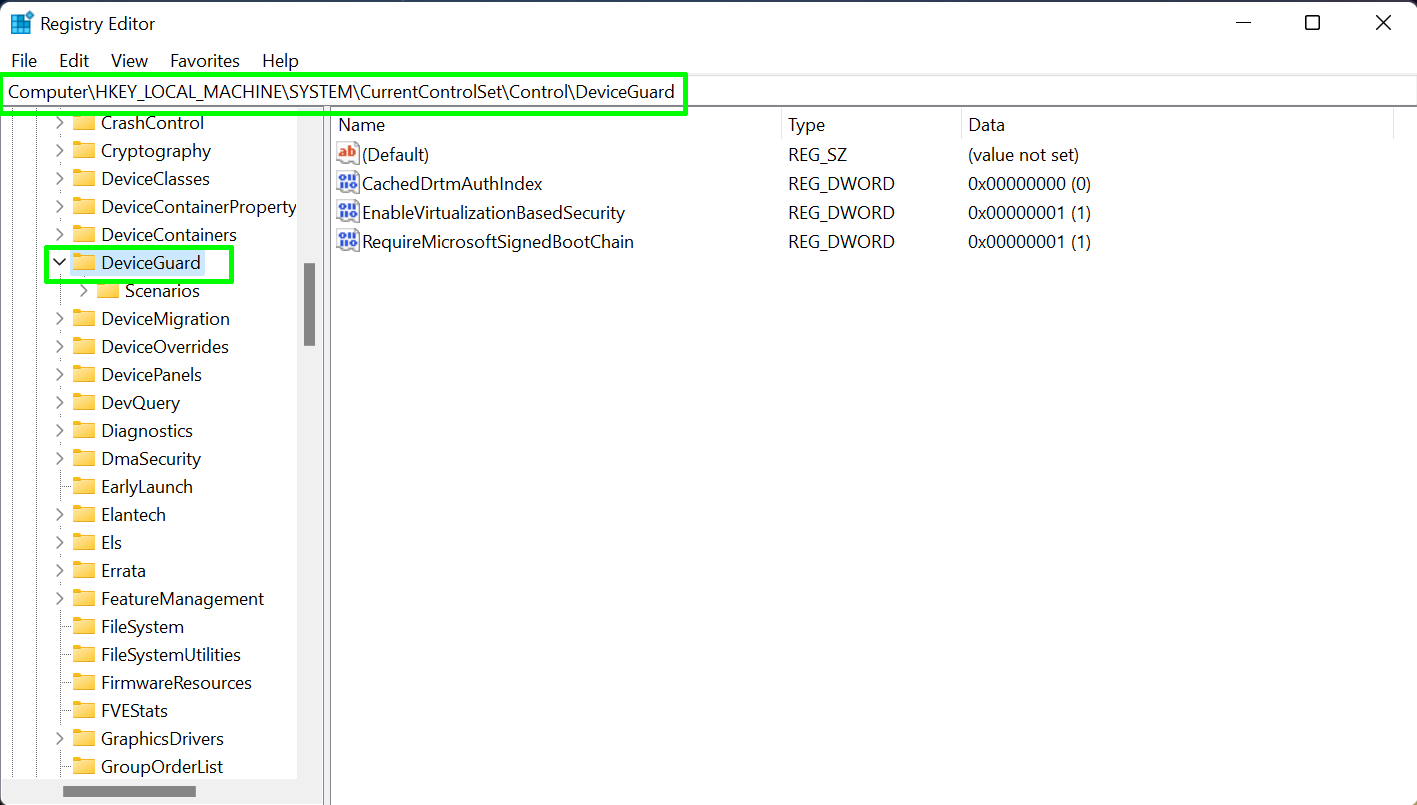
2) Navigate to HKEY_LOCAL_MACHINE\System\CurrentControlSet\Control\DeviceGuard.
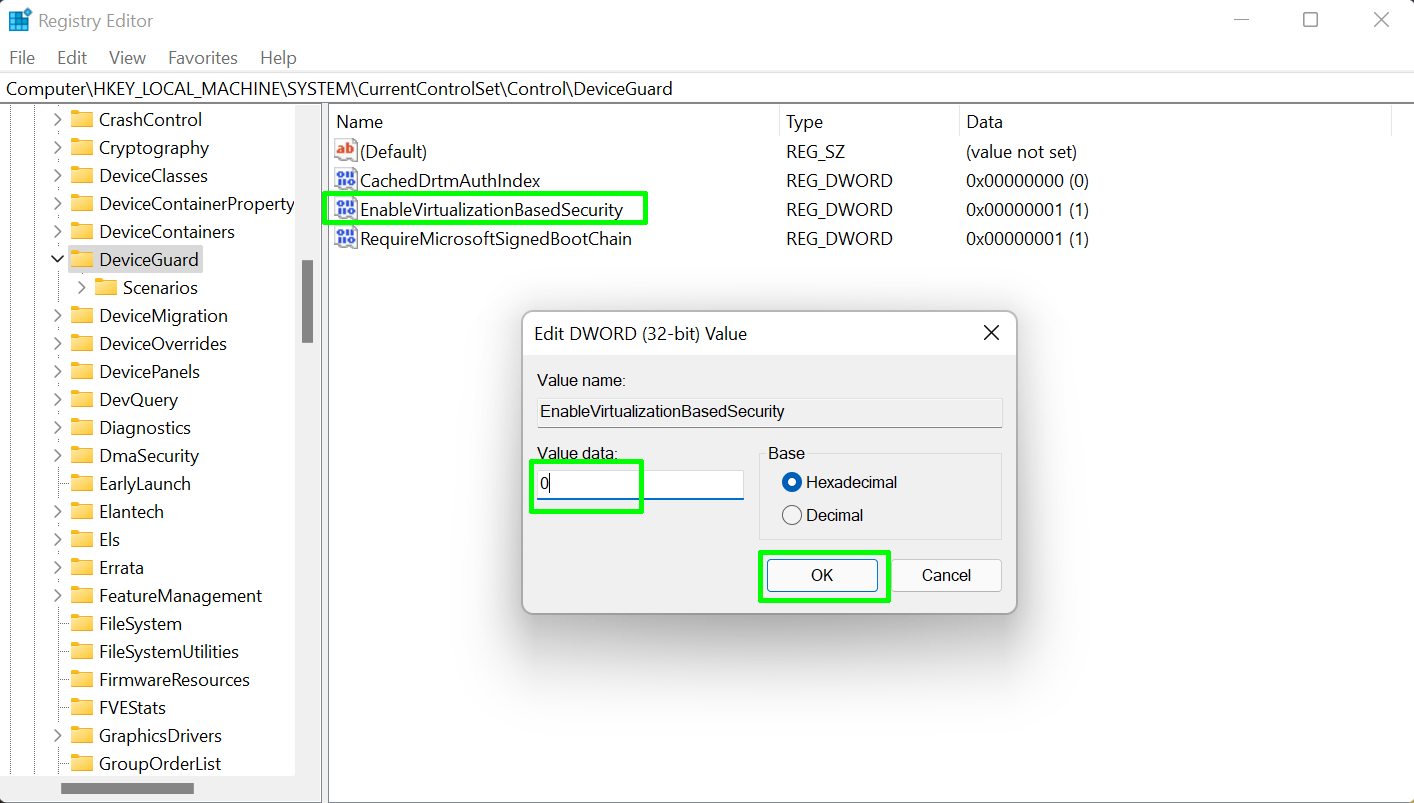
3) Open EnableVirtualizationBasedSecurity and set it to 0.
4) Close regedit and reboot your PC.
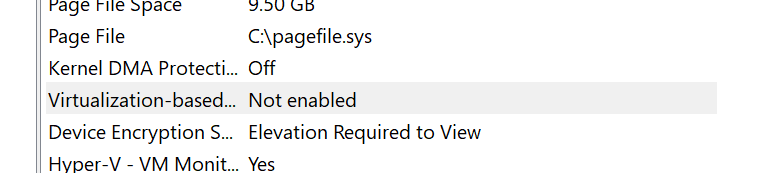
5) Check system information again to see if Virtualization Based Security is listed as "not enabled."
If VBS is still enabled try the method of disabling it below.