The software MUST be launched ONLY from a removable drive (USB flash drive)! The loader must be removed from Downloads and other directories.
After closing the loader menu, you MUST physically remove the USB drive from your PC, otherwise you risk getting a VGK ban.
System Preparation 🛠️
Complete ALL preparation steps MANDATORILY before the first launch. The software won't work without this.
1. Virtualization in BIOS must be enabled
Check virtualization status in Task Manager (Performance tab → CPU).
Setup guide: https://youtu.be/LQIyowZMiY8
2. Enable Hyper-V Component
Enable the Hyper-V component in Control Panel. Reboot your PC when the system asks you to do so.
If you don't have this component, download the bat file and run it as Administrator. After it closes, reboot your PC. The component should appear.
3. Check Disk Format (GPT)
Check that the disk where the system is installed has GPT format.
How to check: https://remontka.pro/gpt-or-mbr-disk
If the disk is MBR format — you'll need to reinstall Windows in UEFI/GPT mode.
4. Boot Mode in BIOS — UEFI
The boot mode in BIOS must be set to UEFI.
Guide: https://remontcompa.ru/zhestkiy-disk/3240-kak-vkljuchit-uefi-v-biose.html
5. Secure Boot — Disabled
Secure Boot in BIOS must be disabled.
Guide: https://remontcompa.ru/zhestkiy-disk/392-kak-otklyuchit-secure-boot.html
System setup is now complete. If you can't complete any of the steps for any reason — contact support. All of the above steps are required for the software to work!
Starting the Launch 🚀
1. Download Loader and Prepare USB Drive
Download the product loader via the link. Connect a removable drive (USB flash drive) to your PC and move the loader to the flash drive. Also exit the Riot client from the system tray.
2. Run Loader from USB
After completing step 1, run the loader from the flash drive and wait for the loader menu to appear.
When you launch Valorant, the flash drive with the loader MUST be physically disconnected from the PC.
Completing steps 1 and 2 is mandatory before every launch of the loader, otherwise you may get an EAC ban.
3. Launch and Reboot
Click the "Click to restart" button, then wait for the product to load
If you've completed all actions from the "System Preparation" section, the loader will offer to restart the system — click "Yes", and the system will reboot automatically
If you haven't met a requirement, the loader will notify you
After System Reboot 🔄
1. Install OBS
Install OBS from the link. Even if you already have OBS, still install it from the specified link.
After installation, do NOT update OBS to the latest version, otherwise the software won't work.
Launch OBS as Administrator after installation.
2. Run the Loader
Run the product loader, strictly following steps 1 and 2 of the instructions
Click "Run" in the loader window
Wait for the loader menu to close
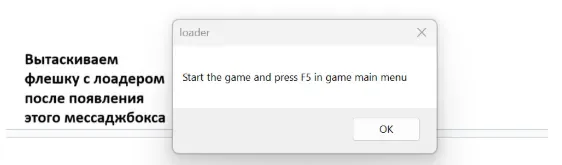
The loader should notify you of successful loading and display the message: "Start the game and press F5 in game main menu"
Click "OK" in this message box and follow the further instructions
Follow the messages that the loader will display during software loading. If the loader gives an error — contact support.
Further Process 🎮
1. Install Rivatuner Statistics
Install Rivatuner Statistics from the link.
Follow the instructions in the screenshot:
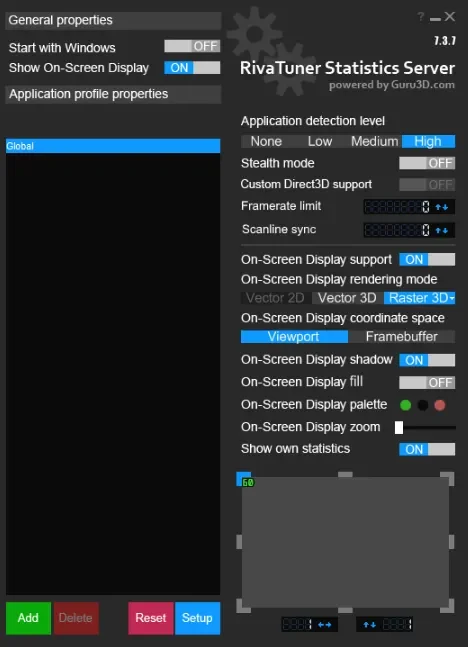
After installation, check the settings:
On-Screen Display zoom — set to the far left position
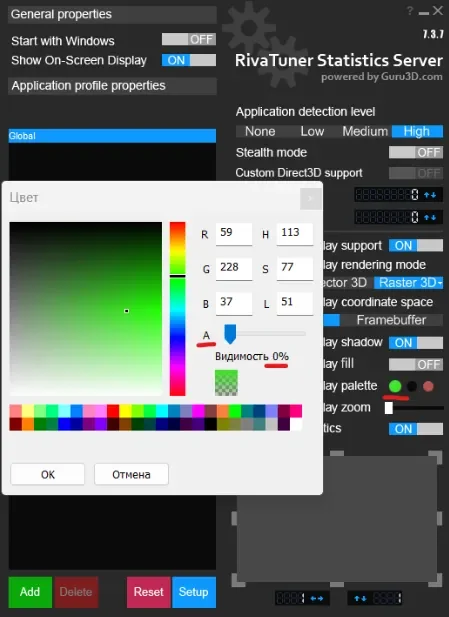
Framerate counter — set to the top left corner
In Display palette, the alpha channel is set to the far left position
You can customize fonts in Rivatuner settings (see screenshot in the original instructions).
2. Configure OBS
In the OBS window, perform the following settings:
Add Game Capture
Double-click on "Game Capture"
Select: Capture specific window
Select the Valorant process and click OK (the game must be running for the window to appear)
Wait for the game picture to appear in the OBS window
3. Launch Game and Inject
Set the game to Windowed mode (before cheat injection)
In the game's main menu, press F5 (once, without holding)
Sometimes the loader may ask you to change the screen mode in the game ("Change game window mode and press F5 again").
If this happens: change the screen mode in game settings to any mode different from yours (Fullscreen / Borderless / Windowed).
Click "Apply" and immediately after the screen mode changes, return it to your preferred mode (must be done before pressing F5 again).
After that, in the game's main menu, press F5 again.
4. Done!
At this point, the loader should notify you of successful software loading. The cheat menu should appear in the game itself.
Instead of the mouse wheel, the product interface is scrolled using the Page Up / Page Down keys on the keyboard.
After the loader menu closes and you see the watermark — immediately remove the USB drive from your PC!