⚙️ System Preparation (EN)
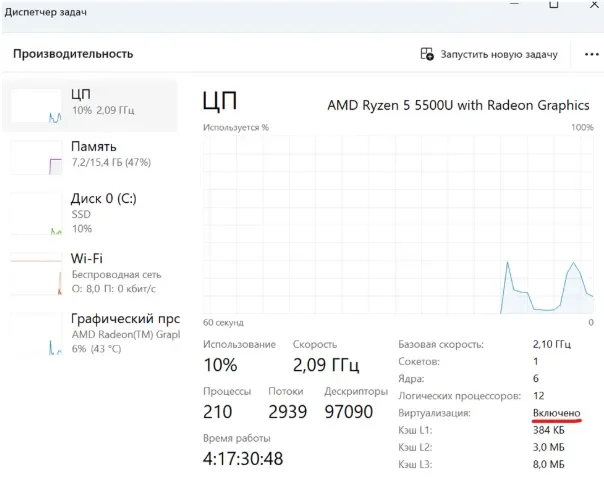
Virtualization must be enabled in the BIOS
Instructions for enabling it: https://youtu.be/LQIyowZMiY8
Check the virtualization status in Task Manager → Performance tab → CPU
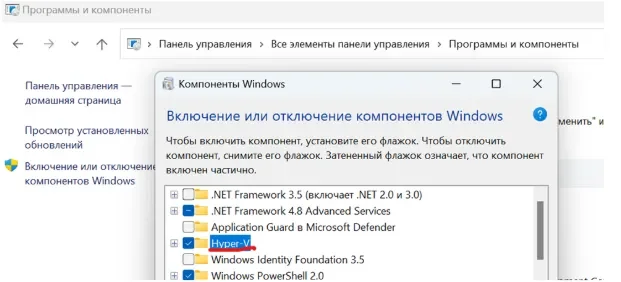
2. Enable the Hyper-V component in Control Panel
Restart your PC when the system asks you to do so
If this component is not available — download the BAT file and run it as administrator. After closing the script, restart your PC. The component should appear
Check the system drive format
The drive must use the GPT format
Instructions on how to check: https://remontka.pro/gpt-or-mbr-disk
If the drive uses the MBR format, you will need to reinstall Windows
The boot mode in BIOS must be UEFI
Secure Boot must be disabled in BIOS
At this stage, the system setup is complete.
The software must be launched from a removable drive (USB flash drive)
The loader must be completely removed from the Downloads folder and all other directories
After closing the loader menu, you must remove the USB flash drive from the PC
Otherwise, you risk receiving an EAC ban
🚀 Getting Started: Launching the Loader
Download the product loader using the provided link
Connect a removable drive (USB flash drive) to your PC and move the loader to the flash drive
Exit the Steam client from the system tray
Right-click the Steam icon in the system tray → "Exit Steam"
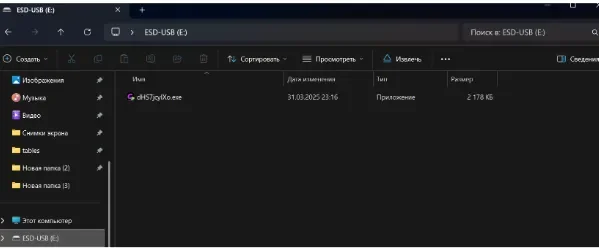
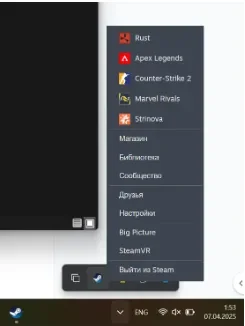
Launch the loader from the USB flash drive and wait for the loader menu to appear
Click the "Launch" button, then wait for the product to load
If you have completed all system preparation requirements, the loader will prompt you to restart the system
You must click "Yes"
The system will restart automatically
If you have not completed one of the requirements, the loader will notify you
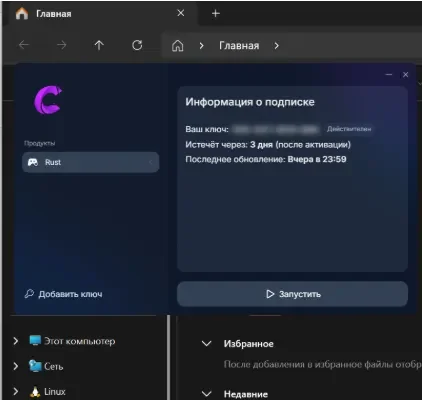
🔄 After System Restart
Download AnyDesk using the provided link
Open the installed AnyDesk application
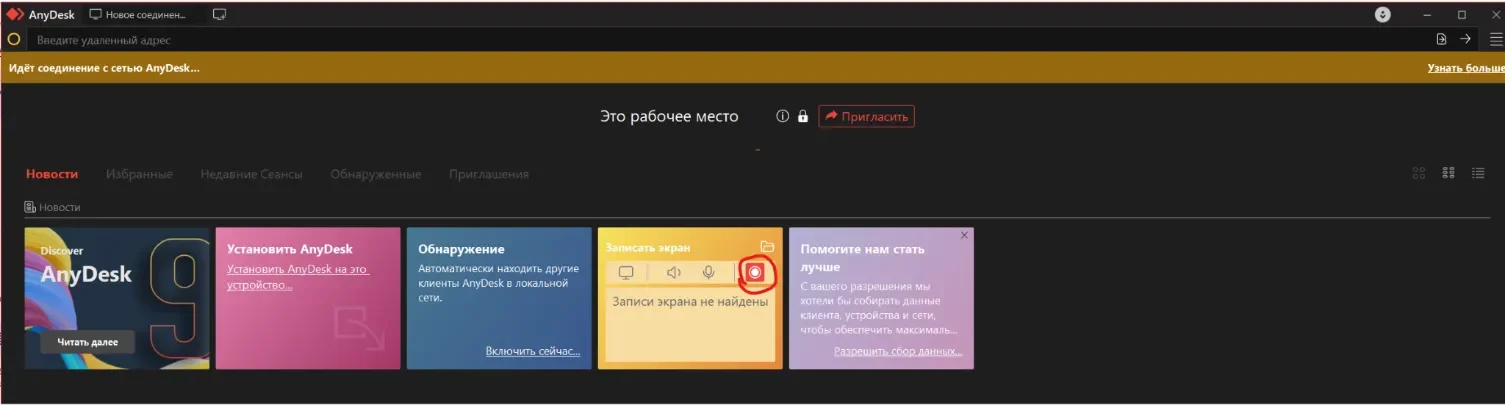
Click the red recording button (as shown in the screenshot in the instructions)

Stop the recording, then proceed to the next step
Launch the product loader, strictly following steps 1 and 2 of the instructions, and click "Launch" in the loader window
Wait for the loader menu to close
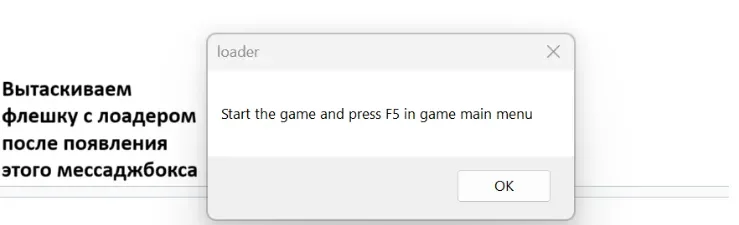
The loader should notify you that the loading was successful and display the following message:
"Start the game and press F5 in game main menu"Click "OK" in this message and follow the remaining instructions
Follow the messages displayed by the loader while the software is loading
If the loader displays an error, contact technical support
🎮 Launching the Game
Launch the game
In the game's main menu, press F5 until the product menu appears
The product is active and ready to use.