Before launching Covcheg ESP for the first time, you must fully prepare your system. Do not skip any steps and follow the instructions in the specified order.
If an error occurs at any stage or the product does not finish loading, contact the product's technical support via Discord or Telegram.
1. System Preparation
All requirements listed below must be completed before launching the product.
1.1. Enable Virtualization
Virtualization must be enabled in BIOS.
Instructions: https://youtu.be/LQIyowZMiY8
After enabling it, check the virtualization status in Windows Task Manager.
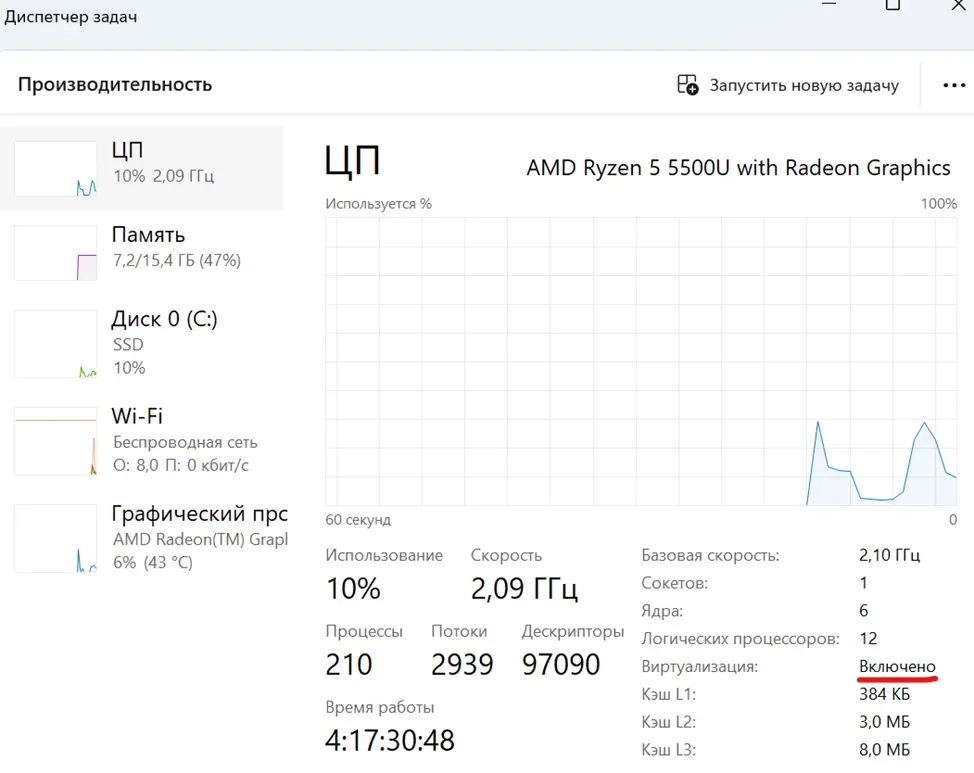
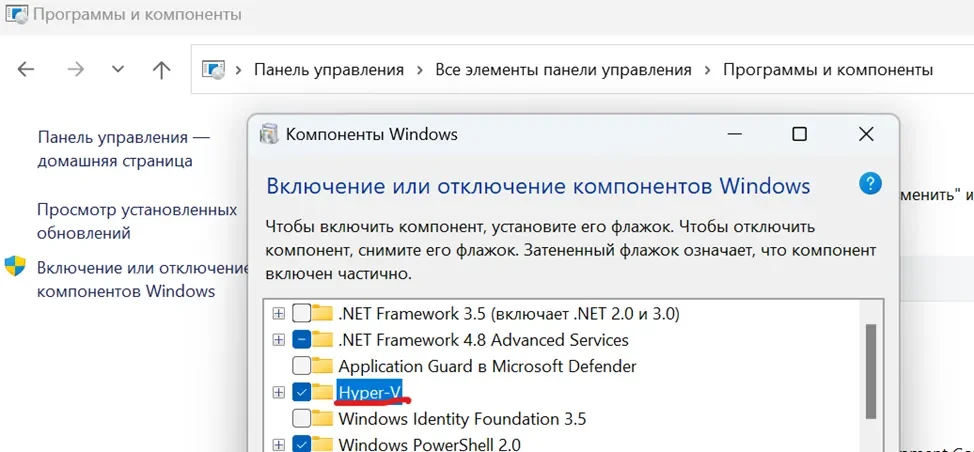
1.2. Enable Hyper-V
Open Windows Features through the Control Panel and enable Hyper-V.
After changing this setting, restart your computer when Windows asks you to do so.
1.3. Check the System Disk Format
The disk where Windows is installed must use the GPT partition style.
1.4. Check the BIOS Boot Mode
The system boot mode in BIOS must be set to UEFI.
1.5. Secure Boot
According to the product requirements, Secure Boot must be disabled.
After completing all of the steps above, system preparation is complete.
2. USB Drive and Loader Preparation
Covcheg ESP is launched from a removable USB drive.
The Loader must not remain in the Downloads folder or any other directory on your computer.
Step 1
Download the Covcheg ESP Loader.
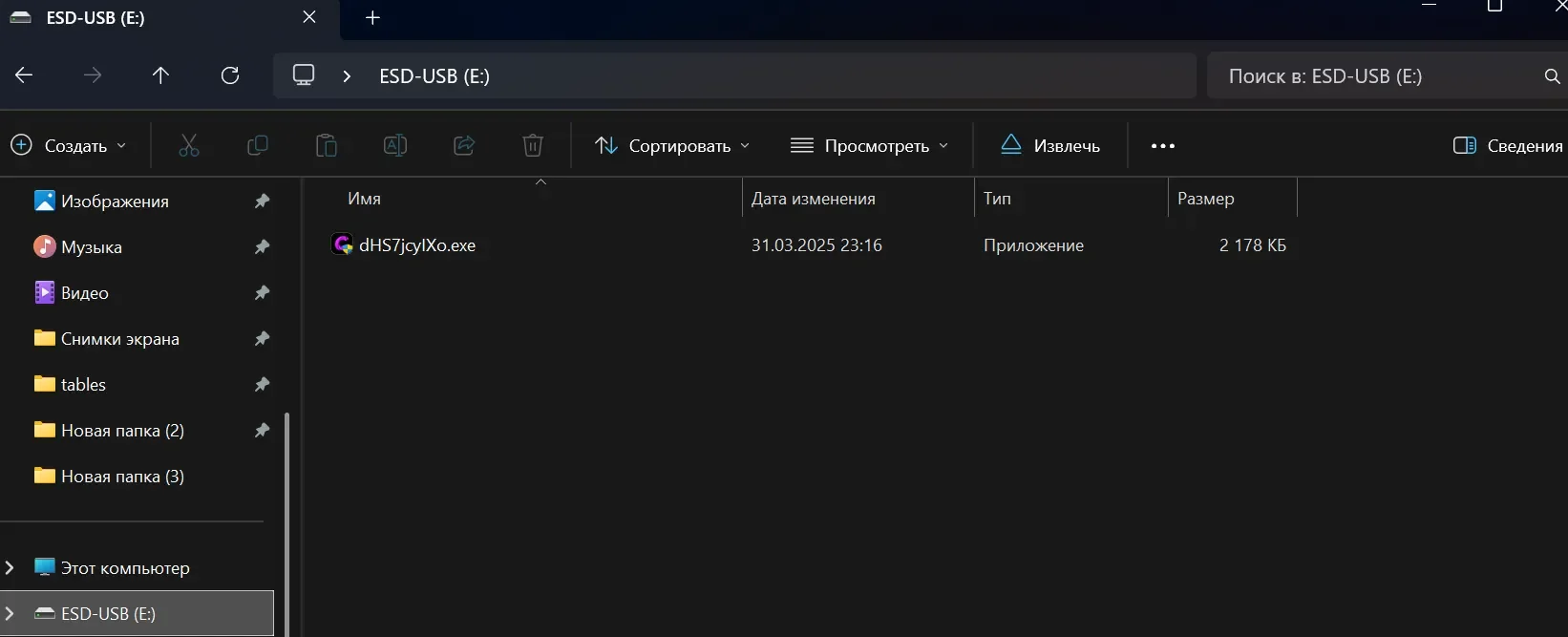
Connect a USB flash drive to your computer and move the Loader directly onto it.
Before launching, also close the Riot client from the system tray.
Step 2
Launch the Loader directly from the USB flash drive and wait for its menu to appear.
After the Loader finishes working and its menu closes, physically disconnect the USB flash drive from the computer.
When launching Delta Force, the USB flash drive containing the Loader must be disconnected.
These steps must be completed before every Loader launch.
Step 3
In the Loader, click Click to restart and wait for the product loading process to continue.
If the system has been prepared correctly, the Loader will prompt you to restart your computer. Click Yes — the system will restart automatically.
If any requirement has not been completed, the Loader should notify you.
3. After the System Restart
After restarting the system, you need to install the required version of OBS.
Even if OBS is already installed, according to the developer's instructions you must install the version provided through this link.
After installation, do not update OBS to another version.
Run OBS as administrator.
After that:
Connect the USB flash drive.
Launch the Loader from the USB drive as described earlier.
In the Loader window, click Run.
Wait for the Loader menu to close.
After successful loading, the following message should appear:
Start the game and press F5 in game main menu
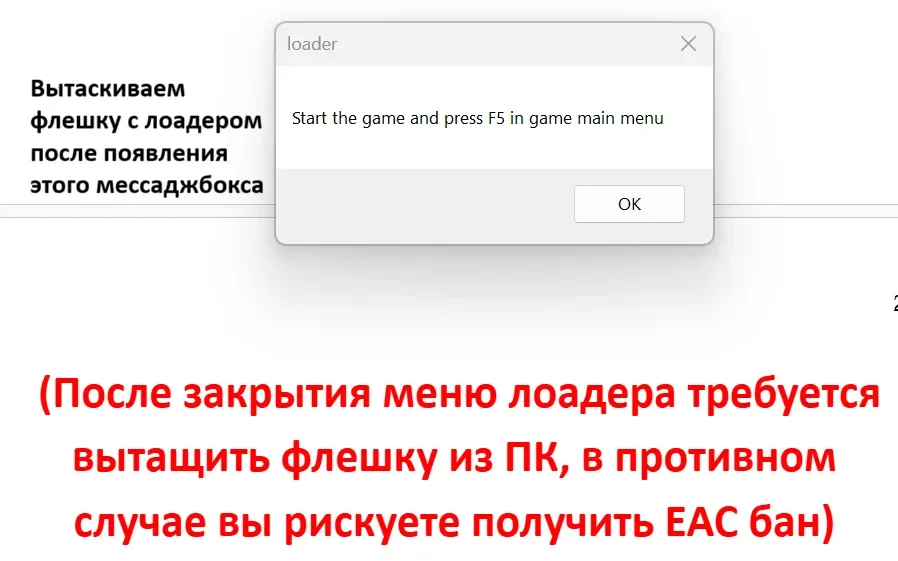
Click OK and proceed to the next step.
If the Loader displays an error, contact technical support.
4. RivaTuner Statistics Server Setup
Install RivaTuner Statistics Server.
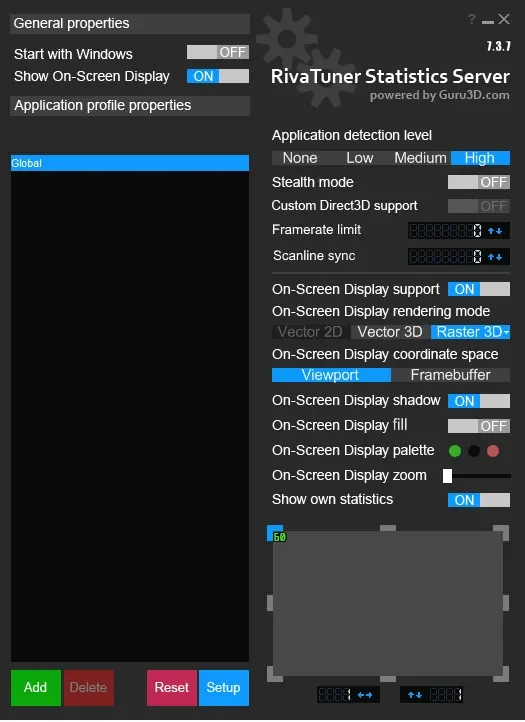
After installation, open the program and configure the settings according to the screenshots in this guide.
Main Settings
On-Screen Display zoom — set it to the far-left position.
Set the frame counter to the upper-left corner.
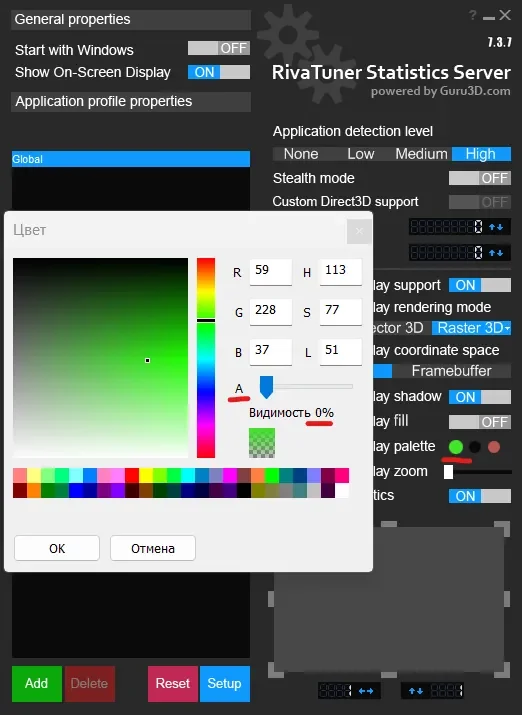
In the Display palette section, set the alpha channel to the far-left position.
After that, proceed to the OBS setup.
5. OBS Setup
Open OBS as administrator.
Adding Delta Force
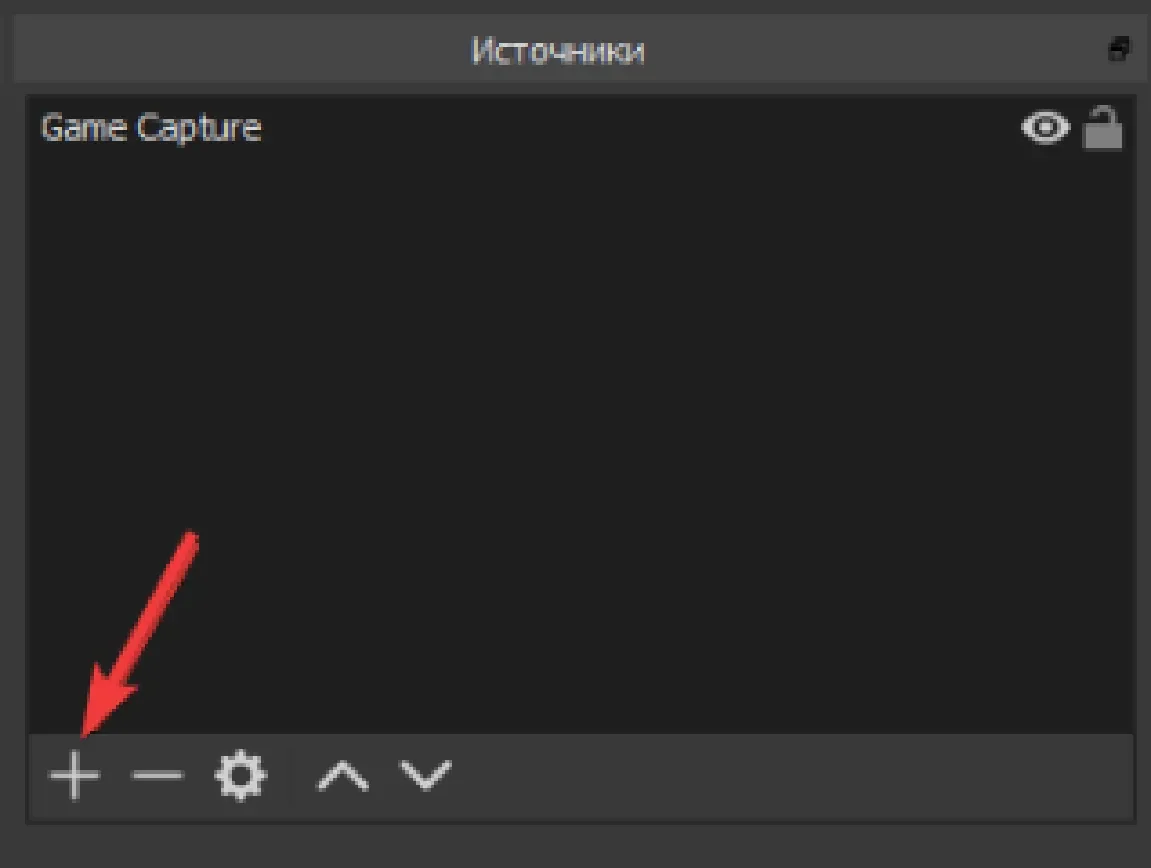
Add a Game Capture source.
Double-click the Game Capture source you created.
Select Capture specific window.
Select Delta Force from the process list.
Click OK.
Wait until the game image appears in the OBS window.
Delta Force must be running for its process to appear in the OBS process list.

6. Launching Covcheg ESP in Delta Force
Before proceeding, set Delta Force to Windowed mode.
Go to the game's main menu.
Press F5 once without holding the key.
Sometimes the Loader may display the following message:
Change game window mode and press F5 again
If this happens:
Open the Delta Force graphics settings.
Change the current display mode to any other mode:
Fullscreen;
Borderless;
Windowed.
Click Apply.
After changing the display mode, you can switch back to your preferred mode.
Return to the main menu.
Press F5 once again.
After the loading process completes successfully, the Loader should notify you and the Covcheg ESP menu should appear in the game.
If the menu does not appear, contact the product's technical support.
7. Menu Navigation
The Covcheg ESP interface is navigated using the keyboard:
Page Up — move up;
Page Down — move down.
The mouse wheel is not used to scroll through the interface.
8. Additional RivaTuner Setup
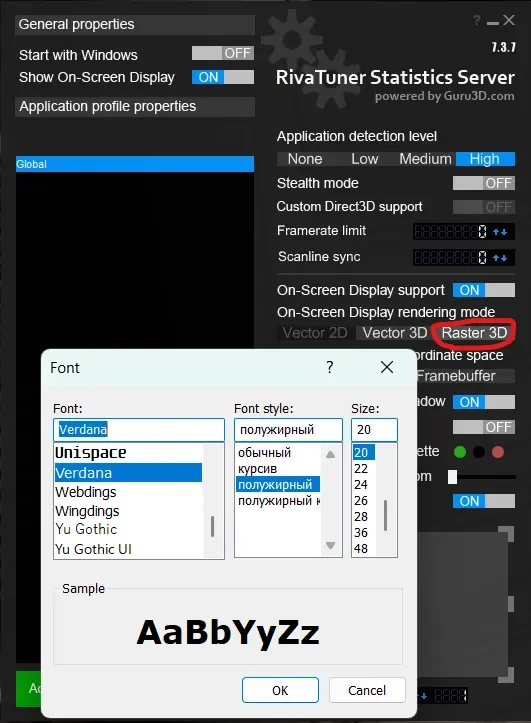
You can also customize the display fonts through the RivaTuner settings.
After completing all of the steps above, the Covcheg ESP setup and launch process is complete.
If you encounter an error at any stage, contact the product's technical support via Discord or Telegram.