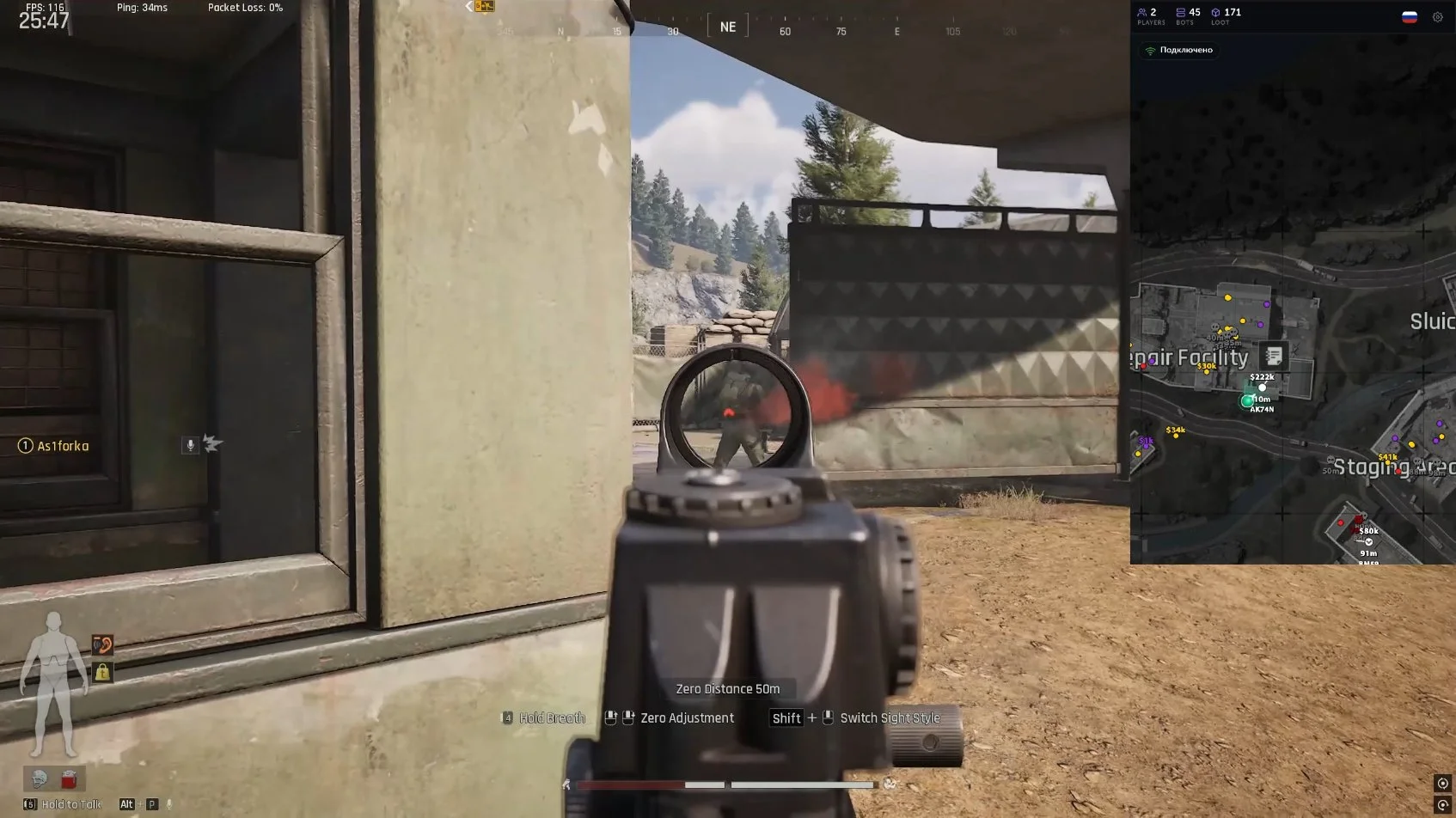
📋 System Preparation & Launch Guide
‼️ Important: Read this guide carefully before starting.
🛡️ 1. Uninstall Antivirus
Completely remove any installed antivirus software using Windows built-in tools or specialized uninstall utilities.
⚙️ 2. Turn Off Real-Time Protection
Go to: Settings → Update & Security → Windows Security → Virus & Threat Protection → Manage Settings → Real-Time Protection Switch it Off. 🔵 Do this manually through Windows settings.
🚫 3. Disable Reputation-Based Protection
Go to: Settings → Update & Security → Windows Security → App & Browser Control → Reputation-Based Protection Turn Off all options.
🚀 Next Steps
🛒 4. After Purchase
You will receive an activation key and this guide. Example key: ghostcheats-fhhgifhdfu56
🔗 5. Open the Activation Link
Visit: Download loader
📥 6. Download the Launcher
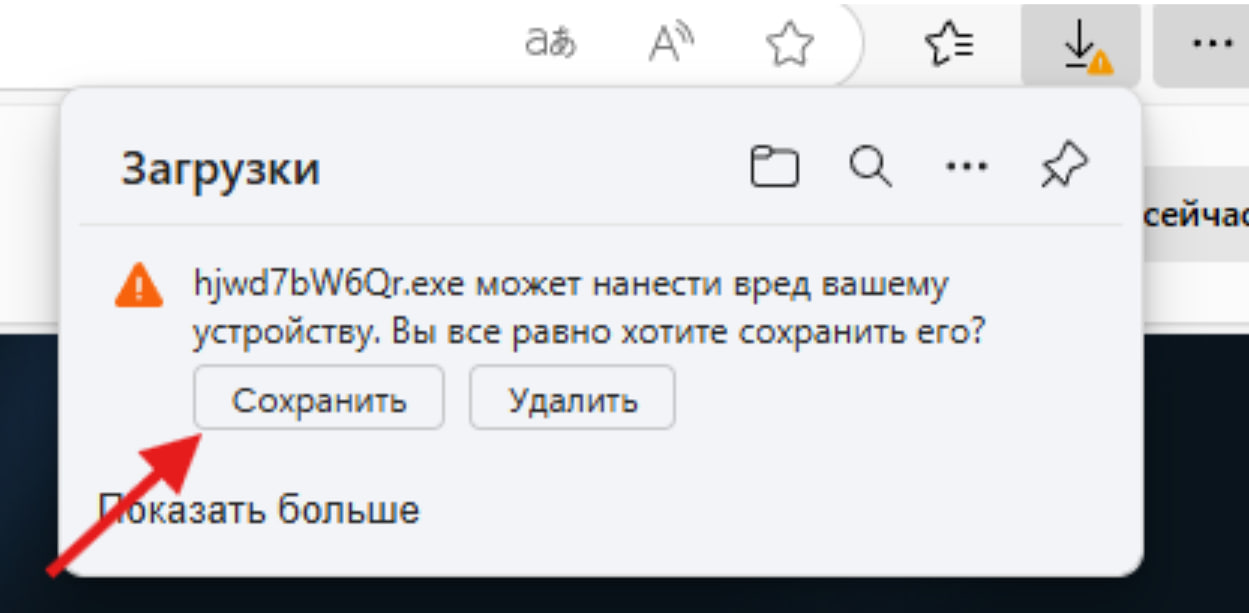
After activation, the launcher download will start automatically. If your browser blocks the download, disable browser protection or try a different browser.
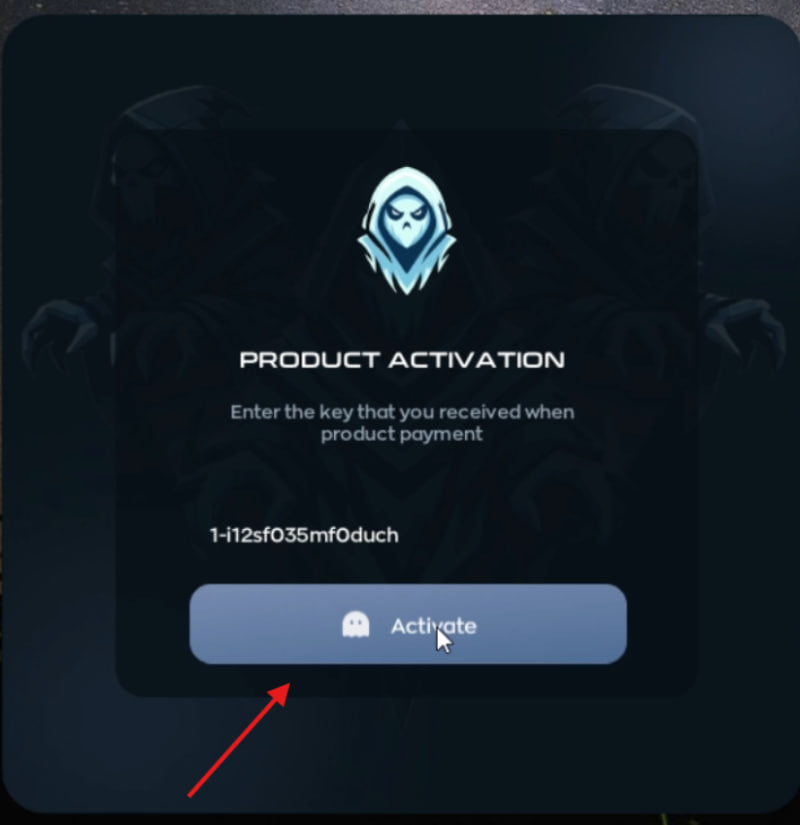
🔑 7. Activate in the Launcher
Open the downloaded loader. Paste your key and click Activate.
🖥️ 8. Run the Cheat
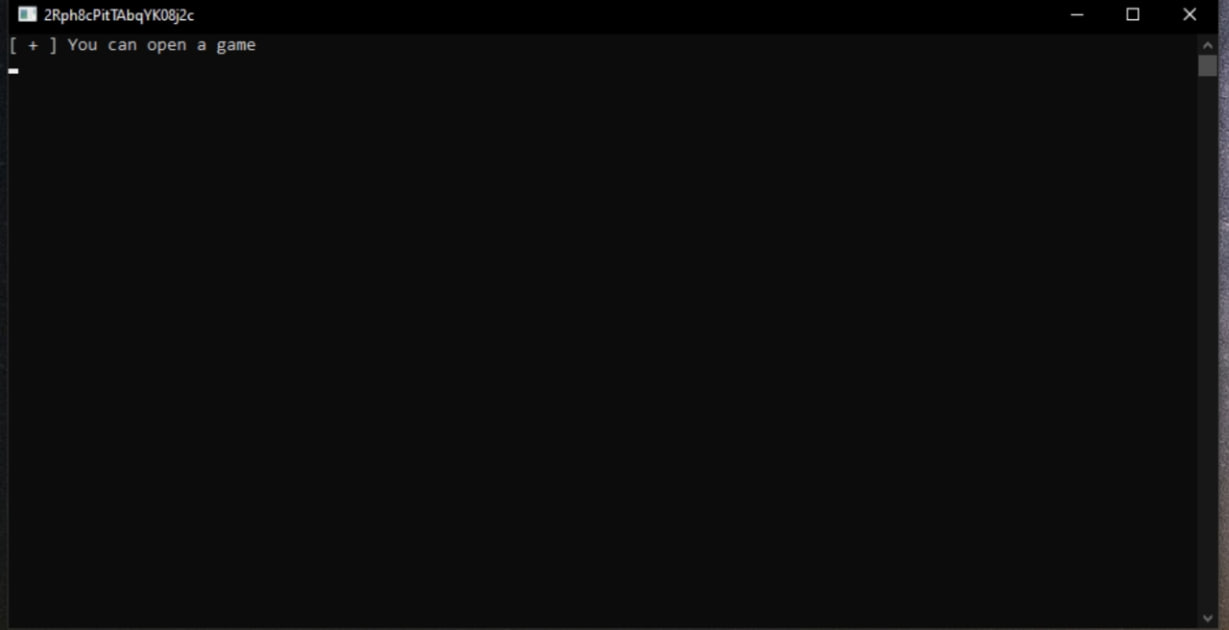
A small black CMD window will appear asking you to start the game. Launch the game — the cheat will inject automatically. 🔥 Important: During injection, do not touch the keyboard or mouse. Just wait.
🕹️ 9. Open the Cheat Menu
This product DOES NOT HAVE A MENU.
All functions are enabled by pressing hot keys:
— Thermal Vision ( F1 )
— Recoil Control (F2, recoil adjustment +/-)
— Fast Search ( F3 )
— Fast Magazine ( F4 )
— No Visor ( F5 )
🛠️ Troubleshooting
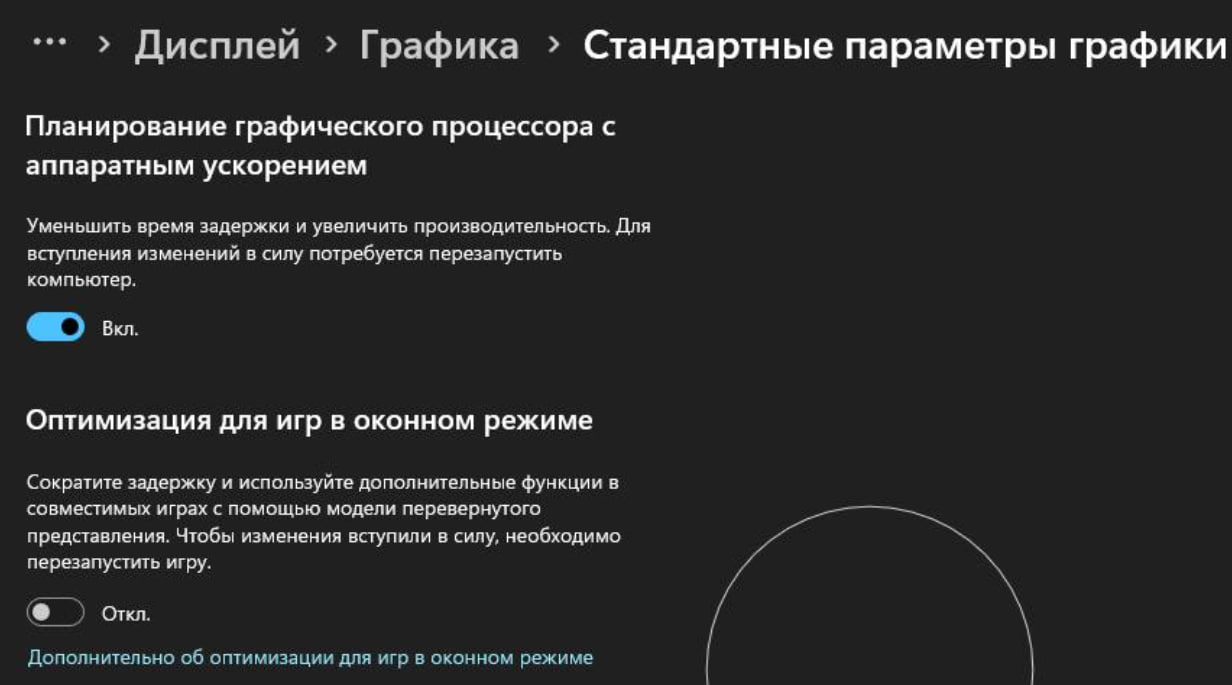
- Black screen when starting the product Open Windows Settings (Win + I) → System → Display → Graphics Settings. Find Optimizations for windowed games and disable it. ✅ This should fix the black screen issue.
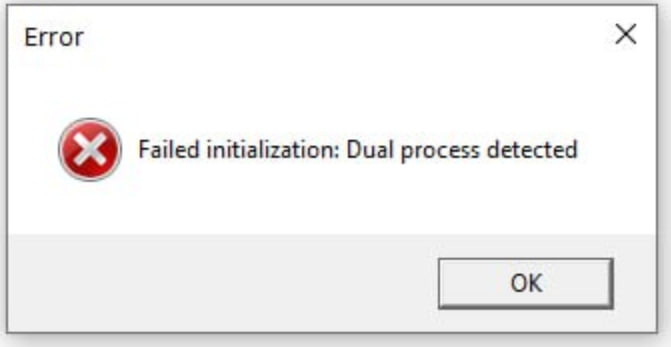
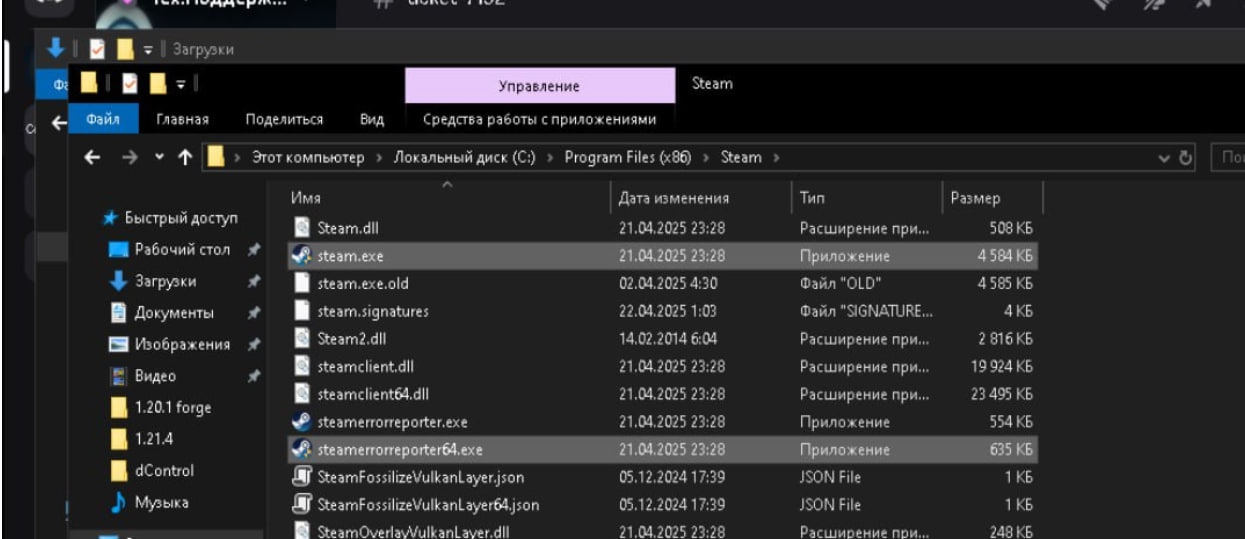
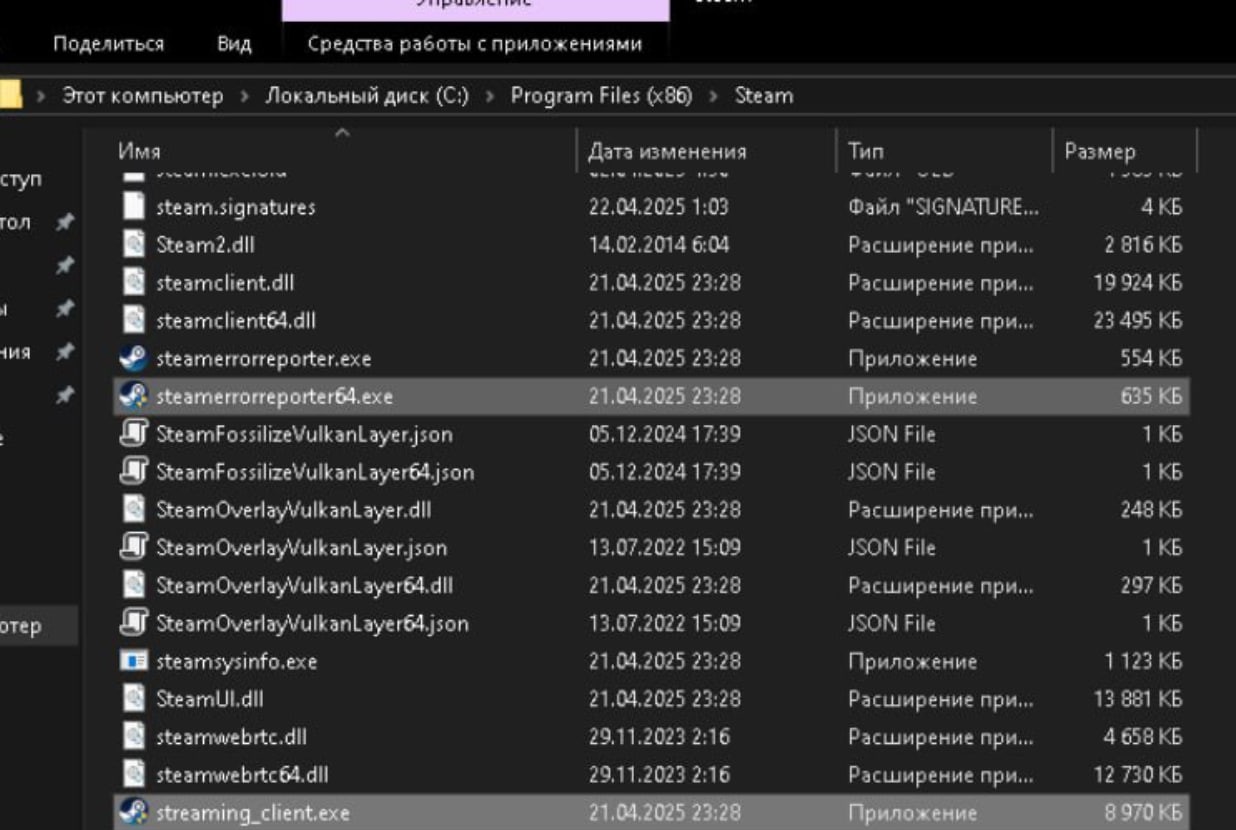
- Error “Delta Force: Dual Process detected” Set the required files to run as Administrator.
- Low FPS or game crashes Disable all overlays: Nvidia, Discord, Steam, MSI, etc.
- ESP lagging Lower the game’s frame rate.
- ESP drawing incorrectly Right-click the desktop → Display Settings or use Win + I → System → Display. Under Scale and Layout, set Scaling to 100%.