 Discord
 Telegram
Verified buyers only
Only a confirmed buyer can leave a review

 Rob Run
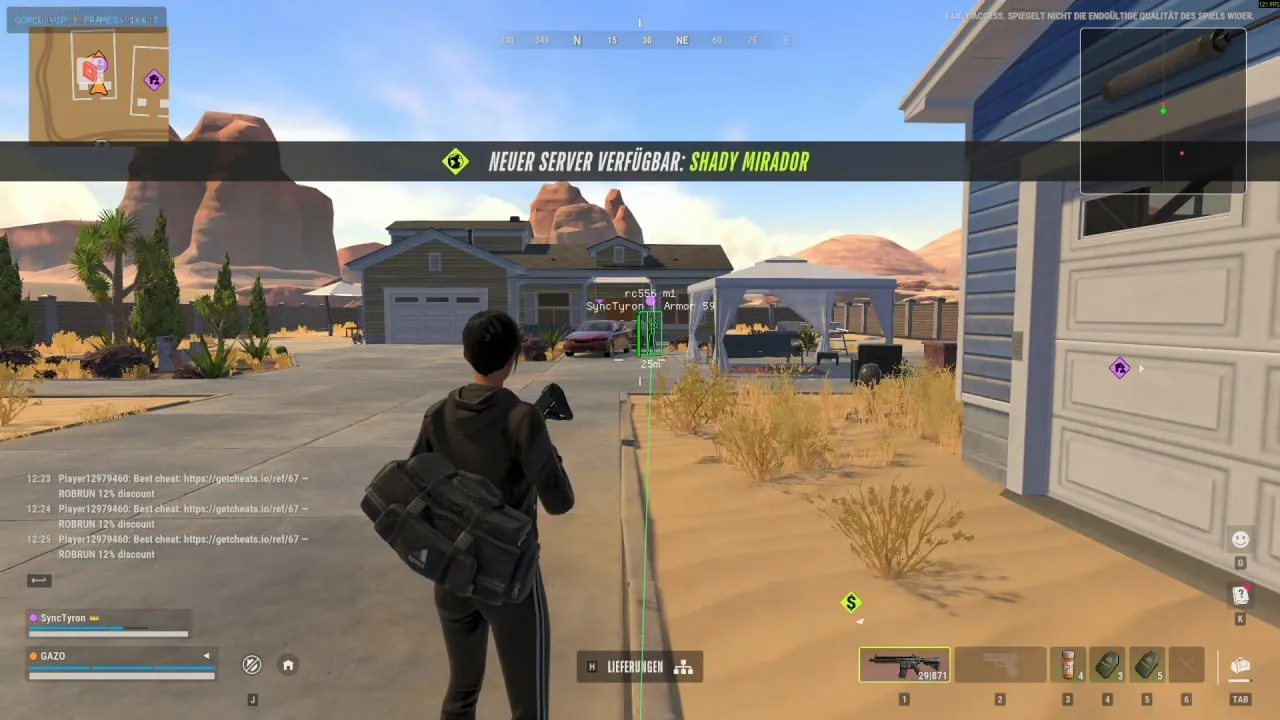
Pure DMA for Rob Run combines player and loot ESP, detailed base information, hardware aiming and three radar views. Role colours separate players, while rarity and value filters narrow the loot display. A PCIe DMA card and a second computer are required; aiming uses a separate supported input device.
Pure DMA for Rob Run adds ESP and radar to a PCIe DMA setup with a second PC. The software does not include the card. Hardware Aimbot also needs a supported Kmbox, Macku or Ferrum input device, purchased separately. The listed operating systems are Windows 10 / Windows 11, 64-bit.
Choose the display around how you use the setup: Base ESP keeps base details in the world view, Big Radar provides a separate window on a selected monitor, and Web Radar presents the map in a browser. A transparent overlay is available too. Check that your hardware covers both memory access and aiming input before choosing the software.
Purchase the product to leave a review
Review integrity
Only a confirmed buyer can leave a review
A moderator checks every review before it goes live
Reviews can’t be ordered or deleted
The author can edit it at any time
Share your impressions after the purchase — it helps other players choose.
Frequently Asked Questions
Select a question from the list on the right to see the answer
Pure DMA for Rob Run combines base inspection, radar views and hardware aiming. PureDMA separates the information you display from the rules used to select an aim target, so each part can be adjusted for a different task.
Base ESP starts with world markers for the owner, clan and distance. Its Focus Card can appear when you look at a base, hover over it or keep it on screen. If a permanent card crowds the view, use the look trigger and adjust its radius. Detail range and marker height have their own controls, letting you inspect a nearby base without enlarging every distant label.
The details cover fuses, open doors, buildings, production and storage. Ownership filters separate Your Base, Your Clan and Everyone Else; Raidable and Has Loot narrow the selection by state instead. The Bases panel sorts by proximity or threat. Keep Last Seen retains a previous observation, so treat that retained information as something seen earlier rather than a promise of a fresh reading.
Mini Radar keeps a compact view near the action. If you need a larger view, Big Radar opens the full map in a separate window and lets you choose its monitor. For browser viewing, Web Radar creates a live room with a shareable link. Automatic scene switching changes the gameplay map as the scene changes, reducing the need to select each area manually.
You can follow the player publishing the data or pick another player from a searchable list. Saved friends and friend colours distinguish familiar names from the rest of the map. If labels become crowded, narrow the visible categories or their ranges before changing the map zoom. Browser settings persist, while connection status and viewer count show the room's current state. This is a display option within the DMA setup, not a replacement for its hardware.
Visibility checks serve different purposes in ESP and Hardware Aimbot: ESP can colour visible and hidden targets differently, while aiming can filter by visibility. Per-bone checks matter when only part of a player is exposed, because visibility can be considered for a selected body area. Foliage Blocks Sight separately controls whether foliage obstructs the visibility check.
Visibility Worlds supplies area data for ESP, Aimbot and the native radars. Gameplay Maps supplies map images shared by Mini Radar and Big Radar. A displayed map therefore should not be treated as confirmation that visibility worlds are installed. Use the installed-world check if you are configuring VisCheck for a new area; retries and offline world installation are available in that section.
Connection handles the input device before aim settings come into play. Its connection status and Movement Test let you check movement before adjusting FOV or smoothing. Supported Kmbox, Macku and Ferrum models provide the input path; the DMA card alone does not replace them. The requirements and FAQ list the supported devices.
Target priority can follow the crosshair, distance or lowest health. Multiple selected hitboxes work alongside per-bone visibility filtering, and Ignore Teammates excludes teammates. Use Sticky Aim and the retarget delay when you want to retain a selected target rather than change it immediately. Separate X/Y smoothing and adjustable prediction tune the aiming movement independently of which ESP labels are drawn.
Compare other hardware builds in the Rob Run DMA catalogue.