 Discord
 Telegram
Verified buyers only
Only a confirmed buyer can leave a review
.png) Sea Of Thieves
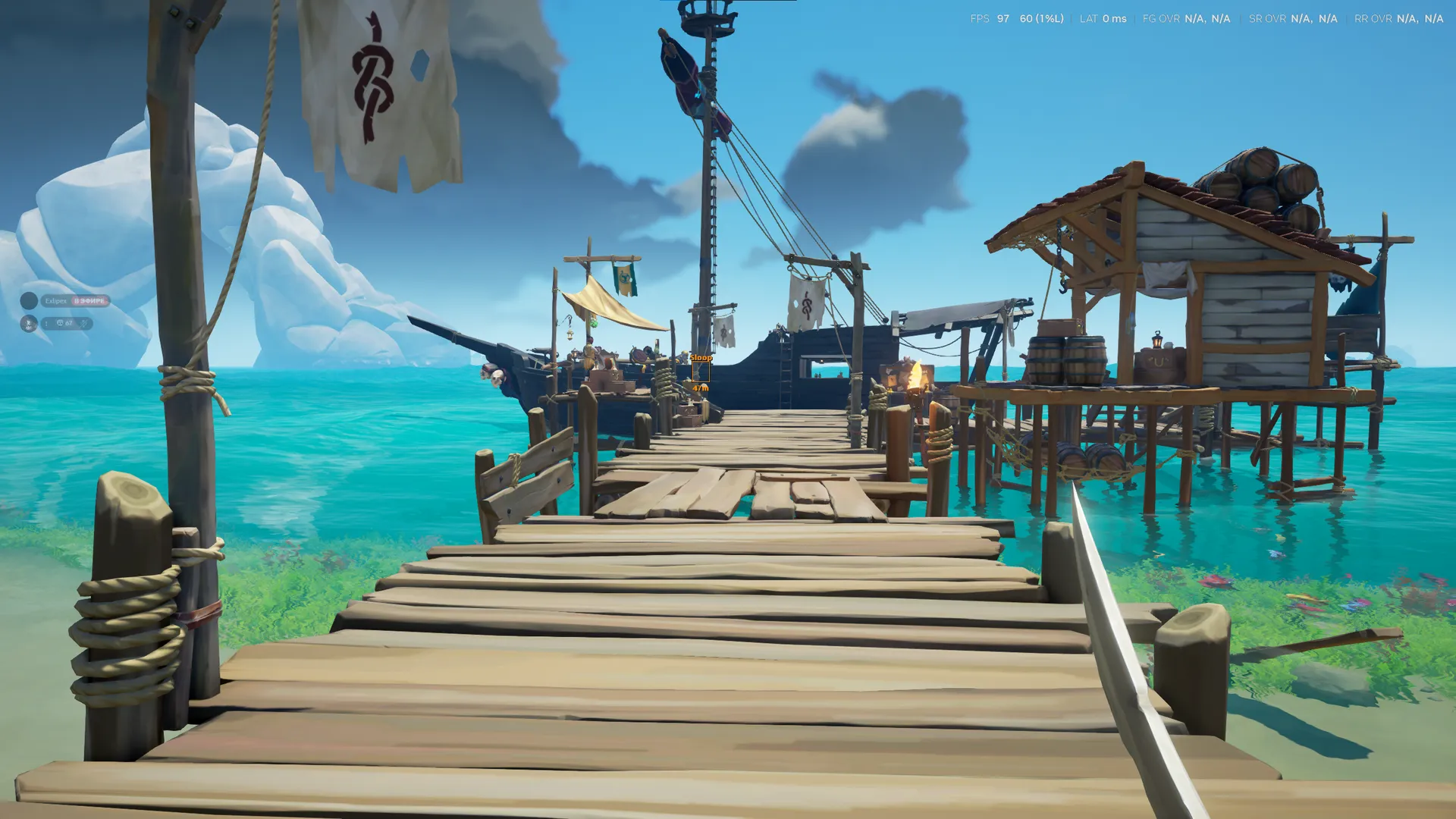
Focus for Sea of Thieves marks players and ships with distance labels. Player boxes, names and snaplines have separate controls, while distinct colours keep ship markers recognisable. Profiles store your preferred layout.
Focus for Sea of Thieves provides player and ship ESP for the Xbox client on Windows. This is a marker-focused build: the supplied feature list does not include aimbot or cannon aiming assistance. Rowboats are explicitly excluded from ship ESP.
Check the PC configuration as well as the client. The requirements specify Windows 10 22H2 or Windows 11 25H2, x64, UEFI boot and a GPT disk. Intel and AMD processors are supported, with any graphics card listed. Steam compatibility is not stated for this build.
Player ESP separates boxes, names, distances and snaplines. Ship markers use their own colour, making the two object groups easier to distinguish. Saved profiles let you return to a chosen arrangement after trying a different set of labels.
Purchase the product to leave a review
Review integrity
Only a confirmed buyer can leave a review
A moderator checks every review before it goes live
Reviews can’t be ordered or deleted
The author can edit it at any time
Share your impressions after the purchase — it helps other players choose.
Frequently Asked Questions
Select a question from the list on the right to see the answer
Focus for Sea of Thieves keeps player markers separate from ship markers. The distinction matters when reading a busy scene: a nearby character and a vessel on the water need different labels, rather than a single colour applied to every object.
Player boxes show where a character is, names identify the marker and distance labels provide a measure of separation. Each element can be switched independently. A box and a distance may be enough when you want a compact view; adding names gives more context without requiring snaplines at the same time.
Snaplines connect to each player and are off by default. Their value depends on how much visual guidance you want across the scene. If lines begin to crowd the view, turning them off leaves boxes and text available. This is a choice about the presentation of player ESP, not a change to the ship section or its settings.
The ship section has a marker toggle and a separate distance option. Its dedicated colour helps distinguish vessels from characters when both categories are visible. The gameplay image demonstrates a ship label with distance, while the menu images show the controls used to configure that information.
Rowboats are explicitly outside the scope of ship ESP. Changing marker colours or enabling distance does not add them, because those controls affect appearance rather than the supported object set. The supplied functions also contain no loot search or cannon aiming section. Choose this build for its stated visual markers instead of assuming those additional tools are bundled with them.
Home is the default menu key and can be reassigned. Menu scale changes the settings interface rather than the range at which ships or players appear. Reducing it can make the control window less intrusive while you adjust the overlay. A menu reset is available if an experiment with its appearance is no longer useful.
Preset themes and a custom accent style the menu itself. Player and ship ESP colours remain separate choices. Profiles support saving, loading and deletion, so a restrained arrangement without snaplines can be kept alongside a more detailed view. Selecting an existing profile restores that preferred combination; automatic switching based on the situation is not listed as a feature.
The Xbox requirement belongs to a Windows PC configuration. The same requirements list Intel or AMD, x64 architecture, UEFI and GPT; they do not establish support for an Xbox console. They also do not establish Steam compatibility. Matching the game title alone is therefore insufficient when selecting this particular build.
Check the exact Windows version in the requirements rather than treating every release as interchangeable. If you need another client or a different feature set, compare the entries in the Sea of Thieves catalogue. For Focus, the useful sequence is client compatibility first, then the markers you need, and finally the colours and profiles that make those markers comfortable to read.