✨ INSTRUCTIONS | Classify Vision
Please read the manual carefully - skipping steps may lead to errors in the program ⚠️
1️⃣ Preparing the system
🔧 For the product to work correctly, you must perform the following steps:
1️⃣ 📛 Disable Windows Defender, disable kernel isolation, list of blocked vulnerable drivers / delete faceit anticheat, vanguard anticheat. remove third-party antiviruses, such as Kaspersky, 360 total security and others.
2️⃣ 📦 Install Visual C++ и Runtimes
3️⃣ 🌀 Install DirectX
4️⃣ 🔐 Disable Secure Boot in the BIOS - this is critical for correct startup.
IMPORTANT!
5️⃣ 🚀 Download and unzip the DLLs from this link (clickable) and move them along the path: C -> Windows -> System32
🚀 2. Installing and launching the loader
1️⃣ 🌐 Download the loader from the link: https://classify.orion-security.pro/launcher
2️⃣ Download Virtual Pet (click me) and unzip the folder to your desktop.
3️⃣ 🔑 Copy the purchased key.
4️⃣ 💾 Transfer the loader to a flash drive.
5️⃣ ⚙️ Run it from the flash drive as administrator.
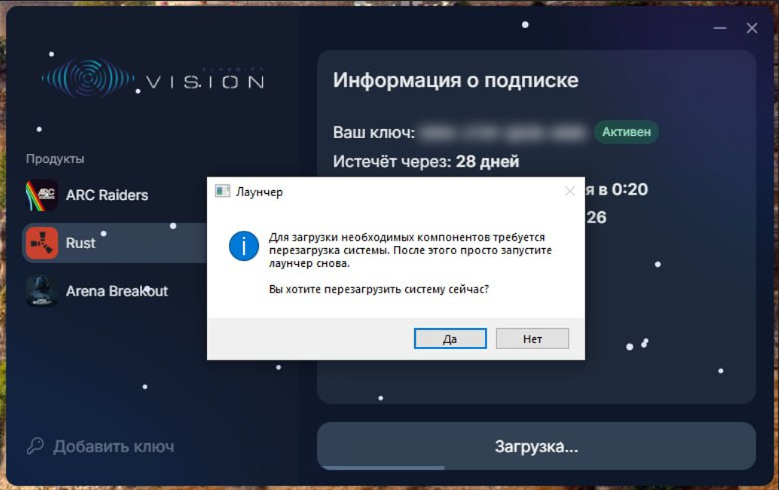
6️⃣ 🔁 After launching the loader, a window will appear asking you to reboot. Click “Yes” and wait until the computer reboots.
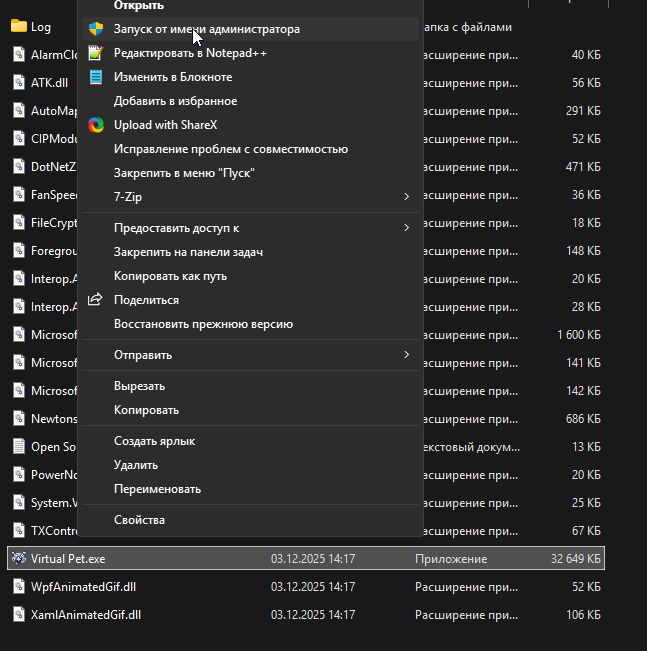
7️⃣ 🖥️ After reboot, launch Virtual Pet as administrator.
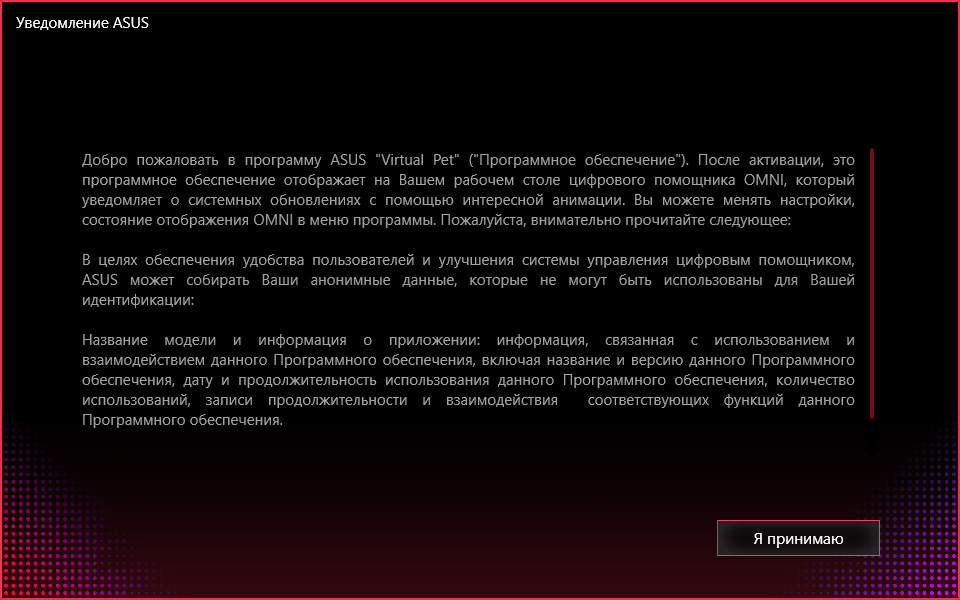
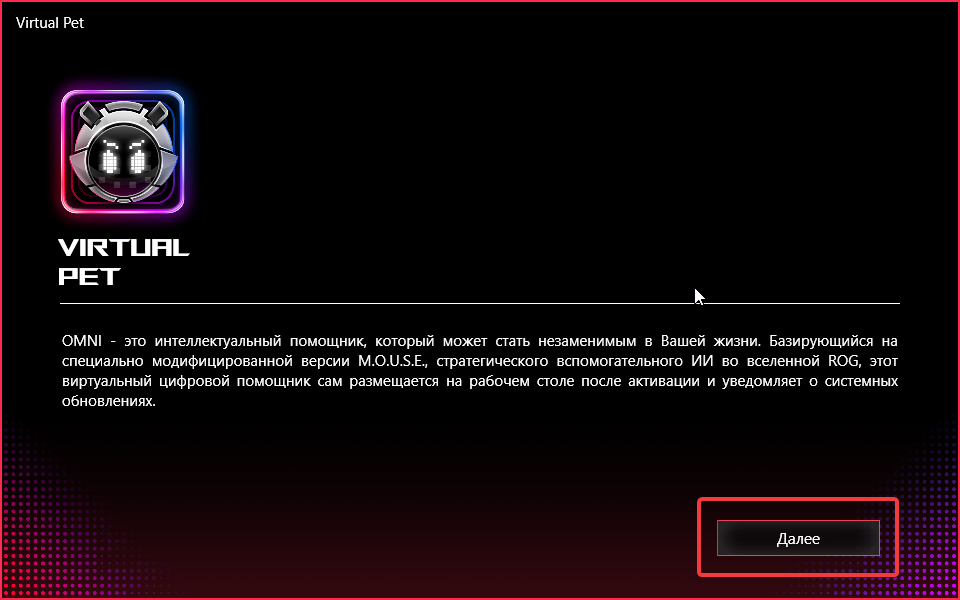
8️⃣ ✔️ After launching Virtual Pet, an agreement window will appear. Click “I accept.” Then click “Next”.
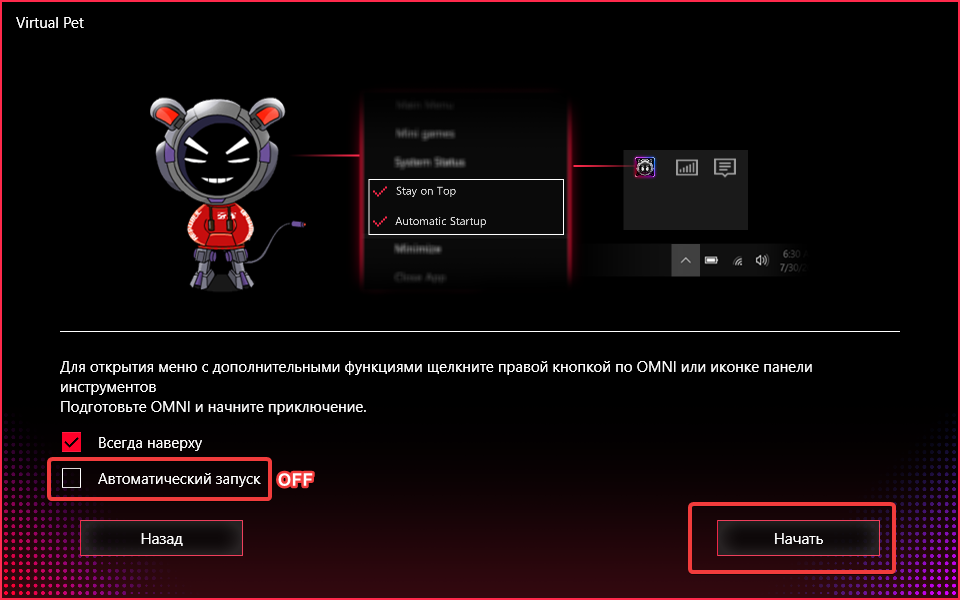
9️⃣ 🔧 Disable the “Automatic start” checkbox and make sure that the “Always on top” checkbox is checked. After that, click “Start”.
🔟 📋 Open the tray, right-click on the Virtual Pet icon and select “Settings”. In the window that opens, scroll down, find “Disable “Stay on top in full screen mode”” and uncheck the box (as shown in the screenshots below)
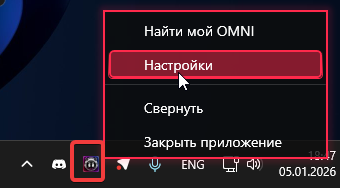
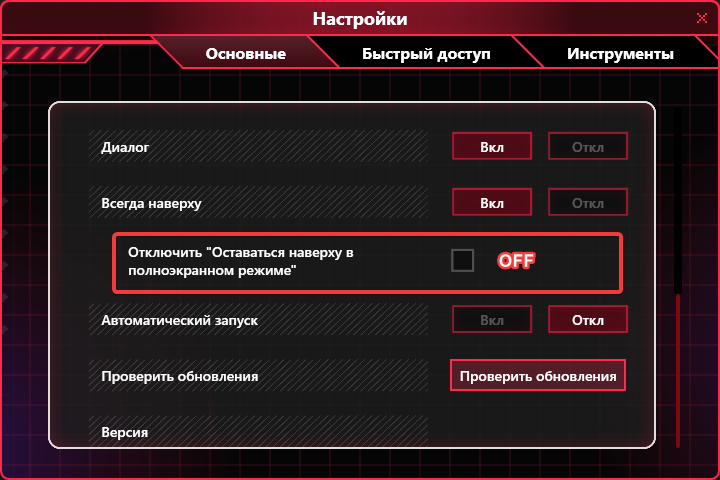
IMPORTANT!
Every time you start Virtual Pet in the settings, you need to uncheck the "Stay at the top in full screen mode" checkbox each time.
Доп. информация
1️⃣1️⃣ 🎯 If ESP is no longer displayed when minimizing the game: open the tray (without minimizing the game), double-click on the Virtual Pet icon and return to the game
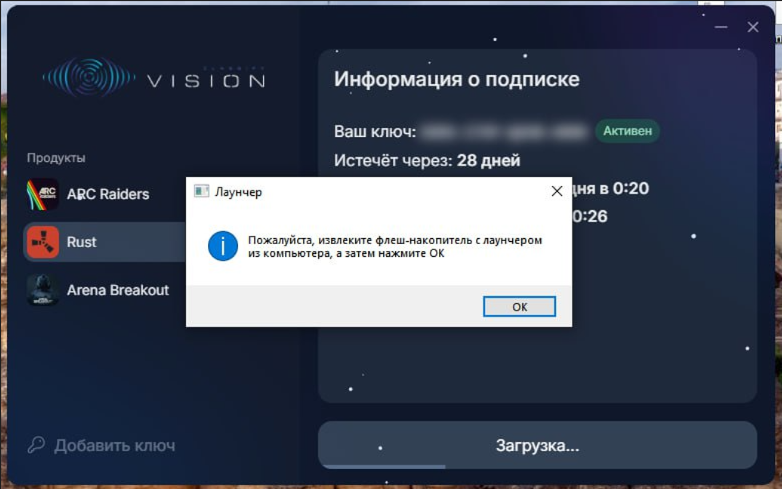
1️⃣2️⃣ 📂 When you click start, launch the loader from the flash drive again. A window will appear asking you to remove the flash drive. Remove the flash drive, THEN click "OK"
If the game is: RUST, follow the instructions below. (If you have a different game, go to step 15)
1️⃣3️⃣ ⏳ We wait a little - the “Loading texture...” window will appear. As soon as it appears, click OK.
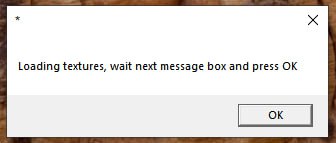
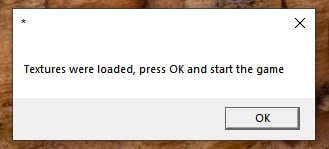
1️⃣4️⃣ 🟩 The message “Textures were loaded” will appear next. Click OK.
1️⃣5️⃣ 🎮 After this you can start the game. Wait for the menu to load (about 1-2 minutes)