🎯 ARCANE Instructions (ARC Raiders, Apex Legends, Rust and etc) — EN
Please note that using software always carries risks!
You purchase the software at your own risk.
Undetected status does not guarantee 100% protection from bans (with any software in any game, a ban is possible).
If a game update is released — wait for the software update.
📋 Requirements Before Key Activation
Install this: Visual C++ Redistributable
Read the instructions carefully
Restart your computer before launching the software (mandatory)
🚫 DISABLE or REMOVE — MANDATORY
❌ Remove antivirus
❌ Disable SmartScreen
❌ Disable Windows Defender
❌ Remove FaceIt and Vanguard
🎮 Preparation for Product Activation
Download Discord from the official website: https://discord.com/
Log into your account or create a new one
Enable the option "Enable in-game overlay" and disable "Enable legacy overlay"
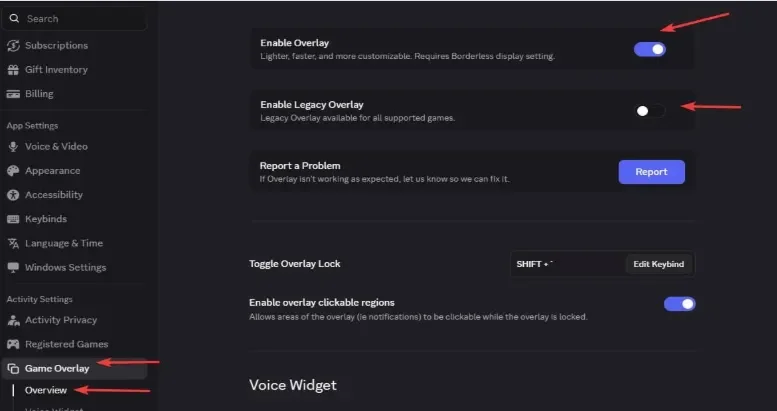
Enable the option "Enable hardware acceleration"
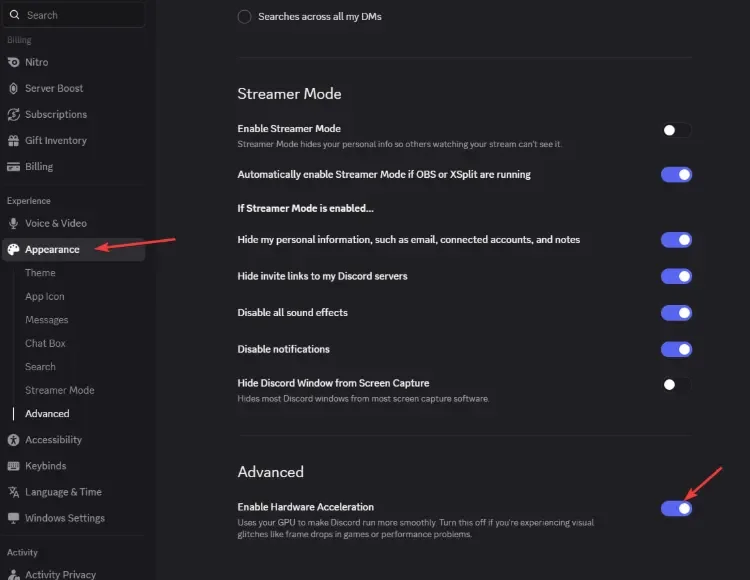
Make sure you haven't disabled the overlay for the specific game
🚀 Launch Instructions
Download the loader from one of the links below and place it anywhere (preferably create a separate folder for it):
Run the software file as Administrator
Wait for the loader to update and launch the new file
Enter your key and press "Enter"
The loader will automatically close after successful loading
Launch the game
Please do not switch to another window until the menu appears
The menu will appear automatically within 1–2 minutes
Open / Close the menu with the "Home" or "Insert" key
🔧 Errors & Solutions
Error: "Please make sure PIN is not set in Windows sign-in options and manually disable Hyper-V"
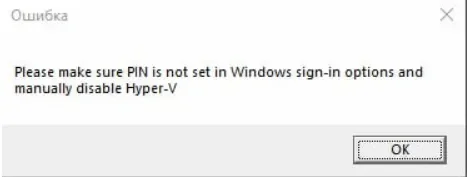
You need to completely disable the password when logging into Windows. You can use this guide: How to remove password on Windows 11 login
Then you need to temporarily disable CPU virtualization in BIOS
Run PowerShell as Administrator and enter the commands (you can copy and paste all at once):
takeown /F "C:\Windows\System32\hvix64.exe"
icacls "C:\Windows\System32\hvix64.exe" /grant *$(([System.Security.Principal.WindowsIdentity]::GetCurrent()).User.Value):F
takeown /F "C:\Windows\System32\hvax64.exe"
icacls "C:\Windows\System32\hvax64.exe" /grant *$(([System.Security.Principal.WindowsIdentity]::GetCurrent()).User.Value):F
del "C:\Windows\System32\hvix64.exe"
del "C:\Windows\System32\hvax64.exe"Enable CPU virtualization back
Error: "Failed to map memory"
If you have less than 12 GB of RAM, contact your seller for a refund
Disable all startup programs and restart your PC
If the problem persists:
Download AutoRuns: Download Autoruns
Disable all programs listed at this path: CurrentVersion\Run
Loader closed without errors
Install: Visual C++ Redistributable
Menu is in game, but you cannot interact with it
Run the overlay as Administrator following the instructions above
Error "Make sure all antiviruses are disabled" — Windows 10
Remove all third-party antivirus software
Disable real-time protection
Disable SmartScreen
Error "Make sure all antiviruses are disabled" — Windows 11
Download both files: Download files
Run Turn_ON, confirm registry changes, restart PC
Then run Turn_OFF, confirm registry changes, restart PC
If this doesn't help, verify you removed antivirus and disabled real-time protection
Other errors caused by the loader
Send a screenshot of the error to support on the website (bottom right corner), download AnyDesk and also send it to the support chat
You see the menu, but it's not clickable
Launch Steam NOT as Administrator
Disable all third-party overlays (keep only Nvidia or AMD depending on your GPU)
Menu disappears in game or menu exists but visual functions don't work
If there was a game patch, wait for the product update
Verify game file integrity, but a full reinstall is recommended
If none of the solutions helped, contact support chat
Menu in game is not clickable / doesn't open on first try
Launch Steam WITHOUT admin rights (if you play via Steam)
Disable EA App overlay in application settings (if you play via EA App)
AES instruction set is not supported
This error means your CPU doesn't support the AES instruction set, so it cannot be fixed. Contact us for a refund.
Please enable Intel VT-X in the BIOS
To fix this error, enter BIOS and find the function named "Intel virtualization technology" or "Intel VT-X" and enable it.
Please enable AMD-V in BIOS
To fix this error, enter BIOS and find the function named "AMD-V" or "SVM mode" and enable it.
Please disable secure boot in the BIOS
To fix this error, enter BIOS and disable the Secure Boot function.
Unsupported firmware
To fix this error, convert your OS drive to GPT format using the built-in Windows tool mbr2gpt or any other disk management utility of your choice.
Secure boot keys are incorrect and need to be enrolled
Enter BIOS and enable Secure Boot
Save settings
Verify it's enabled correctly by opening PowerShell and typing Confirm-SecureBootUEFI
If the result is "True", you can reboot your computer
Then enter BIOS and disable Secure Boot
VMX/SVM is not supported
Go to "Control Panel" → "Programs and Features" → "Turn Windows features on or off"
Make sure "Virtual Machine Platform" and "Hyper-V" are disabled
If the error persists, open cmd as administrator and enter the following command without quotes:
bcdedit /set hypervisorlaunchtype off
Press Enter and reboot your computer
Incorrect hwid
Open cmd as administrator
Enter the following commands one by one:
wmic diskdrive get Caption, SerialNumber
wmic baseboard get SerialNumber
If neither command returns an error, something is wrong with your PC — try reinstalling Windows and checking if the problem disappears
If you encounter any other issues, please contact support on the website.

![Instructions for EXLAB | SPOOFER [BE]](https://s3.twcstorage.ru/fe31f4c7-f7ba-44ea-ac34-dc54aec27b75/blog-covers/generated/d210ba4886873c77295dbe8fb019982513950a4dc8292d326fcc9a6a653f8492.webp)