
Preparing Windows 11 - Step by Step Guide
This stage is key. Correct installation of Windows 11 ensures stable operation of the system and eliminates possible problems in the following steps. Please follow the instructions sequentially.
https://www.microsoft.com/ru-ru/software-download/windows11
Download the Media Creation Tool by clicking the Download now button.
If you're having trouble booting Windows 11, it may be due to regional restrictions.
In this case, it is recommended:
- use a VPN connection,
- or select an alternative operating system version available in your region.
🪟 Download Windows 11 (ISO)
Go to the official Microsoft website and download the installation media creation tool. (click)
- Open the site: microsoft.com → Download Windows 11
- Click Download now
- Download Media Creation Tool
If you have problems downloading
Sometimes download access may be limited by region. In this case you can:
- use VPN
- or choose another OS version available in your region
📀 Creating a Windows 11 ISO File
- Launch Media Creation Tool
- Select: Create installation media (USB device, DVD, or ISO file) for another PC
- Leave the recommended settings unchanged
- Select the ISO file option
- Specify the save folder
- Wait for the download to finish
💾 Preparing a bootable flash drive
After creating the ISO file Download the Rufus utility from GitHub.
Setting up Rufus
- Launch Rufus
- Click Select and select your Windows 11 ISO file
- In the Device field, select a USB flash drive
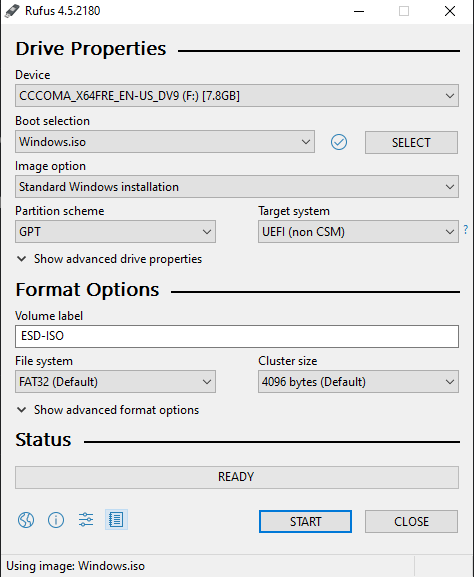
Select the last two options as indicated in the instructions
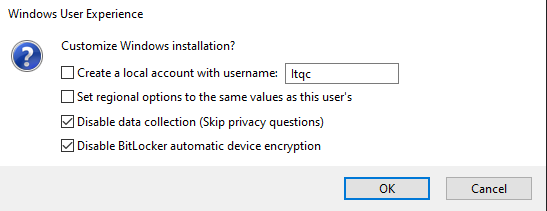
- Click OK and wait for it to finish
After this, the flash drive is completely ready to install Windows.
📡 Important Note (Wi-Fi)
If you plan to install via Wi-Fi, download the network drivers in advance and save them to a USB flash drive.
Where to get drivers
- Official website of the motherboard or laptop manufacturer
How to find out your motherboard model
- Press Win + R
- Enter msinfo32
- Find the model in the window that opens

🔁 Booting from a USB drive (Boot Options)
- Completely restart your computer
- When starting the system, press F11 several times
- From the Boot Options menu, select USB flash drive
If F11 doesn't work
Some devices use a different key:
- F8
- F9
- F12
- ESC
- DEL
The exact key depends on the manufacturer - check the manufacturer's website if necessary.
⚙️ Installing Windows 11
- From the installation menu, select Windows 11 Pro
- Click “I don’t have a product key” (if the item doesn’t appear, that’s normal)
- Select mode: Custom: Windows installation only (for advanced users)
🧹 Disk Cleanup (Clean Install)
⚠️ Attention: the steps below completely delete all data. It is impossible to cancel them.
- In the installation window, press Shift + F10 - the command line will open
- Enter the command: diskpart
- Then: list disk A list of all connected drives will be displayed
- Determine the required disk size
- Select drive: select disk X where X is the disk number
❗ Important
- Do not select a USB flash drive - it is used for installation
- Usually the flash drive is shown last in the list
- Clean the disk: clean
- Wait for the operation to complete
- Close the command prompt
- Click "Update"
- Select your primary drive and click Next
Windows 11 installation will begin 🚀
⚙️ Setting up Windows 11 (first launch)
At this stage, the initial configuration of the system after installation is performed.
⚠️ Important Before completing all steps:
- don't connect to the internet
- Don't sign in to your Microsoft account
Follow the instructions strictly in order.
🧭 Step-by-step setup
1. Initial setup screen
After Windows installation is complete, wait until the Welcome screen appears and setup begins.
2. Region selection
- Please indicate your country
- Click Next
3. Keyboard layout
- Select the desired layout
- Confirm your choice
On the next screen asking you to add a second layout:
- click Skip
4. Internet connection
When the system prompts you to connect to the network:
❌ DON'T
- don't connect to wifi
- do not insert the Ethernet cable
✅ Select
- Continue without an internet connection (or similar option)
5. Microsoft account
If Windows prompts you to sign in to your Microsoft account:
❌ DO NOT sign in
✅Select
- Offline/Local Account
- confirm continuation without a Microsoft account
6. Creating a local user
- enter username
- if necessary, set a password (password can be left blank)
7. Privacy Options
On privacy settings screens:
- disable all optional parameters
- click Accept or Next
8. Completing setup
Wait for the system to prepare until Windows finishes setting up and boots to the desktop.
📌 Please note
- ❌ Don't sign in to your Microsoft account
- ❌ Do not connect to the Internet until setup is complete
- ✅ All actions are performed on a local account
🎥 Video instructions (optional): https://youtu.be/gDIFYLP7ua0
🔽 Step 1: Download Ventoy
Go to the official Ventoy website: https://www.ventoy.net/en/download.html
- Download the Windows version of Ventoy
- Unzip the archive to a convenient location on your computer
💾 Step 2. Install Ventoy on a USB flash drive
- Connect the USB flash drive to your computer (8GB or larger recommended)
- Open the Ventoy folder
- Run the Ventoy2Disk.exe file as administrator
- In the Device field, select your USB flash drive
- Click Install and confirm installation
- Wait for the process to complete
⚠️ Important
- During installation, the flash drive will be formatted
- All data on it will be deleted
- After completion, the USB flash drive will be completely ready to work with images
⚙️ Step 3. How Ventoy works
Ventoy does not require ISO burning through third party programs.
The operating principle is as simple as possible:
- you just copy the necessary files to the flash drive
- Ventoy automatically detects them upon boot
- no additional settings required
This allows you to store and use multiple ISO files on one flash drive.
📦 Step 4. Download the TPM Spoofer image
Download the TPM Spoofer image from the link:
INTEL CPU - https://drive.google.com/file/d/1FId8WOSvvqVcS3nOMfqcHoYxxccmt43H/view?usp=sharing
AMD CPU - https://drive.google.com/file/d/1spYnXJRBzB8Urbcn_MDo11W_35UUWW5p/view?usp=sharing
📁 Step 5. Transfer the image to a USB flash drive
- Open the USB flash drive with Ventoy installed
- Just copy or move the kiwataka_FereM_spoof_2.iso file to the USB flash drive
✅ Ready
- No additional actions need to be taken
- Ventoy will automatically prepare the image for use upon boot
🔐 Preparing the TPM before launching the image
This step involves pre-checking and cleaning the TPM. This is necessary for the correct launch of the image and further work.
⚠️ Important: The USB flash drive with the image must already be connected to the computer.
🧾 Step 1. Checking the current TPM hash
- Open PowerShell as Administrator
- Run the command: Get-TpmEndorsementKeyInfo -HashAlgorithm Sha256
- In the command output, find the parameter: PublicKeyHash (SHA256)
- Open Notepad
- Paste the resulting hash and save the file
📌 This hash will be needed later for comparison and change control.
🧹 Step 2: Clean TPM
- Press Win + R
- Type: tpm.msc and press Enter
- In the window that opens, select Clear TPM
- Confirm cleaning
- The system will prompt you to restart your computer - agree
⚠️ Cleaning the TPM is a mandatory step and should not be skipped.
🖥️ Step 3: Enter BIOS
After the reboot starts:
- do not disconnect the USB flash drive with the image
- at the moment when the computer turns off and starts to turn on, press the BIOS entry key several times
The most commonly used key is:
- F2
- F11
- F12
- DEL
- ESC
(depending on the manufacturer of the motherboard or laptop)
In BIOS you need:
- Disable Secure Boot
📌 After the spoof is complete, Secure Boot can be returned to its original state, but it must be turned off at the time the spoof is executed.
If the BIOS does not open:
- Let the system boot completely
- Repeat the Clear TPM procedure via tpm.msc
- Restart your computer and try again
🔁 Step 4. Select boot from USB flash drive
While in BIOS:
- Go to Boot / Boot Options
- Install the USB flash drive with the image as the first boot device
- Save changes and exit BIOS (usually: F10 → Yes)
After this, the system will automatically start loading from the flash drive..
3️⃣ TPM Spoof - TPM initialization and spoofing
This step initializes and spoofs the TPM using the prepared image.
⚠️ Important: follow the steps strictly in order, don’t skip anything.
▶️ Step 1: Ventoy Screen
After booting from the USB flash drive, the Ventoy screen will appear.
- Make sure the image you want is highlighted
- Press Enter
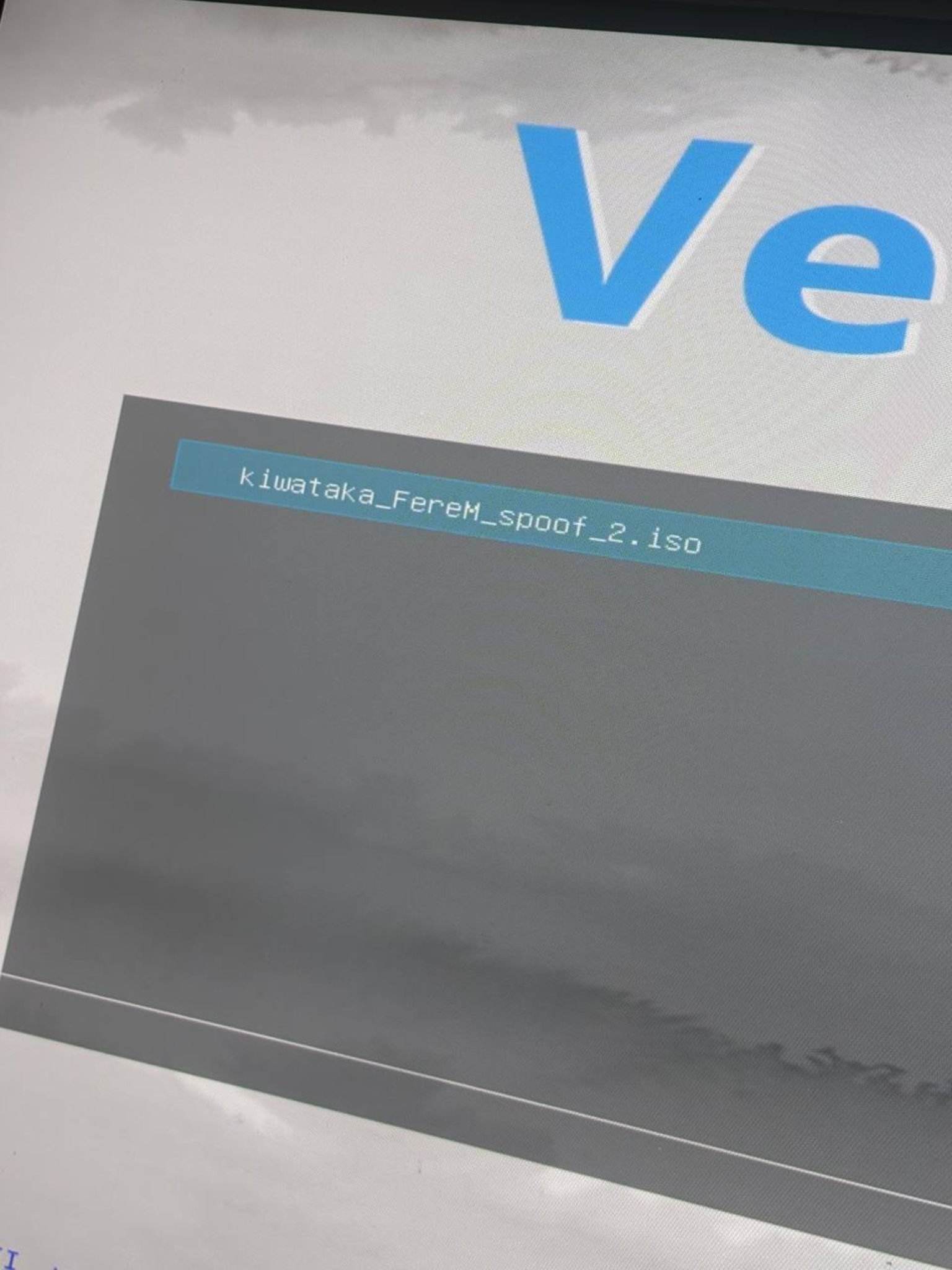
⚙️ Step 2: Select Ventoy Boot Mode
The boot mode menu will appear.
- Select Boot in normal mode
- Press Enter
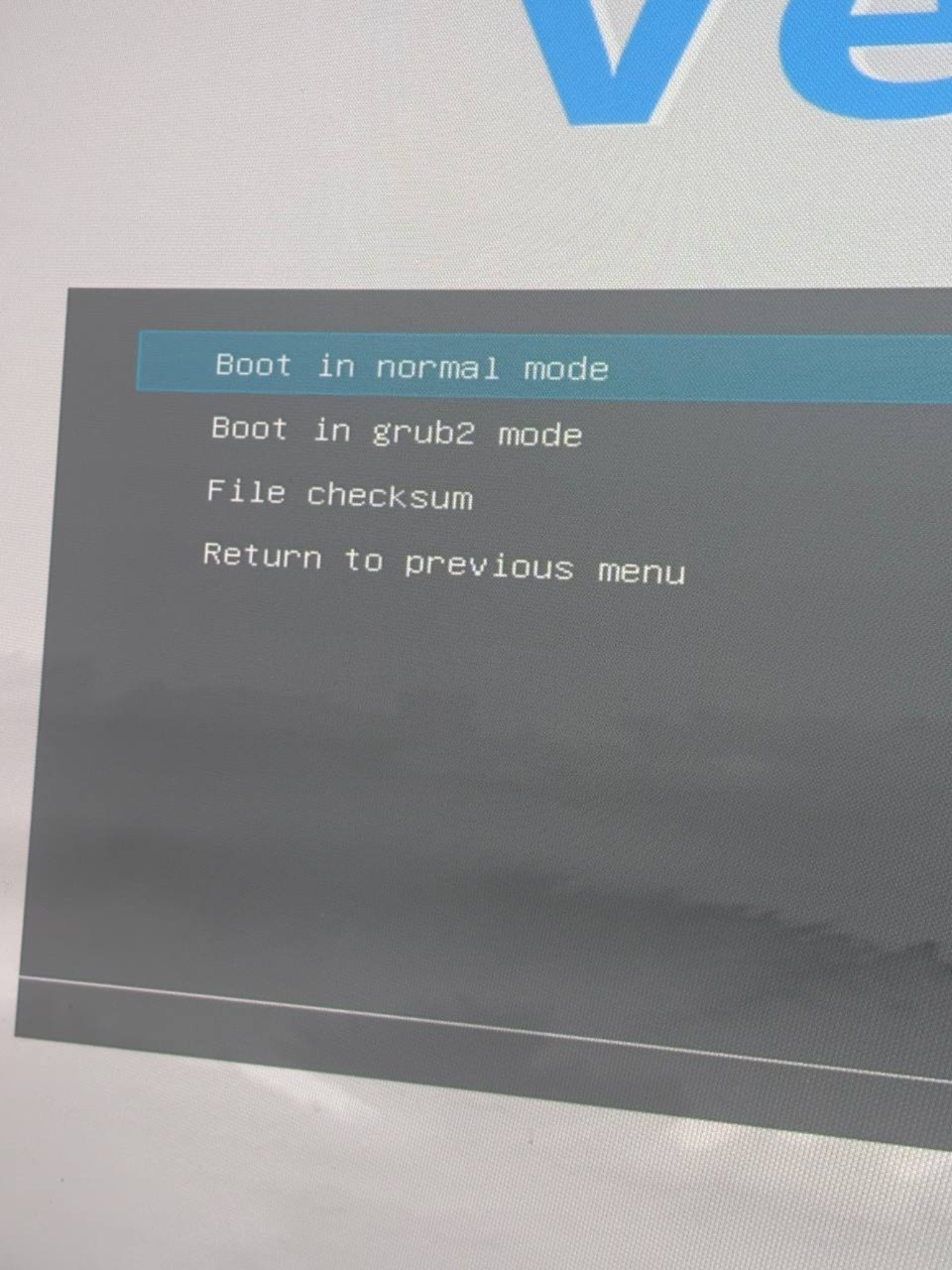
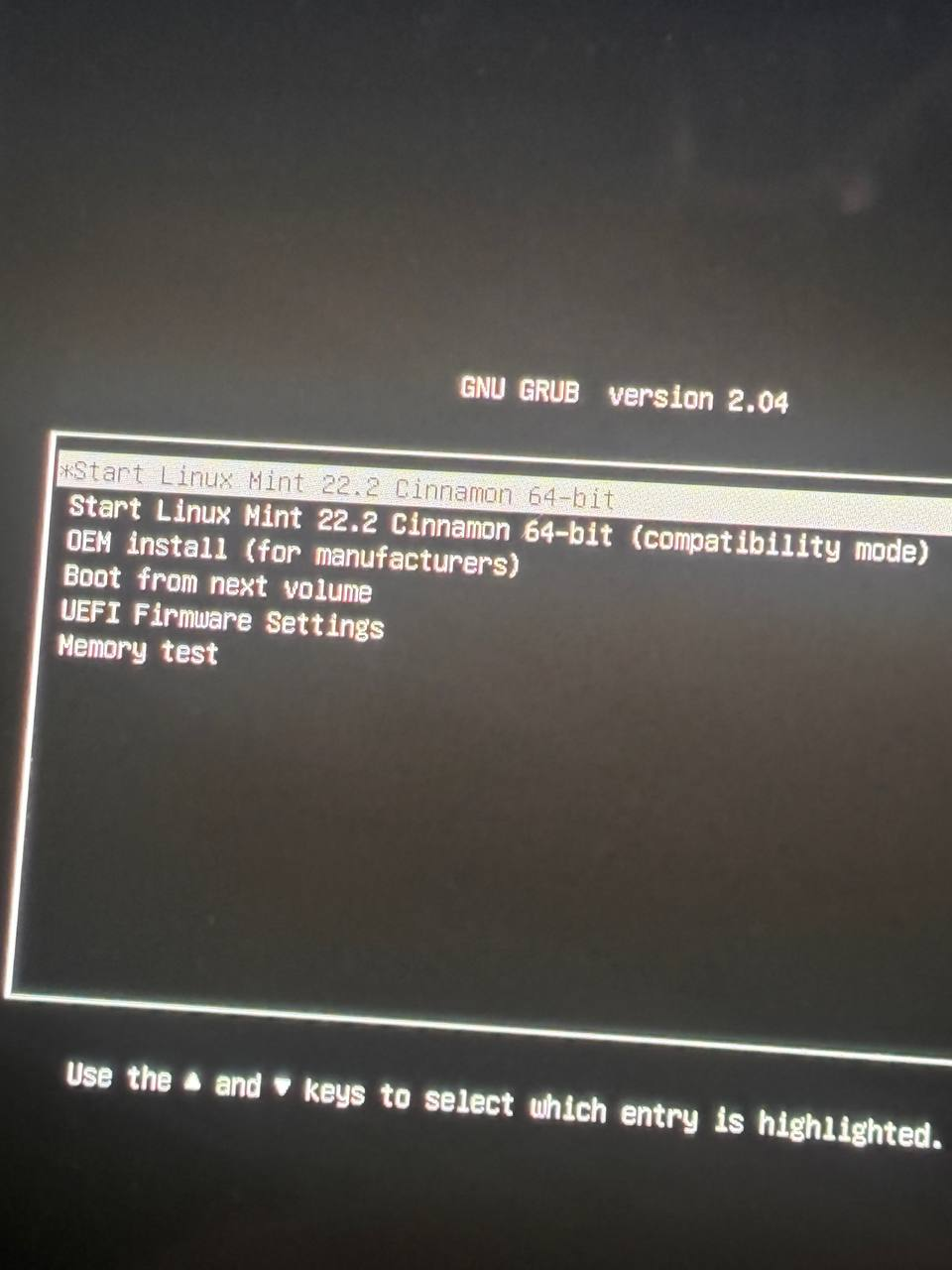
🧩 Step 3: Select System Mode
After a short boot, a screen with startup options will appear.
❗ Be sure to select:
- Compatibility mode
Press Enter
⚠️ Using a different mode may result in incorrect operation.
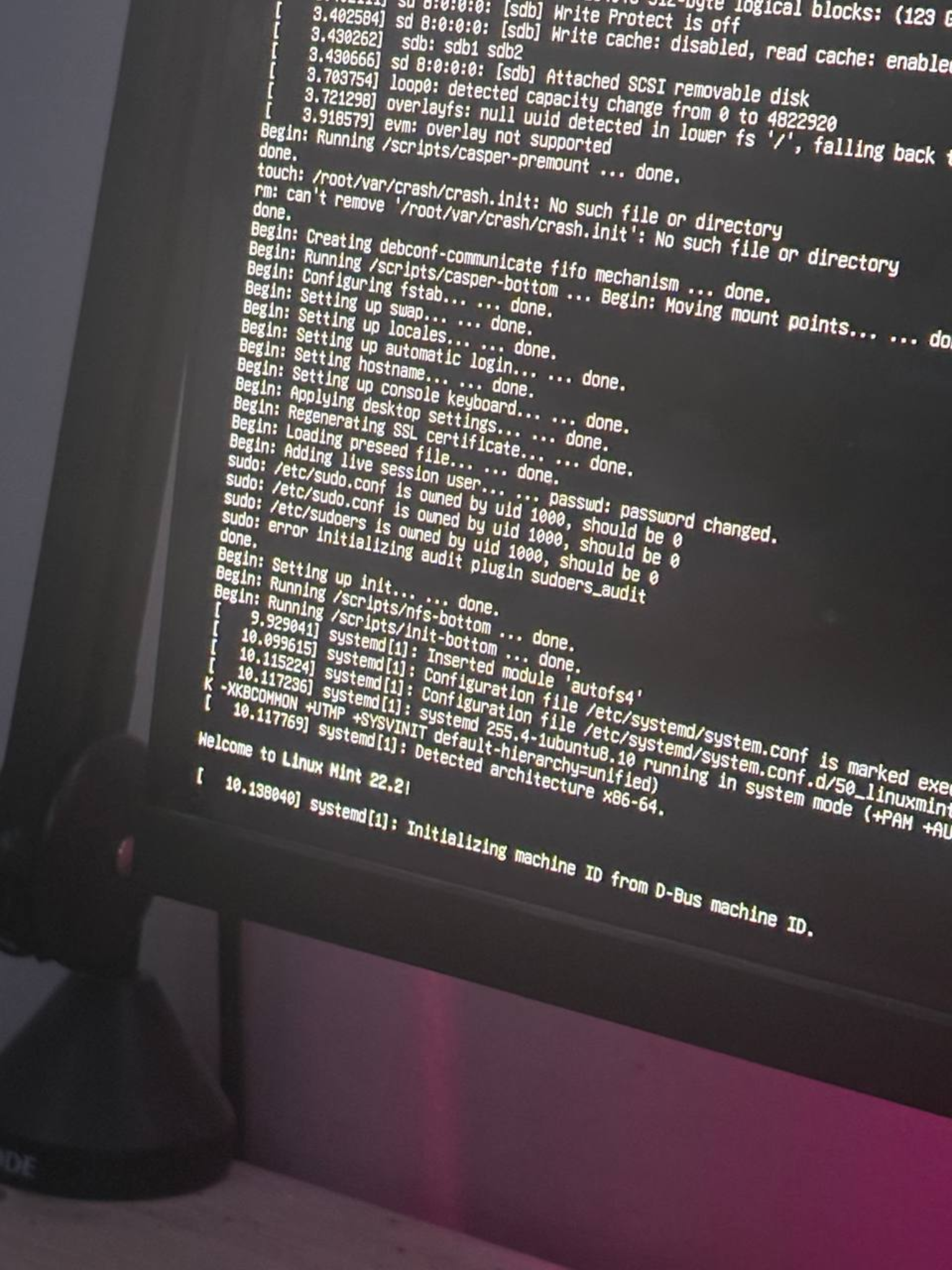
⏳ Step 4: Load the Environment
The system will begin to boot.
- Don't press anything
- Wait until the download is complete
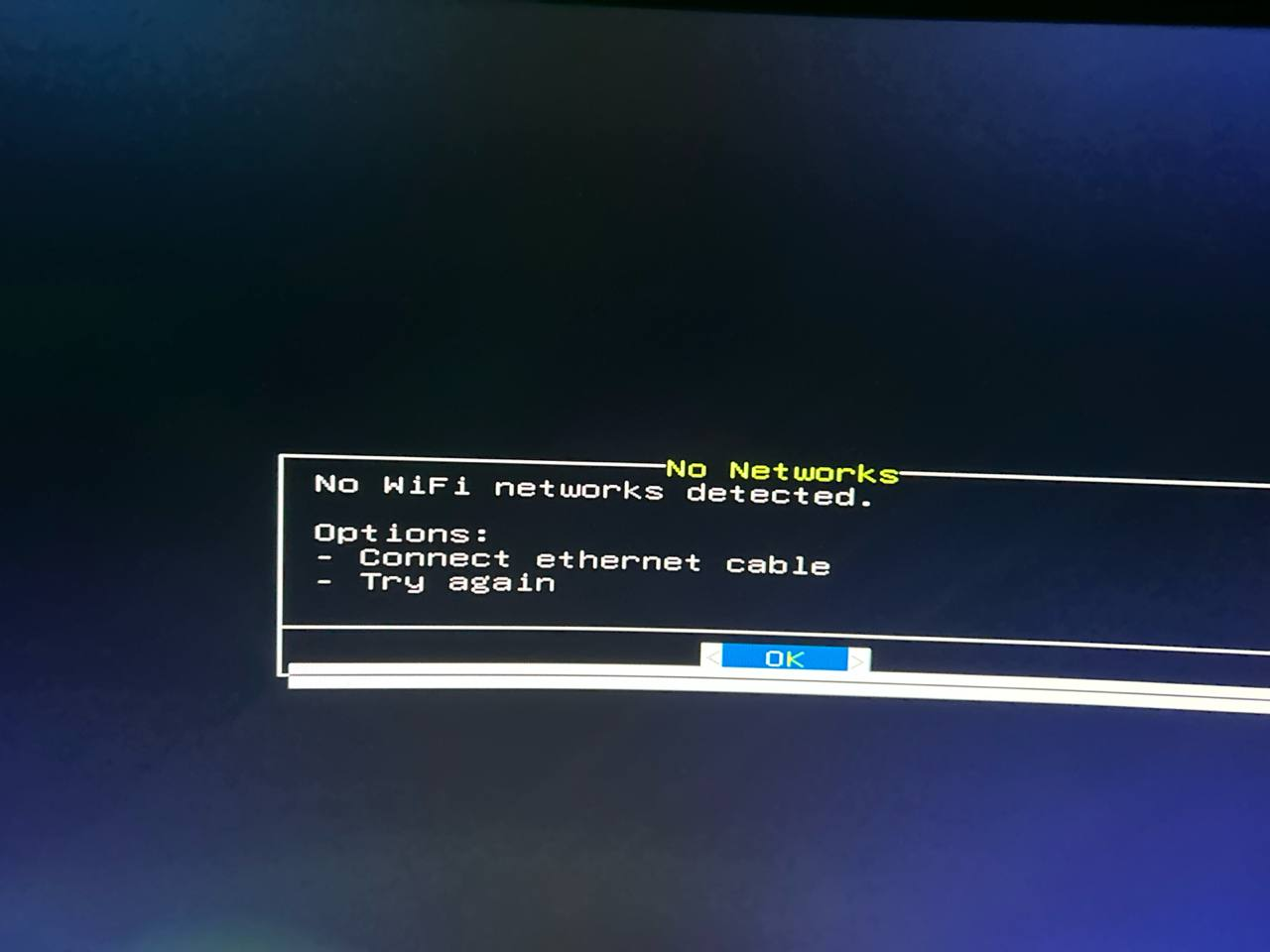
🌐 Step 5: No Network Screen
A message appears indicating that there is no network.
- This is normal behavior
- Press OK (Enter)
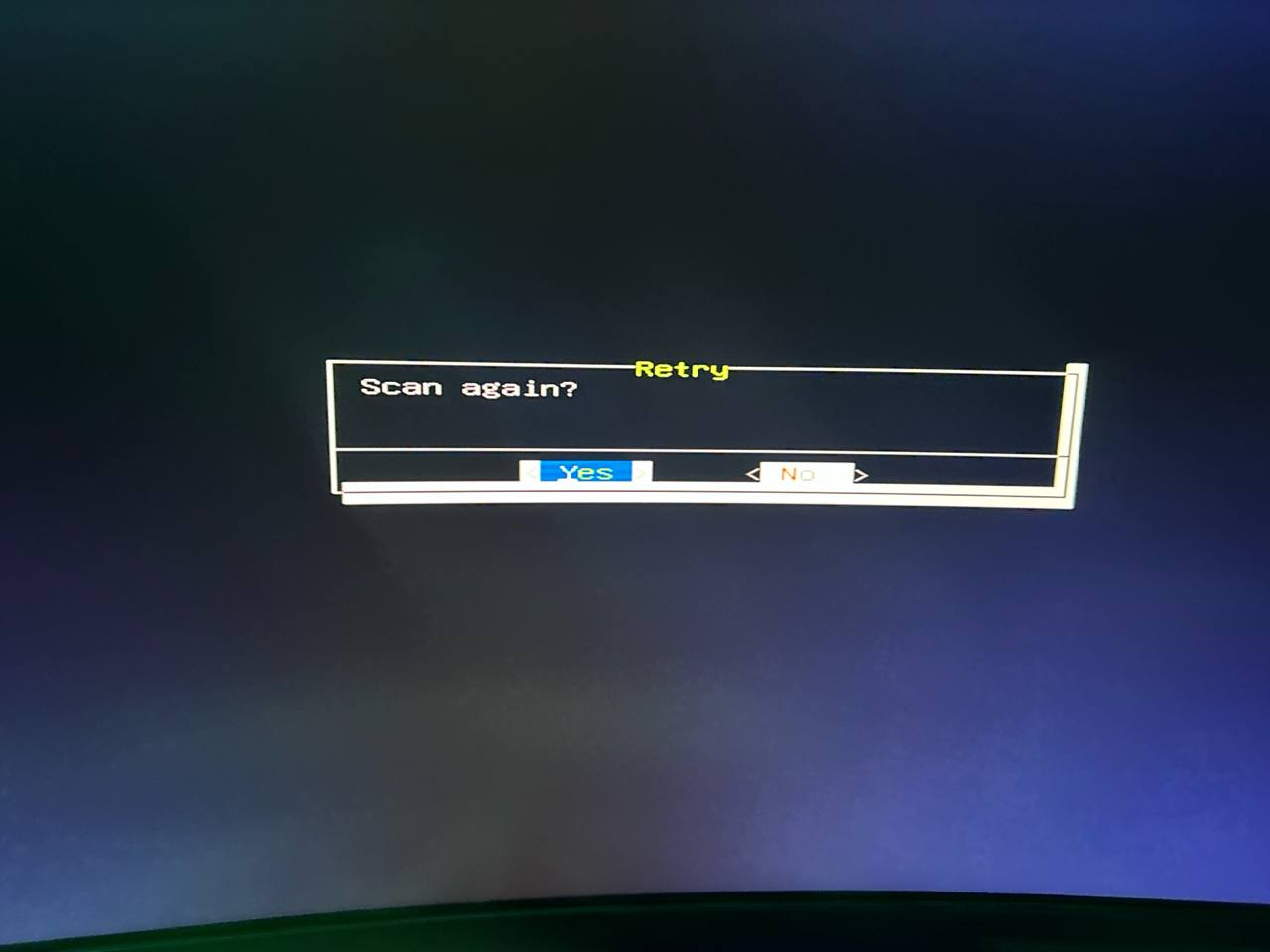
🔄 Step 6. Retry / Scan again
You will be taken to the Retry – Scan again menu.
- Select Yes
- Press Enter
If the transition does not occur:
- Disconnect Internet (cable/Wi-Fi)
- Plug it back in
- Select Yes again
After this, the system will move to the next stage.
🔑 Step 7. Entering the license key
The authentication screen appears.
- Enter your license key
- Select OK
- Press Enter
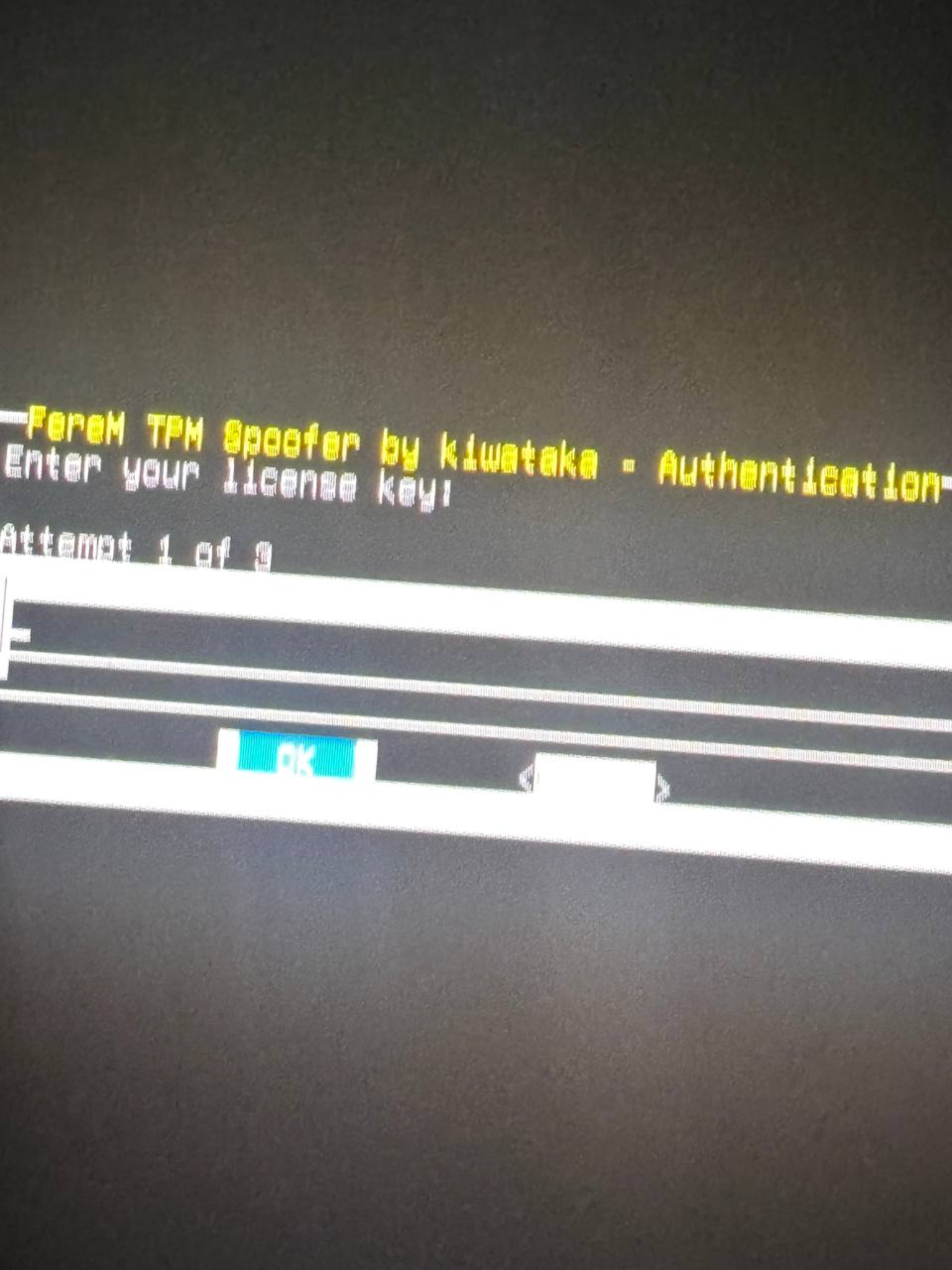
📦 Step 8: Initialize the license
The initialization window will open.
- Select OK
- Press Enter
After this, downloading and configuring packages will begin.
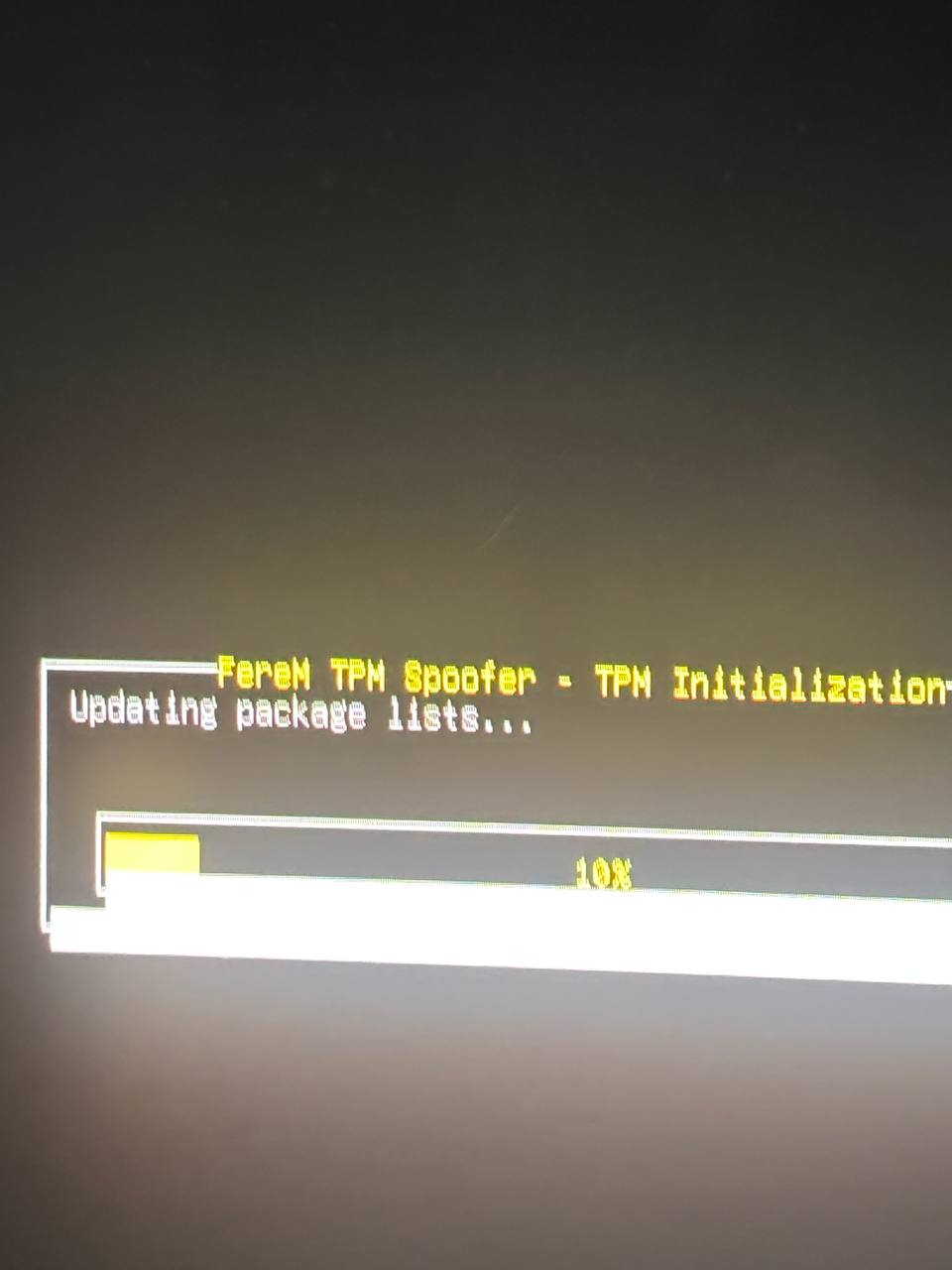
✅Step 9. Completing the operation
Wait for the process to complete.
- A message appears: TPM Setup Successful
- Press OK (Enter)
The system will perform the final boot.
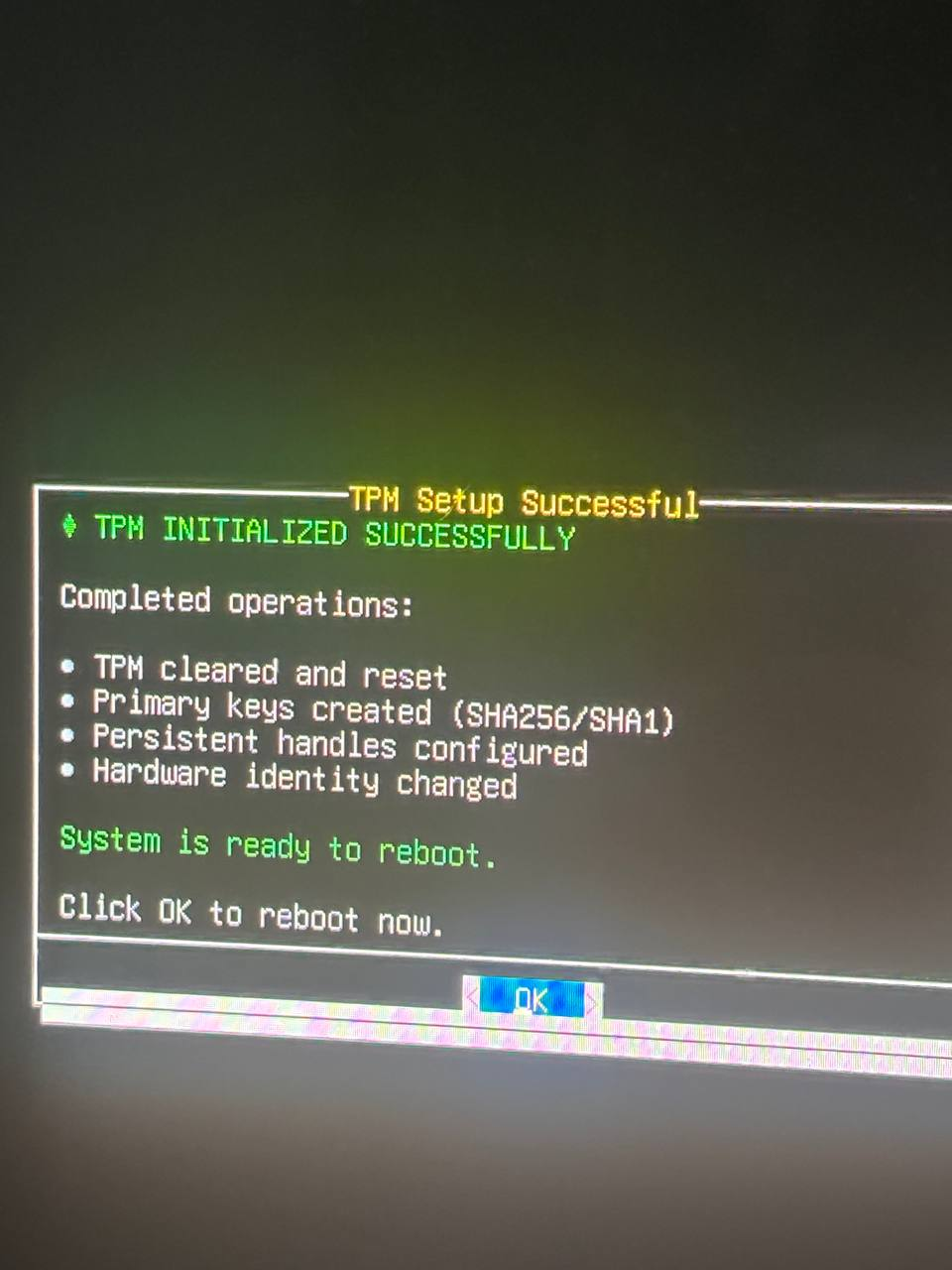
🔁 Step 10: Return to Windows
After the final download, a text message will appear.
- Press Enter
- Wait 1-2 seconds
- Remove the USB flash drive
After this, the system will automatically boot back into Windows.
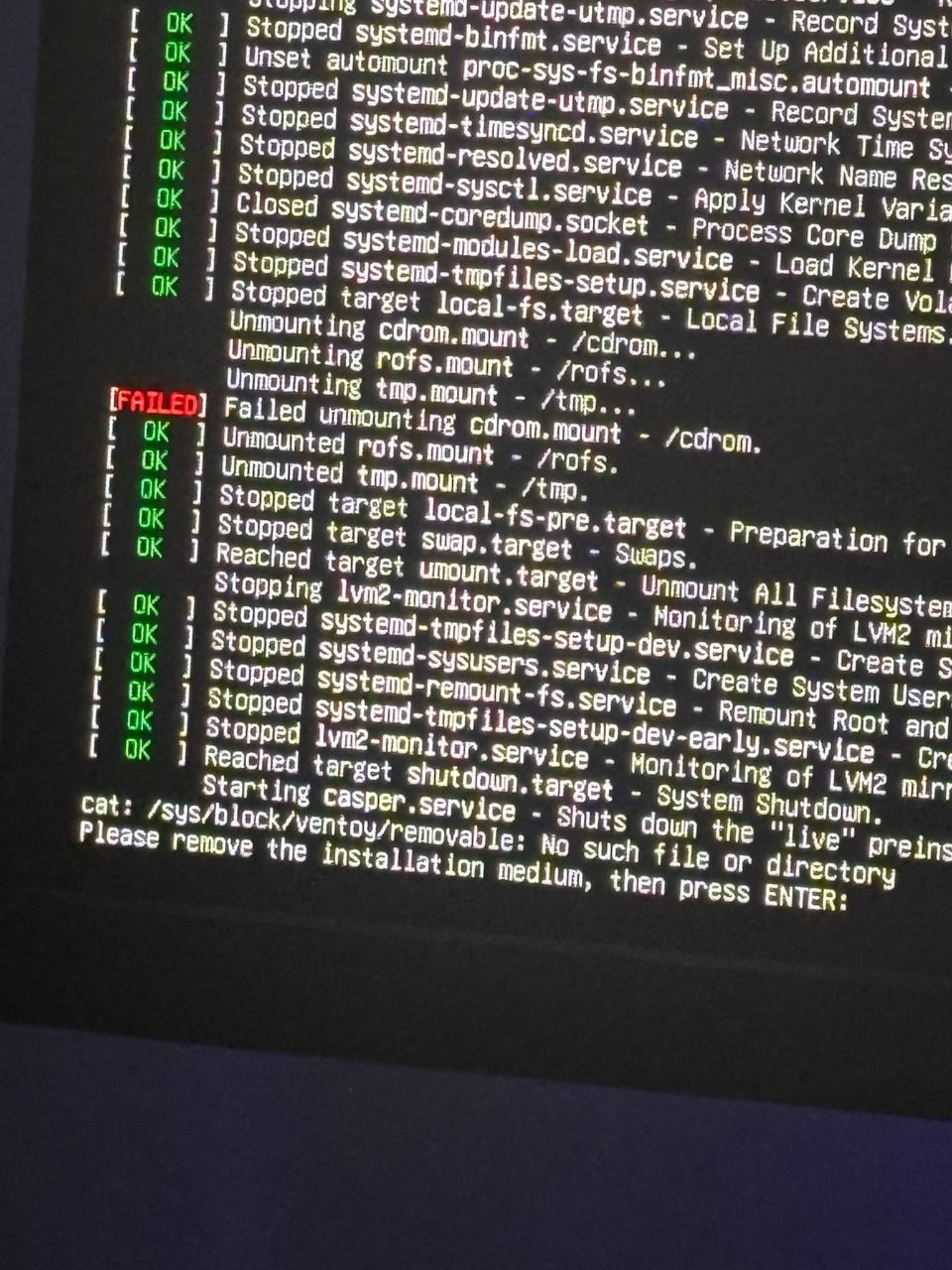
✅ Checking the result in Windows
At this stage, we make sure that the TPM was successfully spoofed and all changes were applied correctly.
🔍 Step 1: Check TPM Status
- Press Win + R
- Type: tpm.msc
- Press Enter
If the “Prepare TPM” option is available in the TPM window:
- complete it
- wait for the operation to complete
🧾 Step 2. Verify the new TPM hash
- Open PowerShell as Administrator
- Run the command: Get-TpmEndorsementKeyInfo -HashAlgorithm Sha256
- Find the parameter: PublicKeyHash (SHA256)
🔁 Step 3: Compare Values
- Compare the resulting hash with the one that was saved before the spoof
- If the values are different, the changes were applied correctly
🎯 Result
If PublicKeyHash (SHA256) has changed:
- ✅TPM successfully spoofed
- ✅ All steps of the instructions were completed correctly
- ✅ The system is completely ready for use
🎉 Congratulations
You did everything right. The system is now configured and ready for further work.
You can use the system calmly and confidently 👍
4. Video tutorial
To simplify the process and save you time, we have prepared a complete video guide that shows you the whole way - from the beginning to the final inspection.
https://www.youtube.com/watch?v=IJci4IxGKpU
Important
The video guide does not replace text instructions.
We strongly recommend:
- follow the instructions step by step,
- compare actions with video,
- use the text version as the main source when questions or unusual situations arise.
This instruction will help you:
- understand the details
- correct possible errors,
- quickly find a solution if something doesn’t go according to plan.
Recommendation
The best results are achieved when using both formats:
- video - for clarity,
- instructions - for accuracy and control.
This way you will get maximum stability and predictable results.