Run the software only from a USB flash drive. After the loader menu closes, be sure to physically remove the flash drive from your PC, otherwise you risk getting banned (EAC).
System Preparation
Check your Windows version: Press Win+R → type winver → Enter. Only Windows 10/11 Pro is supported. If your version is not supported, change the activation key to: 76NYW-CJ7TM-3YD8M-982K6-GMT6T.
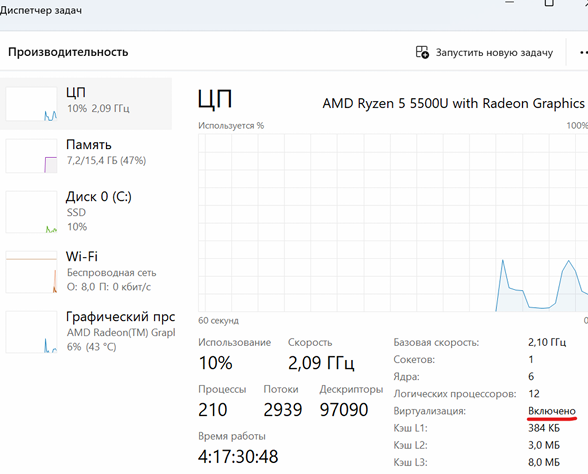
Enable virtualization in BIOS. You can check its status in Task Manager under the "Performance" tab.
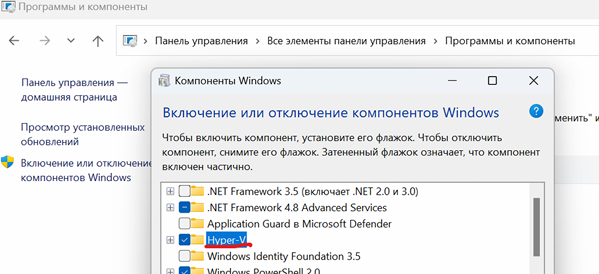
Enable Hyper-V in Windows Features: Control Panel → Programs and Features → Turn Windows features on or off → Hyper-V.
Connect the USB flash drive to your PC and move the loader onto it.
Exit Steam from the system tray (right-click Steam icon → Exit Steam).
Run the loader from the flash drive and wait for the menu to appear.
After loading completes and the loader menu closes, physically unplug the flash drive from your PC. When launching Rust, the flash drive must be disconnected!
Click "Start" in the loader and wait for the product to load.
If all requirements are met, the loader may ask you to reboot your PC — click "Yes".
If something is missing, the loader will notify you.
After reboot, repeat steps 1 and 2, then click "Start" in the loader again.
Wait for the loader menu to close.
You will see the message: "Start the game and press F5 in game main menu".
After this message appears, remove the flash drive again, click "OK", and proceed to the next steps.
In Fortnite settings
select the DirectX 11 renderer and apply the changes.
Set the display mode to Windowed before injecting the cheat.
OBS Setup
Download and install OBS from the link(CLICABLE) (even if OBS is already installed — reinstall from the link, do not update to the latest version!).
Run OBS as administrator.
After installing OBS, go to the game and in the game settings select the render mode on DIRECTX11.
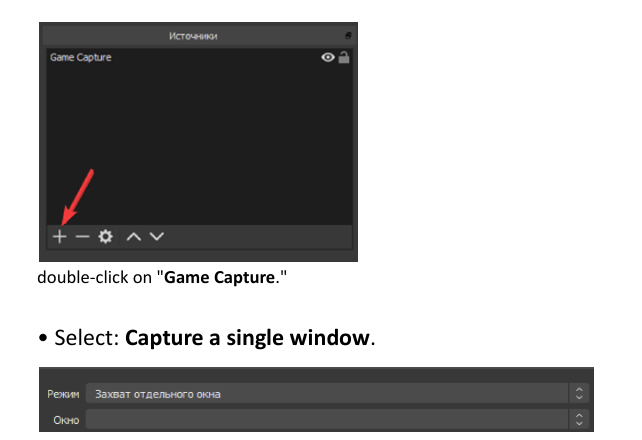
Add "Game Capture" → select "Capture a separate window" → select the process "FortniteClient-Win64-Shipping.exe" (the game must be running).
Wait for the game image to appear in OBS.
Final steps
In Rust main menu, press F5 once.
If the loader asks to change the screen mode (Change game window mode and press F5 again), switch the mode (fullscreen/borderless/windowed), apply, then press F5 again.
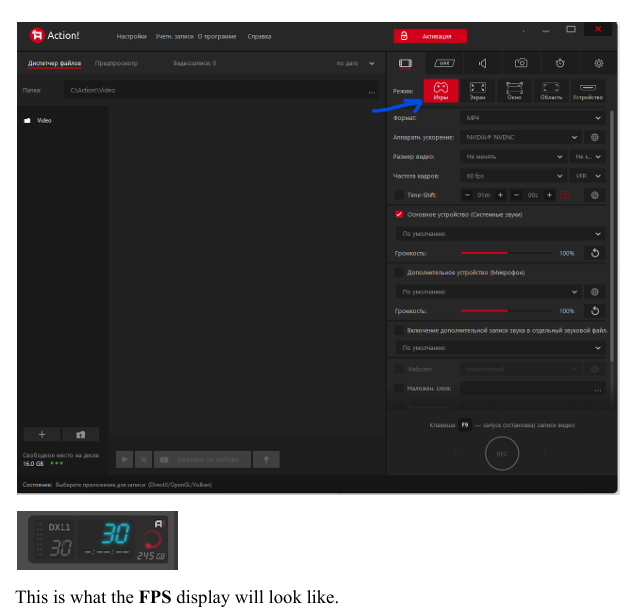
Important: before injection, always start Action first, wait for the FPS counter, then start OBS. Each loader launch must strictly follow steps 1 and 2.


 24.05.2025