
 Discord
 Telegram
Verified buyers only
Only a confirmed buyer can leave a review
 DEADLOCK
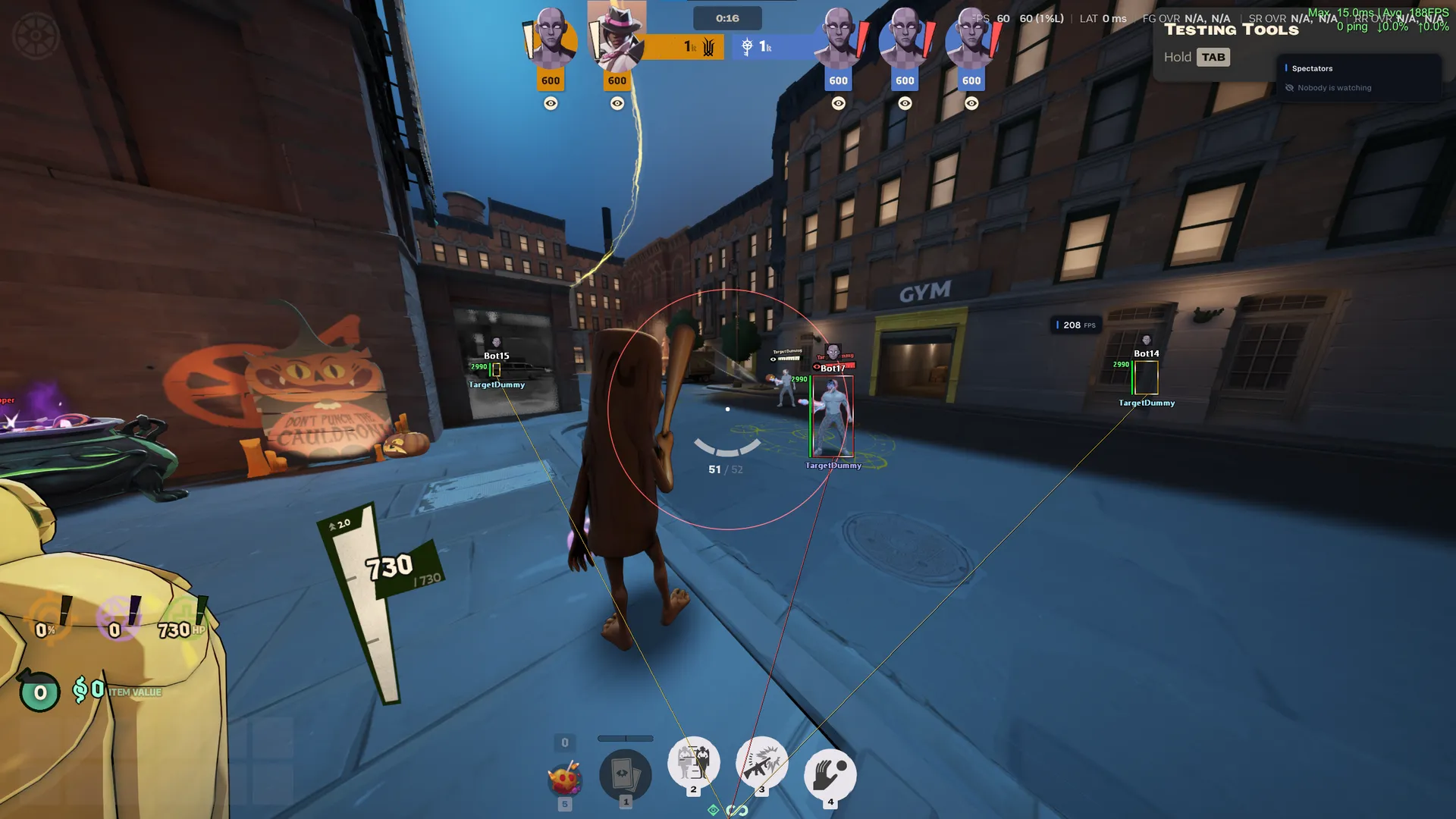
Focus for Deadlock combines Aimbot and pSilent, hero and object ESP, radar and movement automation. Allies and enemies have separate visual settings, while Potato mode provides individual graphics controls.
Focus for Deadlock combines aiming and ESP for the Steam client. It suits players who want separate target settings for heroes and souls, rather than one selection rule for every moment of a match. Enemy, teammate and object displays can also be configured independently, so the screen can stay focused on the current task.
The listed setup requires an Intel or AMD processor, x64 Windows, GPT partitioning and UEFI mode. The stated build range does not distinguish operating system generations. Compare those requirements with your machine; the Deadlock catalogue contains other builds to compare.
Purchase the product to leave a review
Review integrity
Only a confirmed buyer can leave a review
A moderator checks every review before it goes live
Reviews can’t be ordered or deleted
The author can edit it at any time
Share your impressions after the purchase — it helps other players choose.
Frequently Asked Questions
Select a question from the list on the right to see the answer
Focus for Deadlock separates target selection from the information drawn around it. A lane can contain heroes, troopers and souls at the same time, so using a single visual or aiming rule would make those tasks compete. Independent controls let you start with hero ESP and then add the object categories needed for the current part of the match.
Aimbot uses FOV to define the search area and Smooth to control aiming movement. A smaller search area limits which nearby targets qualify, while smoothness changes how the aim moves after selection. Hitbox selects the head or chest. Distance priority favours the closer target; lowest-health priority is useful when the immediate goal is to finish a weakened hero.
pSilent has its own FOV, Hit Chance and target locking. Souls adds another target category, which is why the Heroes / Souls priority matters when a fight starts near collectible souls. Check that order before engaging rather than assuming every enabled category has equal weight. Prediction and Abilities are separate controls, and Behind Walls is independent of merely displaying enemy ESP.
Visuals separates Enemies from Teammates, with individual boxes, health and labels. A box answers where a hero is; the health bar adds context for choosing the next target. The hero image can replace a longer label when names crowd the scene. Visible Check uses colour to distinguish opponents behind obstacles, so you can separate a marked position from a directly visible target. Snaplines can help locate a marker, but removing them in a crowded fight leaves more of the centre clear.
Objects has both category filters and a choice of marker format. A dot occupies less space than a picture with a name, which means the format is useful to adjust before enabling more categories. Shops and neutral camps support route planning, while their labels can be turned off for a fight. Radar moves some information into its own area. Camera rotation keeps its orientation tied to the view, and opacity controls how much of the scene remains visible underneath.
Potato Mode exposes individual graphics controls instead of requiring one fixed look. Change shadows, fog or small details separately so each effect can be judged on its own. Texture and hero-model packages use the provided game restart action to apply changes. The HUD FPS counter displays the current frame rate; it is a measurement aid, not a promised performance increase.
Auto Parry handles a melee action, whereas Auto Wall Jump and Bunnyhop concern movement. Their hotkeys let you choose when to use them. Save a working setup in Configs before trying a different arrangement, then load it again if needed. Home opens the menu, with scaling and accent controls for readability. The Deadlock section provides a place to compare this combination against other products and their individual requirements.