
Windows Boot Partition Recovery
Detailed instructions for restoring the boot partition without losing files. If Windows won't boot, this method will help restore the bootloader. 🔧
Preparing the Bootable USB Drive
First, you need to insert a bootable USB flash drive with Windows installation files, formatted in FAT32.
You can create it from another working device.
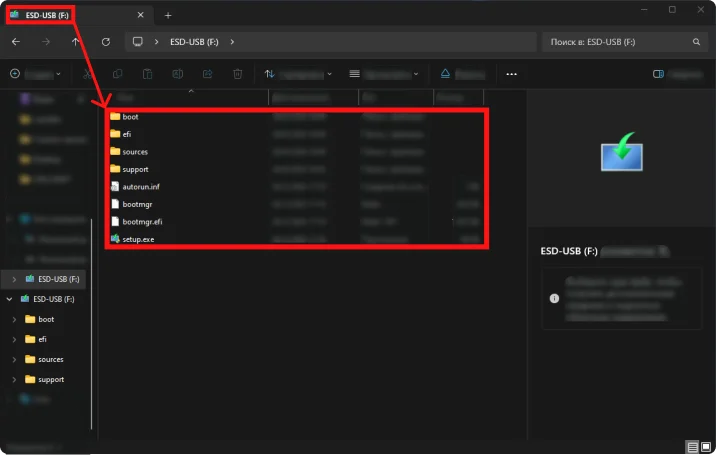
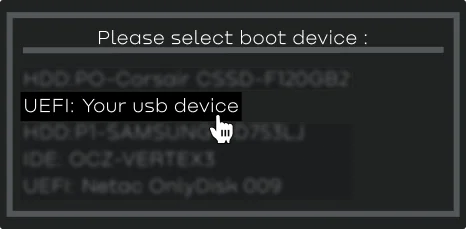
Next, you need to enter BIOS and set the boot order, selecting this USB flash drive as the boot device.
After booting from the USB drive, you will see the "Windows Setup" window.
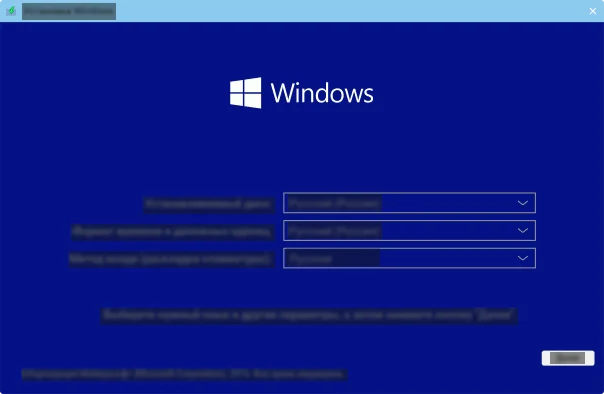
You don't need to click anything, as we don't need to go through the Windows installation process!
Opening Command Prompt
We need to open the command prompt and execute commands. On the Windows Setup screen, press SHIFT + F10.
A command prompt window will open. Type:
diskpartThe disk and partition management utility will open.
Finding the EFI Boot Partition
Next, type:
list volA list of all volumes on the disk will appear
Find the EFI boot partition by the following characteristics:
Size: about 100 MB
File system: FAT32
Label: SYSTEM, EFI, or may have no name
Note: usually the disk has no drive letter assigned
Formatting and Assigning a Drive Letter
Next, type (replace 5 with your EFI volume number):
sel vol 5After this, all subsequent commands will be executed on this partition.
Next, type:
format fs=fat32 quickThis performs a quick format of the selected volume to the FAT32 file system, clearing its contents.
Next, type:
assign letter=ZThe selected partition is assigned the temporary drive letter Z:, which allows access to it from the command prompt.
Next, type:
exitThis exits DiskPart and returns you to the command prompt.
Restoring the Bootloader
Next, type:
bcdboot C:\Windows /s Z: /f allC:\Windows — path to the installed Windows system (if your system drive has a different letter, replace it with the correct one)
/s Z: — partition where boot files (EFI) will be copied
/f all — creates a bootloader for both UEFI and BIOS
Here's an example of what it should look like:
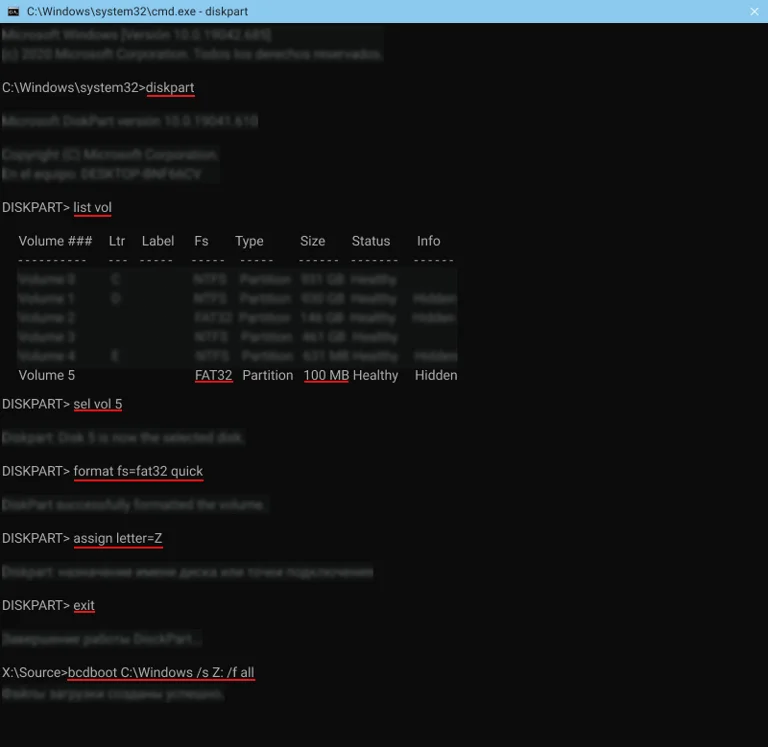
If all steps were completed correctly, turn off the computer, remove the USB flash drive, and turn it on again.
We have successfully restored the Windows boot partition. The system should boot normally.