📲 iOS Certificate: Signing and Installing an IPA with ESign
A GetCheats certificate works inside ESign, an app that signs IPA files right on your iPhone. You import the certificate into ESign once, and then use it to sign any app.
📱 iPhone or iPad with the UDID you entered when the certificate was issued.
🔑 Certificate files: the .p12, the .mobileprovision profile and the .p12 password. All of it is in your account: “My keys” → your certificate.
🛠️ ESign installed on the phone.
📦 The IPA file of the app you want to install.
If you tap the profile file in the Files app, iOS offers to install a profile and asks for a password — that is a different password, and ours will not work. Certificate files are opened only through ESign.
📥 Step 1. Save the Certificate Files on Your iPhone
Open your GetCheats account on the iPhone itself: “My keys” → your certificate.
Tap “Everything in one archive” — it holds both files and a note with the password. You can also download the .p12 and the .mobileprovision one by one.
Open the archive in the Files app — iOS unpacks it into a getcheats-… folder next to it. The .p12 password is both in your account and in README.txt inside the archive.
🔑 Step 2. Import the Certificate into ESign
Open ESign and make sure the “File” tab at the bottom left is selected.
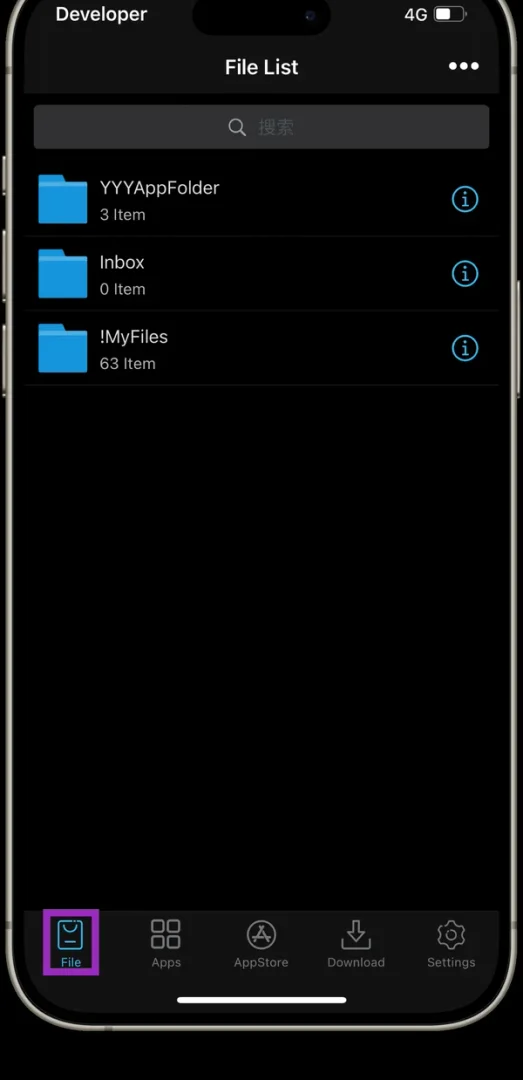
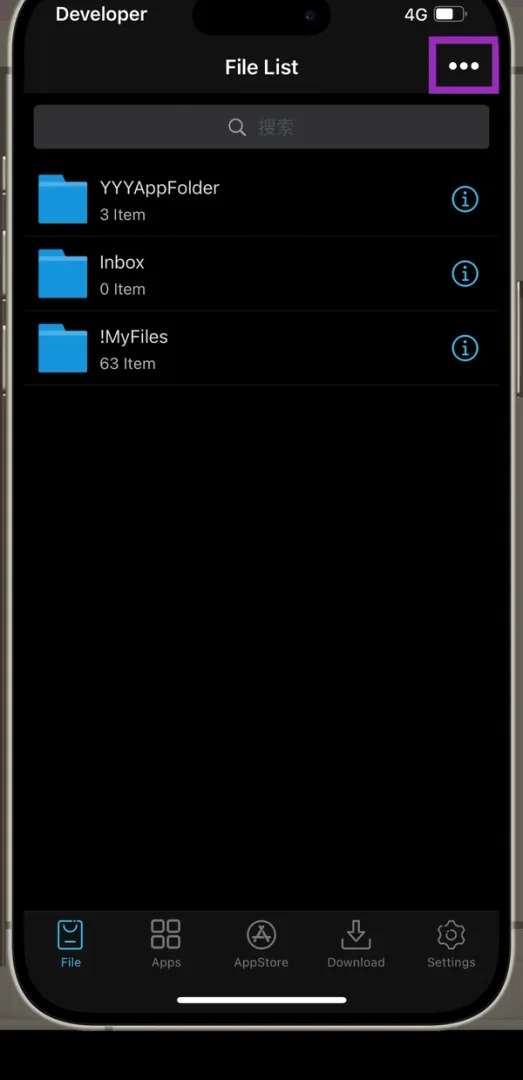
Tap “•••” in the top right corner.
Choose “Import”.
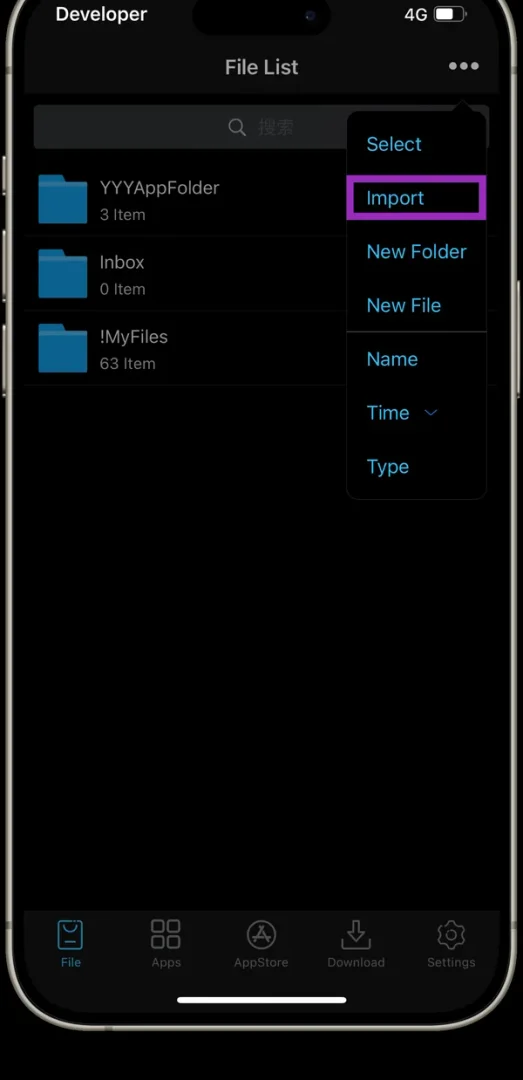
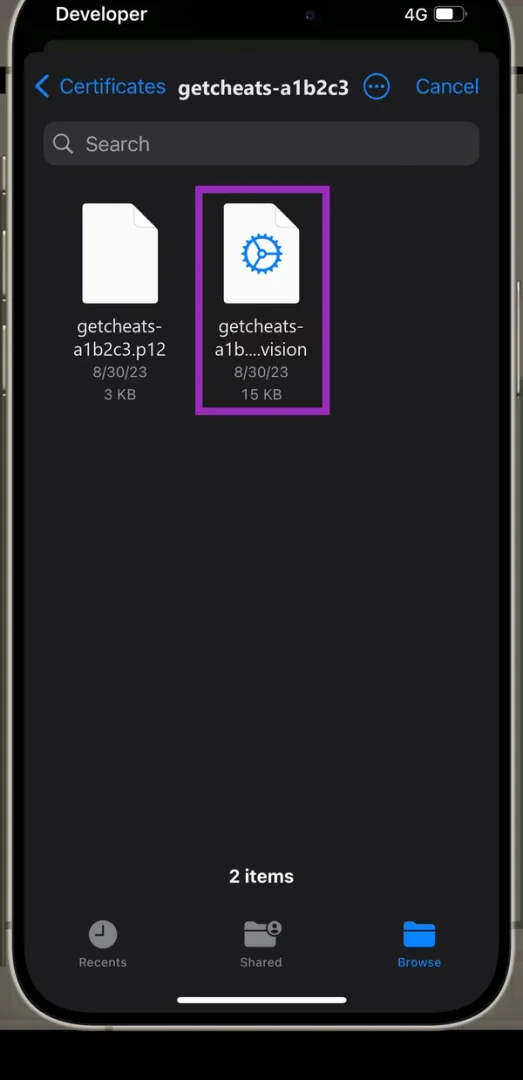
The Files app opens. Go to the certificate folder and pick the .p12 file.
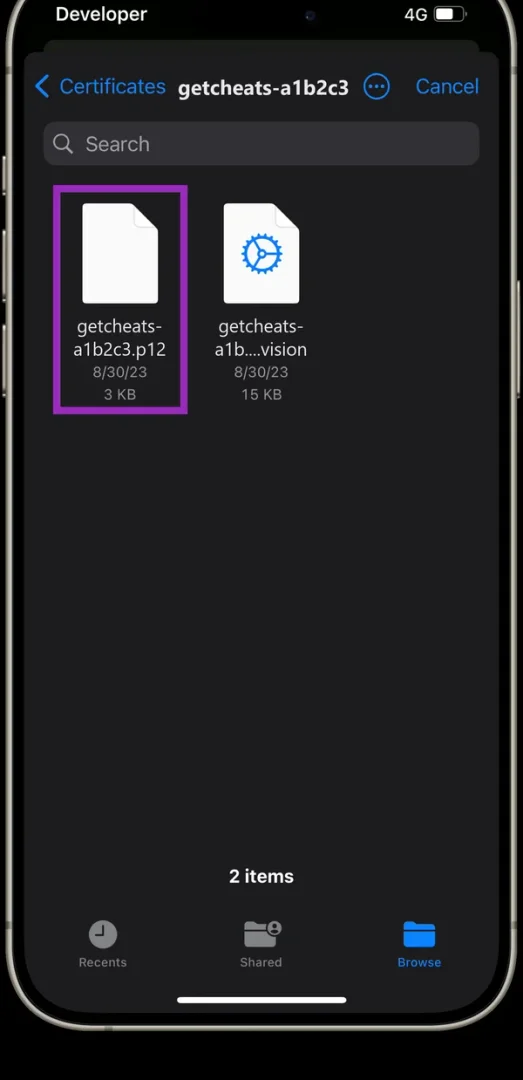
Tap “•••” → “Import” again and pick the .mobileprovision file.
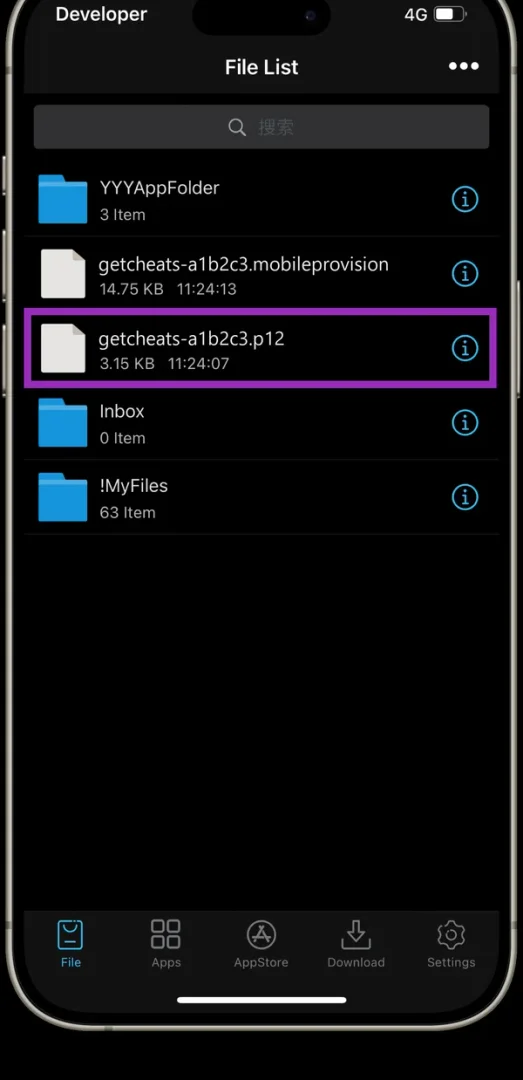
Both files now show in the ESign list. Tap the .p12 file.
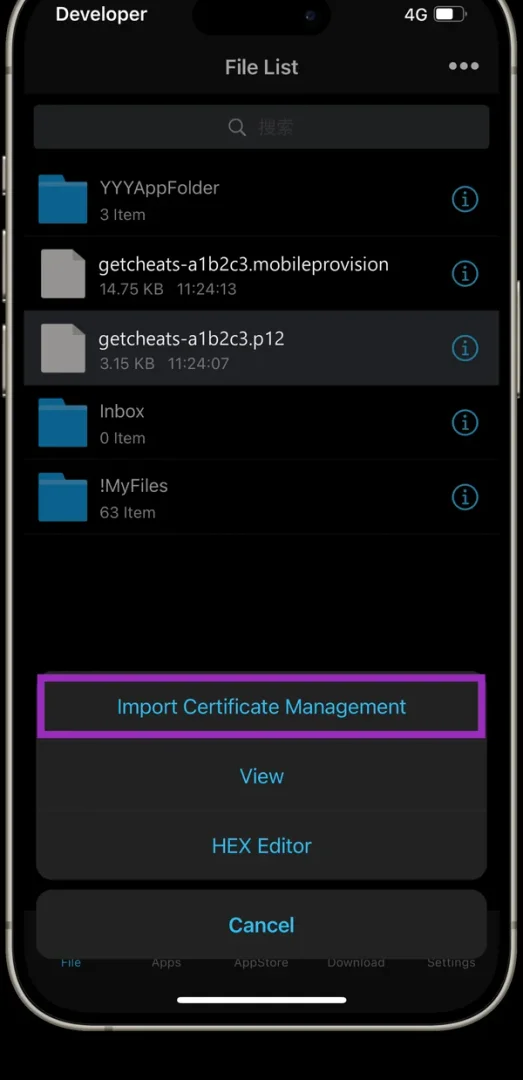
Choose “Import Certificate Management”.
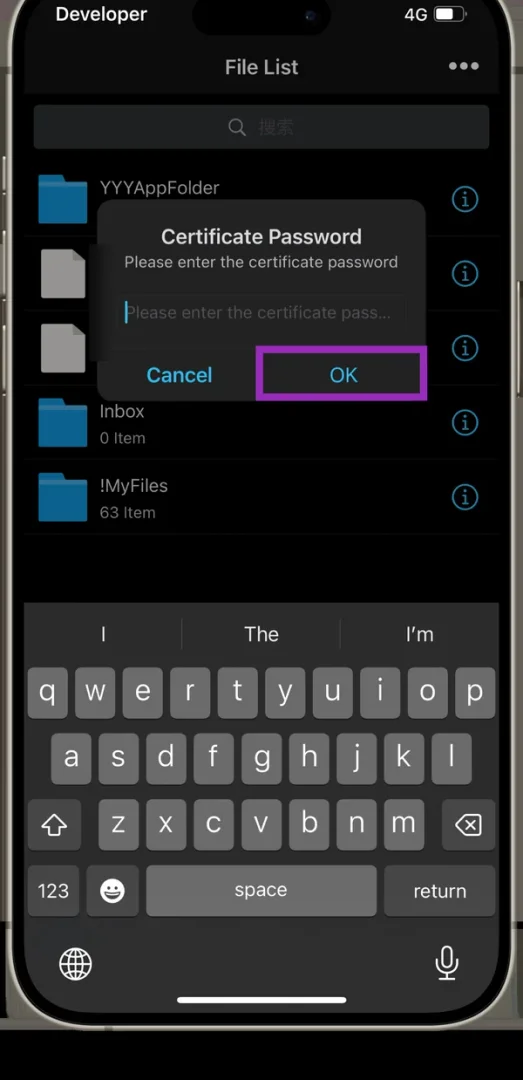
Enter the .p12 password and tap “OK”.
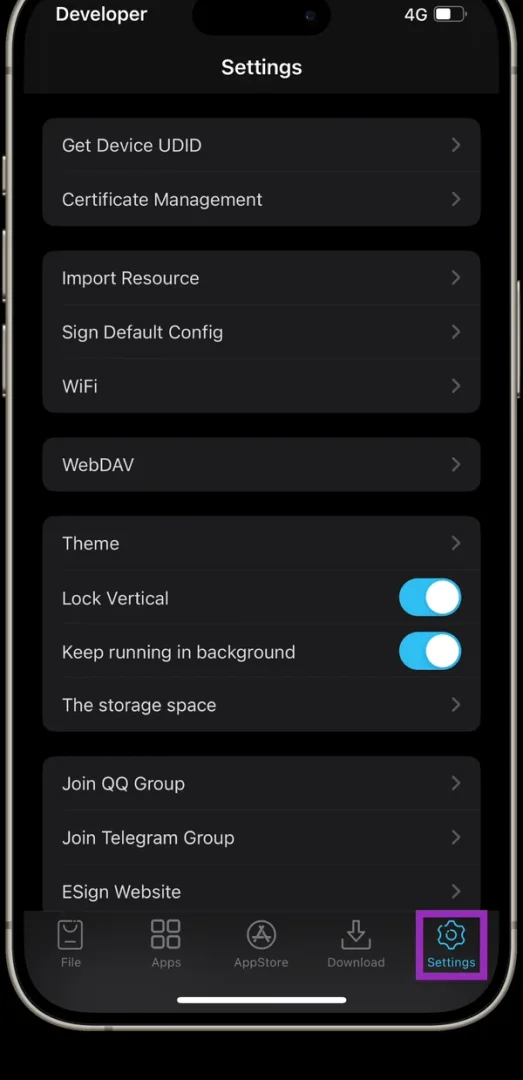
Check the result: open the “Settings” tab…
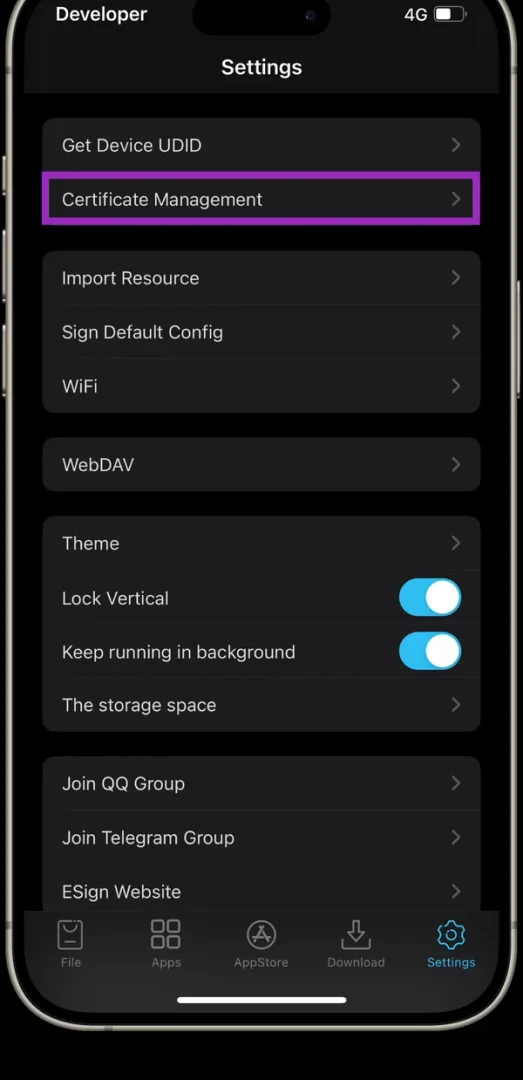
…and “Certificate Management”.
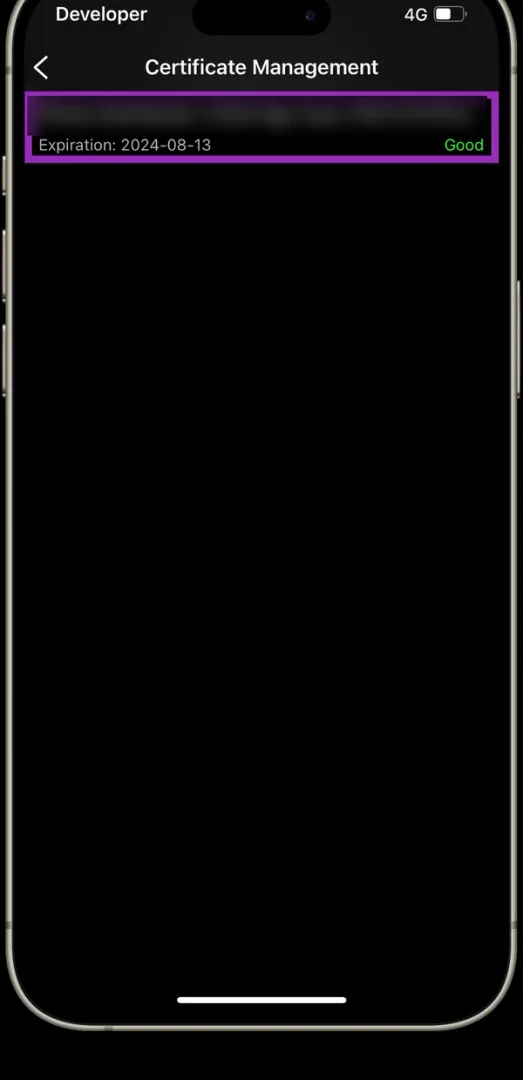
The certificate should be listed with the “Good” status — it is ready for signing.
📦 Step 3. Sign and Install the App
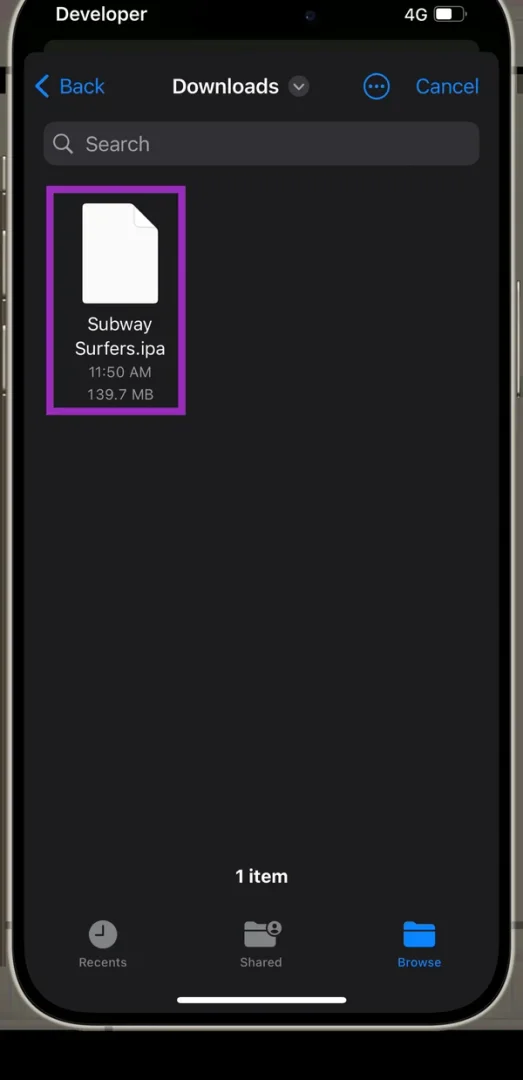
On the “File” tab tap “•••” → “Import” and pick the IPA file. If the file came in Telegram, you can tap it → “Share” → ESign instead.
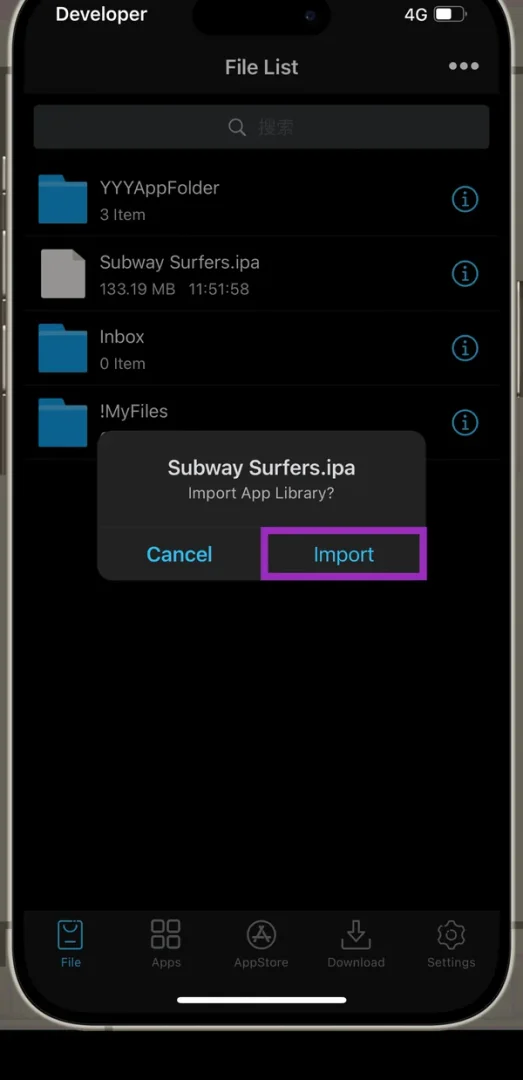
Confirm adding it to the library with “Import”.
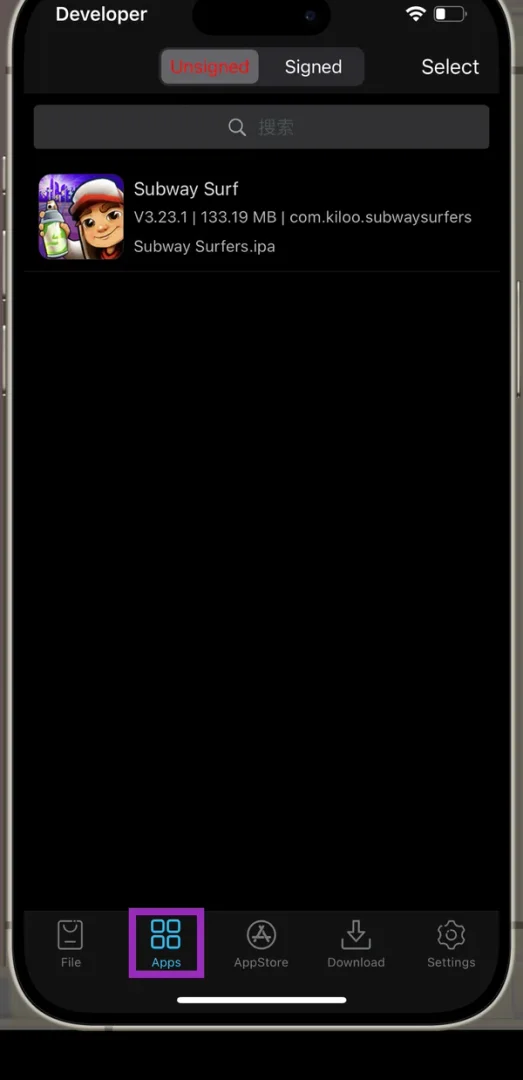
Go to the “Apps” tab.
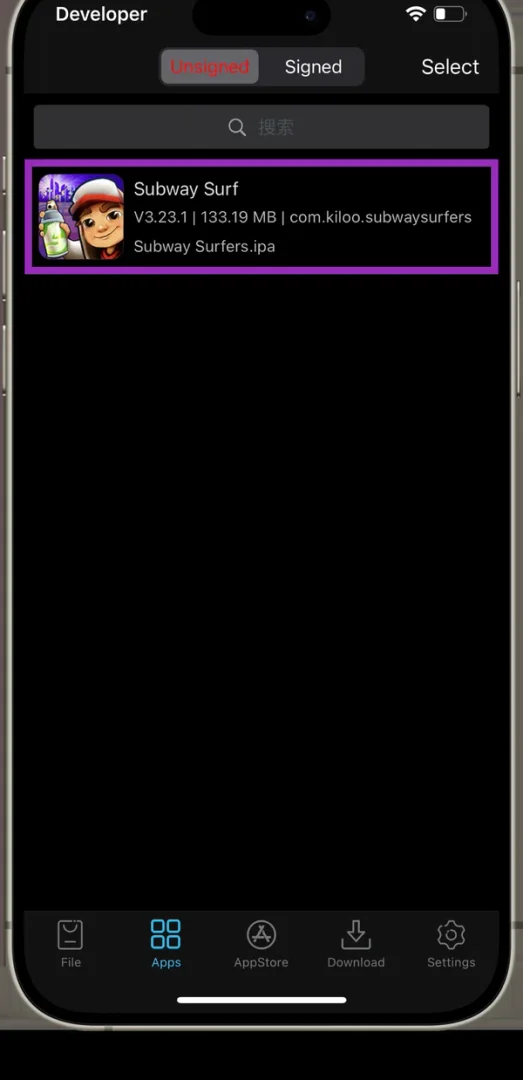
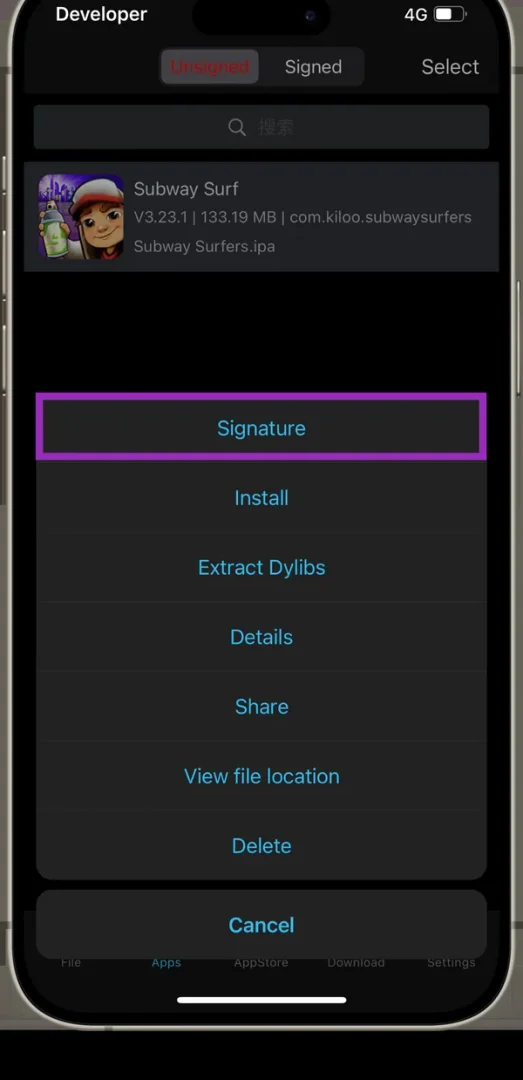
Tap the app you want to install.
Choose “Signature”.
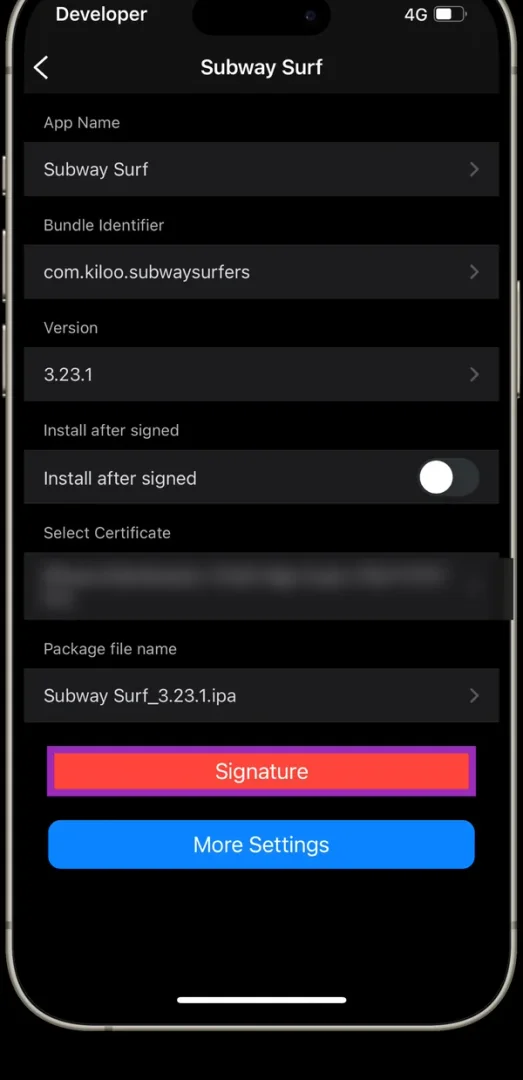
Make sure your certificate is selected under “Select Certificate” and tap “Signature” again. This is also where you change the Bundle Identifier if your app’s guide asks for it.
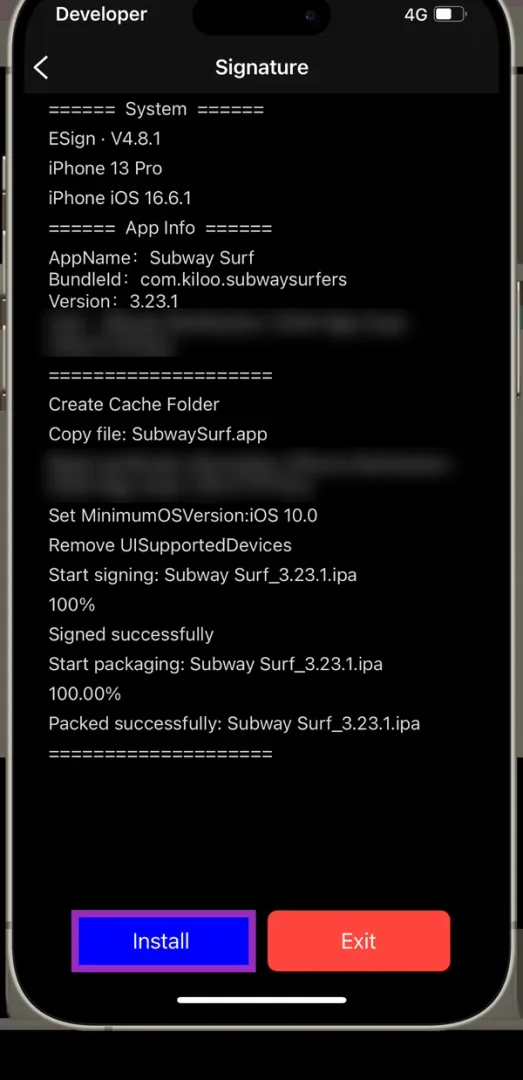
Wait for “Signed successfully” and tap “Install”.
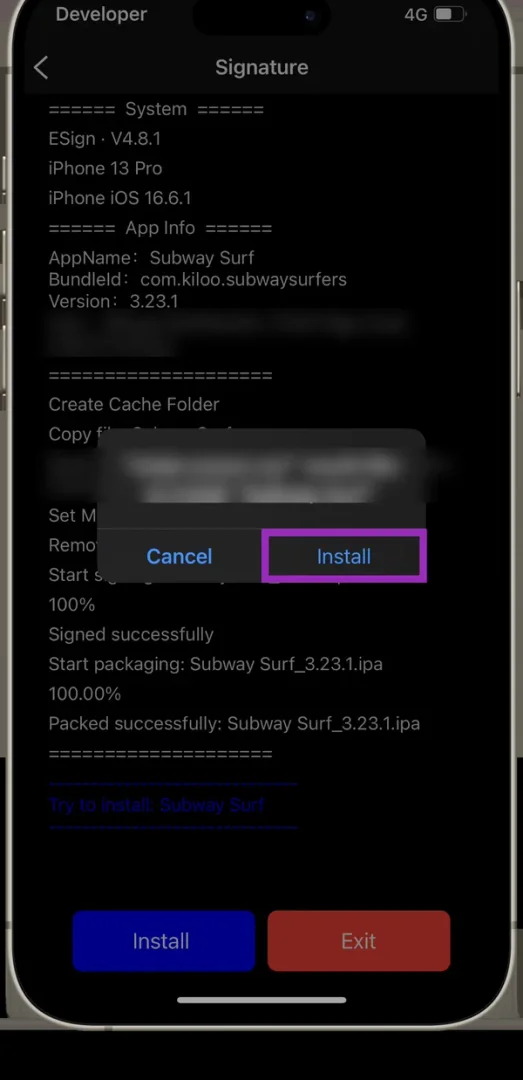
Confirm “Install” in the iOS prompt — the app icon appears on the Home Screen.
❗ If the App Does Not Launch
“Untrusted Enterprise Developer”. Open Settings → General → VPN & Device Management, tap the certificate profile and choose “Trust”.
“Developer Mode Required”. Settings → Privacy & Security → Developer Mode → turn it on. The iPhone restarts and asks you to confirm.
ESign rejects the password. Use the .p12 password from your account or from README.txt — copy it in full, with no spaces at either end.
The app stopped opening, “Network connection required”. Check the certificate in Settings → Certificate Management in ESign. If its status is “Revoked” instead of “Good”, the certificate has been revoked: contact GetCheats support and include your purchase number.
You import the certificate into ESign only once. After that, any app is installed with Step 3.