

Koenflow TradeBot | Arena Breakout: Infinity Tutorial
 25.03.2026
Koenflow TradeBot | Arena Breakout: Infinity Tutorial
Disabling Defender
https://getcheats.io/blog/67ae4d25855e1df9c23aab94
What to do after purchase
Install the program using this link:
Once the download is complete, install or launch the application.
Preparing the game
Before setting up the program, you need to set up the game correctly.
Resolution and screen mode:
Set the following parameters:
- If you have a Full HD (1920×1080) monitor → select 1920×1080 and full screen mode in the window
- If you have a monitor with a resolution higher than Full HD → select 1920×1080 and windowed mode
- Important:
→ Set Display Scaling to 100% in Windows settings
→ The program may not work correctly at values above 100%.
Main Program Setup
After activation, the program is ready to use. The optimal settings are applied automatically, so the bot can be launched without additional configuration.
The settings below are intended for users who want to fine-tune the bot behavior manually. If you are not sure what a setting does, leave the default value unchanged.
Ammo Settings
Modify price before listing
Before listing an item for sale, the bot checks current market prices and automatically lowers its price by 1% to stay ahead of competitors and speed up the sale.
Recommendation: keep this setting enabled, as it helps complete trades faster.
Default: enabled.
Skip item if no good price is found after
This setting controls how long the bot searches for a profitable purchase offer. If no suitable offer is found within the selected time, the bot skips the item and moves to the next one.
Default: 3m.
Skip item if target price is not found
This setting controls how long the bot waits for the target selling price. If nobody buys the item at the desired price within the selected time, the bot skips the item and continues working.
Default: 3m.
Ammo purchase budget limit
The maximum amount the bot can spend on ammo purchases during one session. This setting helps prevent the entire balance from being spent on ammo.
Default: 60kk.
Minimum remaining balance
The minimum account balance below which the bot will not make new purchases. This keeps a reserve balance available.
Default: 10kk.
Trading Settings
Modify price before listing
This setting works the same way as in Ammo Settings. Before listing an item, the bot lowers the price by 1% to help sell it faster.
Recommendation: keep this setting enabled so items do not remain listed for too long.
Default: enabled.
Skip item if no good price is found after
This setting controls how long the bot waits for a suitable trading offer. If no profitable price is found within the selected time, the bot skips the item.
Default: 5m.
List an item at any price if the desired price is not found
If the desired price does not appear within the selected waiting time, the bot will list the item at the available market price instead of keeping it in the inventory.
Enable this setting if faster turnover is more important to you than maximizing profit.
Default: 5m.
Language Settings
Language
This setting switches the program interface between English and Russian.
The change is applied immediately. Restarting the program is not required.
Default: English.
Scan Region Setup
Scan regions are screen areas that the bot reads in real time. They allow the program to detect:
- current cash balance;
- items in the inventory;
- market prices;
- how much ammo should be bought or sold;
- which items are already listed for sale.
Each region must be configured once. After correct setup, the bot can work automatically.
Important: configure scan regions carefully. If extra interface elements, nearby items, or unrelated values appear inside a scan area, the bot may read incorrect data.
Preparation Before Scan Region Setup
Before setting up scan regions, complete this one-time preparation step in the game:
- Open your inventory.
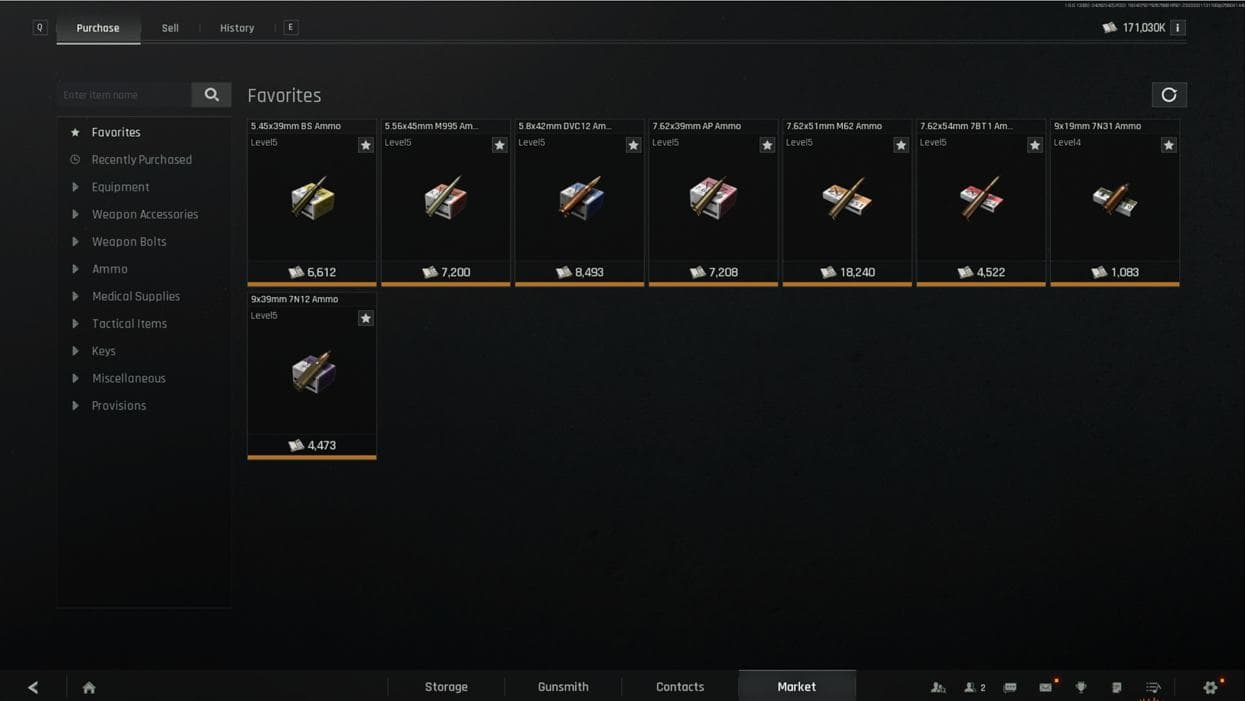
- Add all ammo types you plan to trade to favorites.
- Remove all unnecessary items from favorites.
This helps the bot see only relevant items and prevents recognition mistakes.
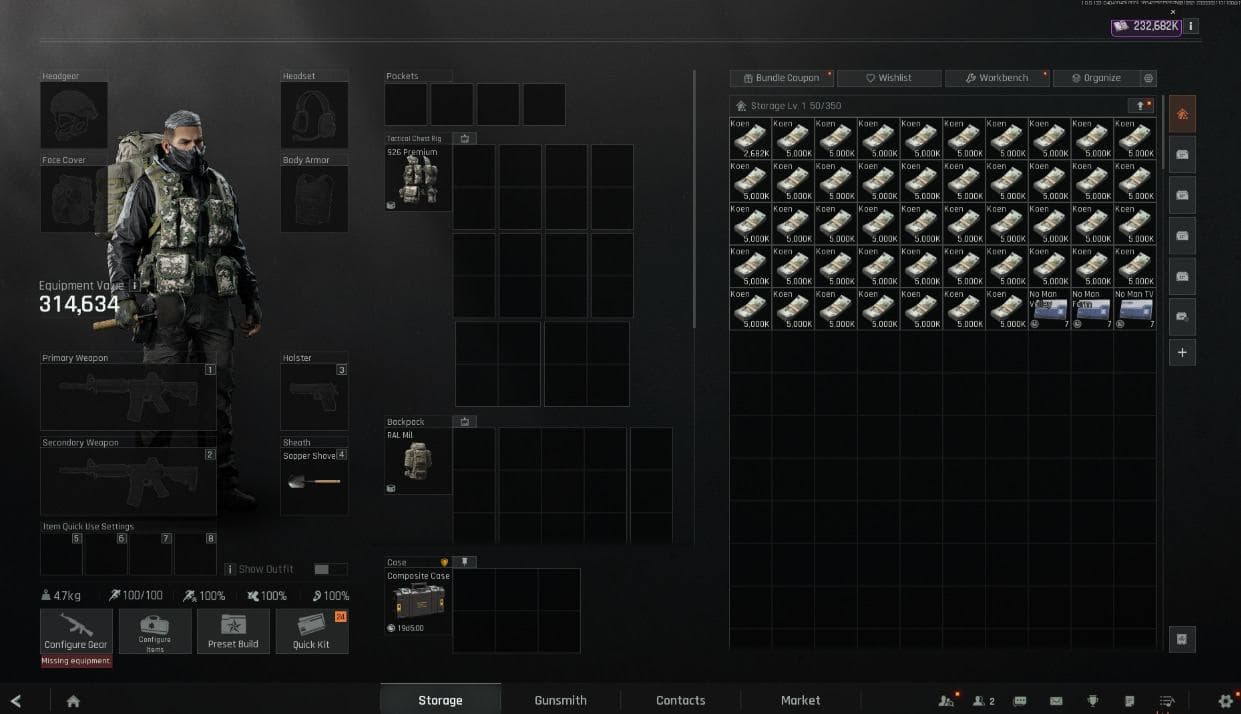
Cash
In the game, place the scan window over the cash amount in your inventory. It is usually displayed at the top or bottom of the inventory screen.
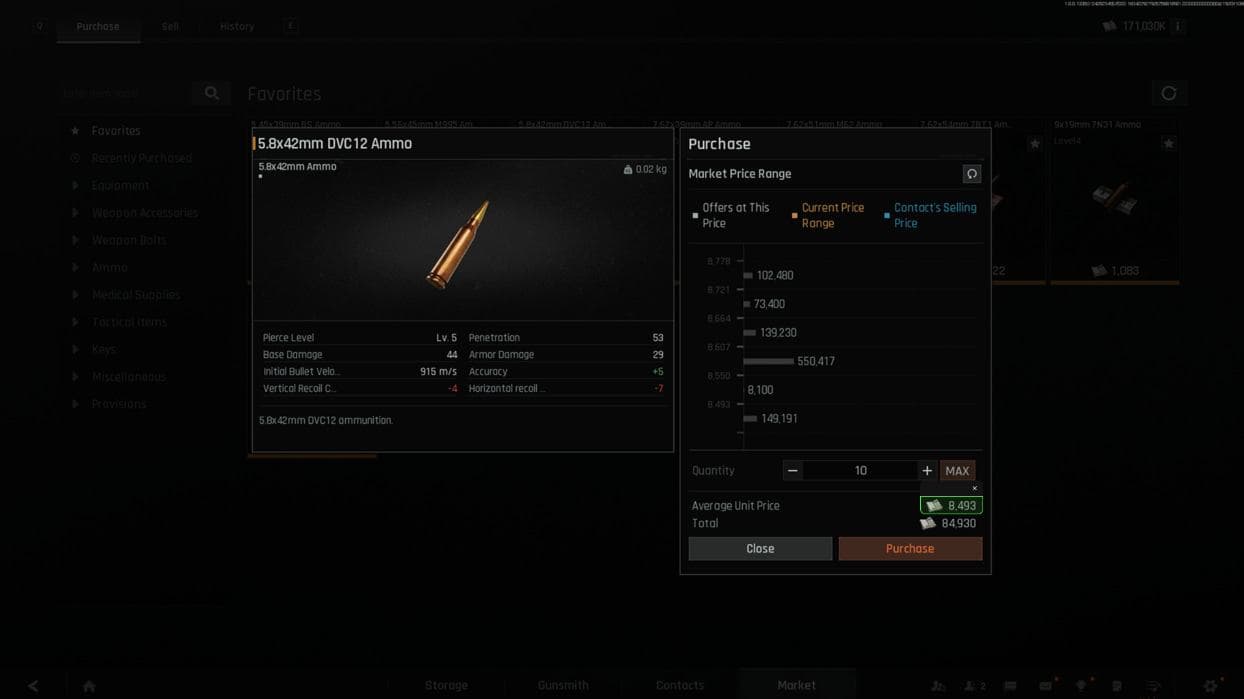
Buying Price
- Go to Market → Purchase.
- Select any ammo type.
- Find the Average unit price parameter.
- Place the scan window over the currency value next to this parameter.
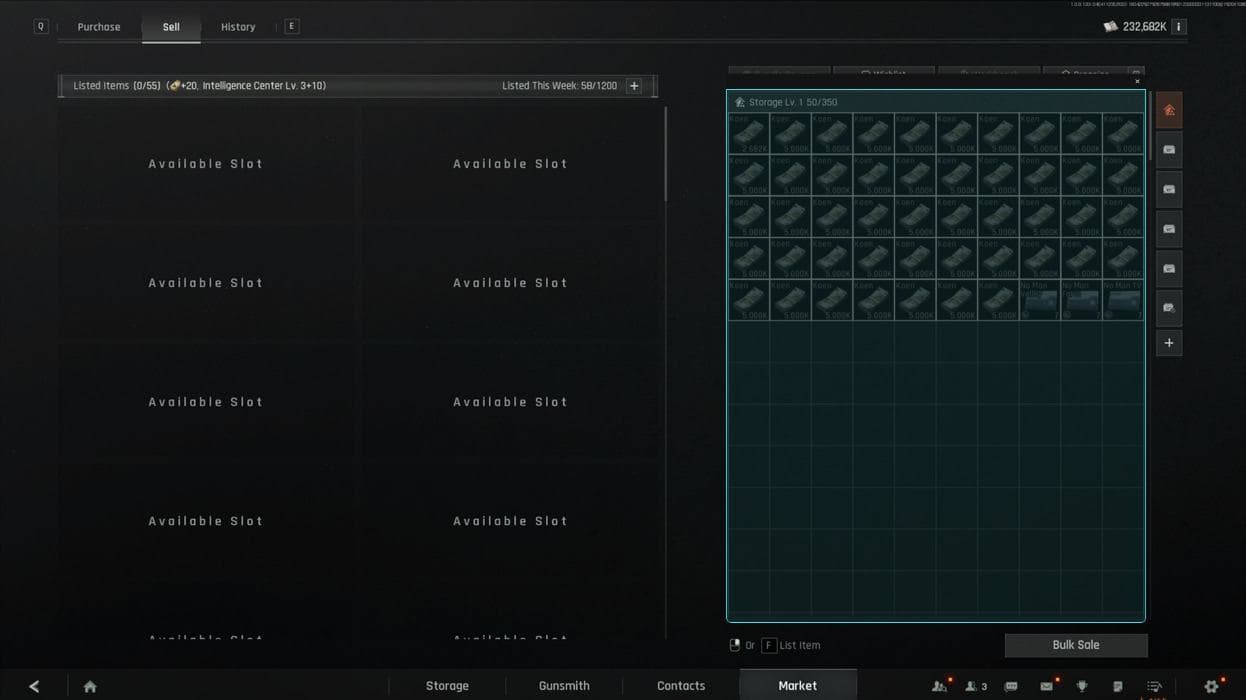
Inventory
- Go to Market → Sell.
- Place the scan window over the full inventory area — the item grid.
Inventory Scrolls
While staying in Market → Sell, place the scan window over the scrollbar on the right side of the inventory.
Position the area so the scrollbar is centered inside the selected region.
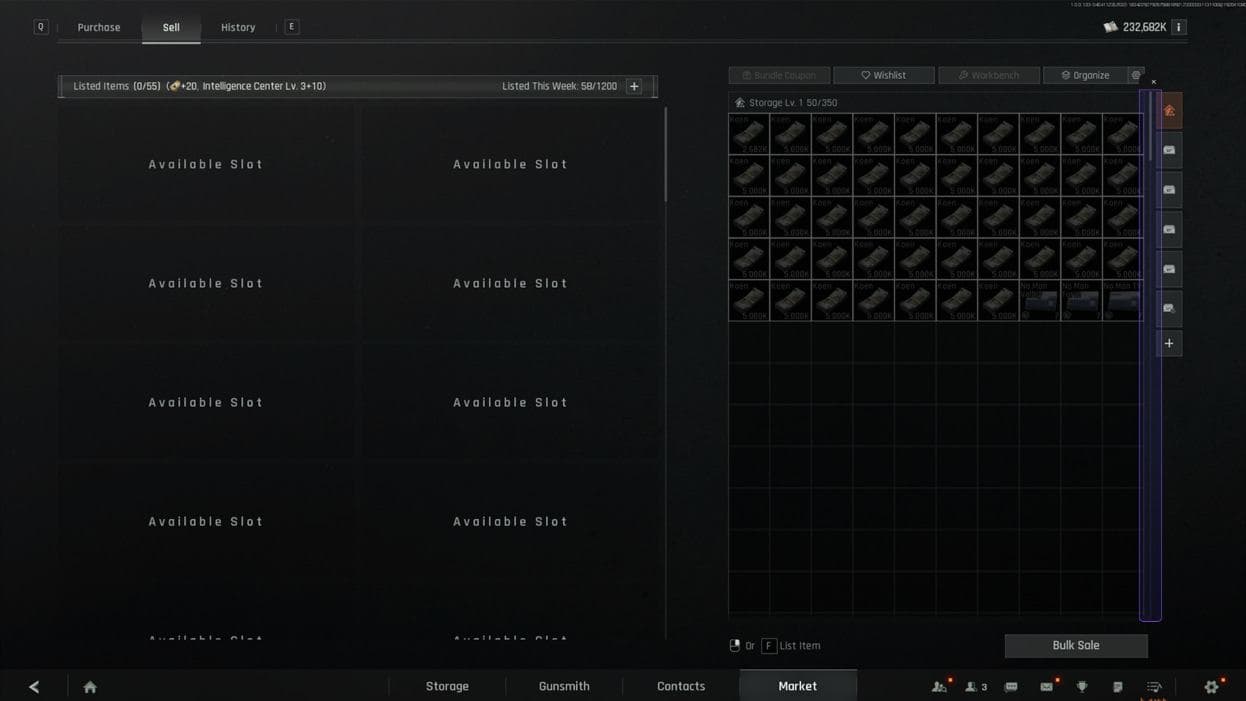
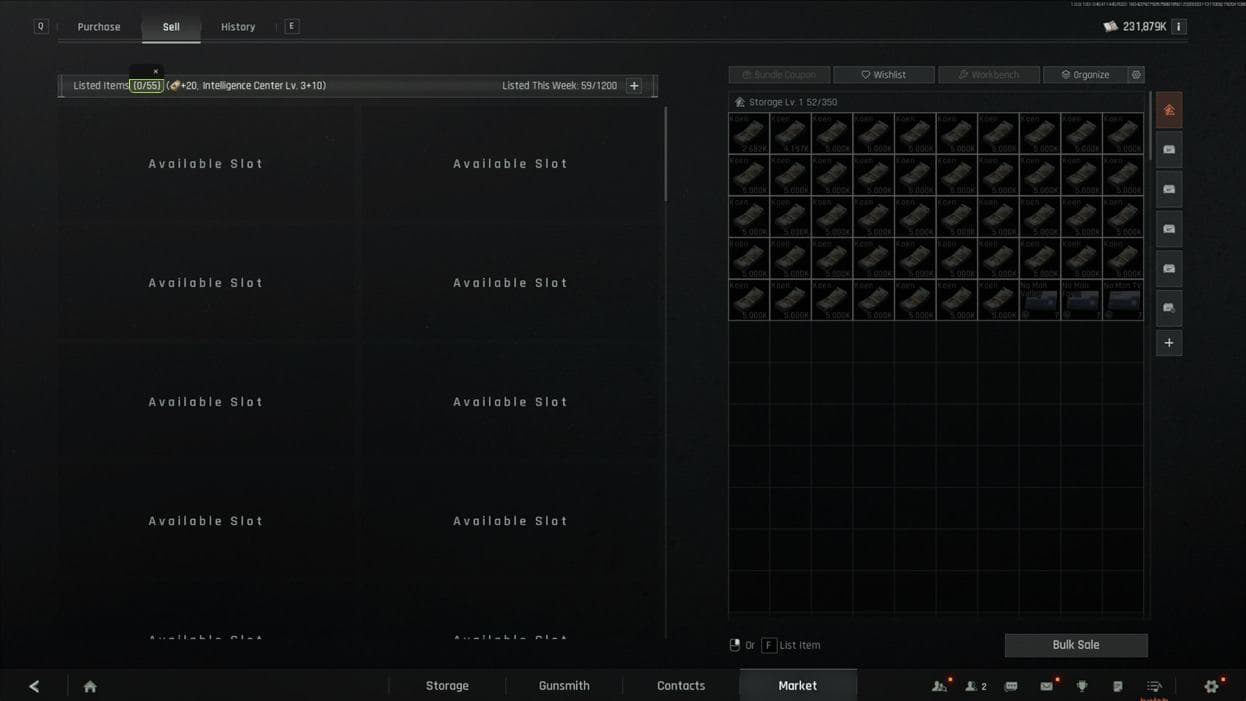
Used Slots
In Market → Sell, place the scan region over the area where items already listed for sale are displayed.
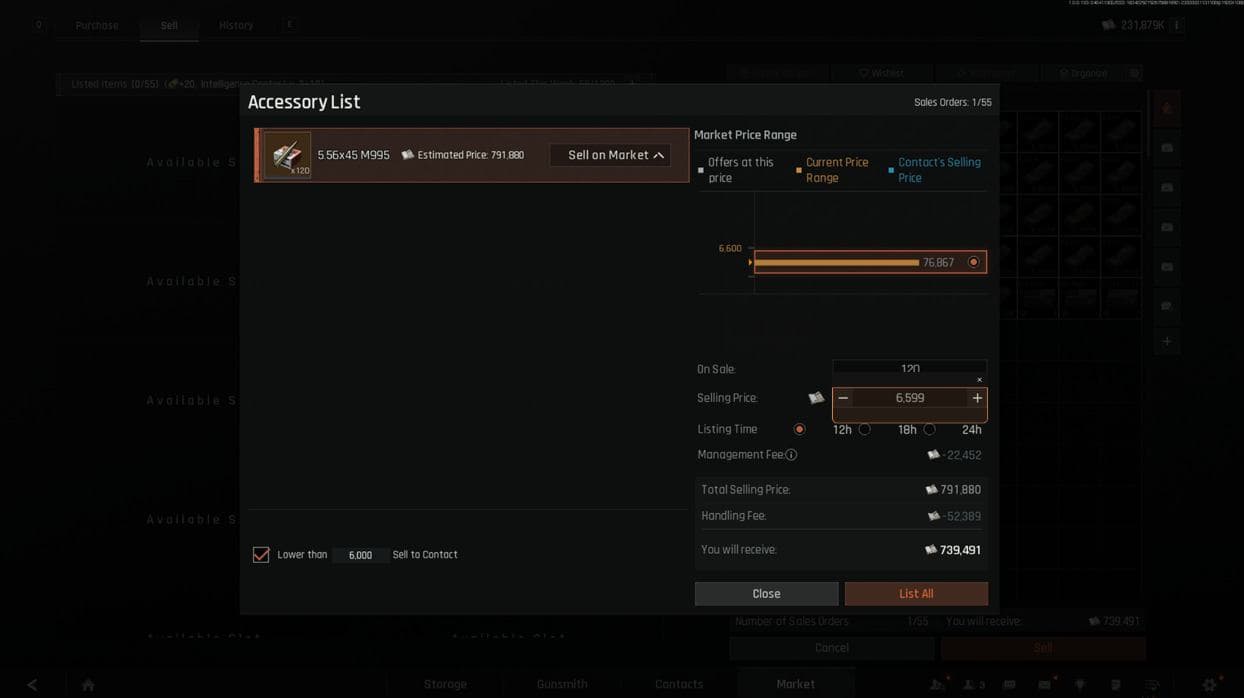
Selling Price
In Market → Sell, place the scan region over the area where the price of already listed items is displayed.
Buy Price Items
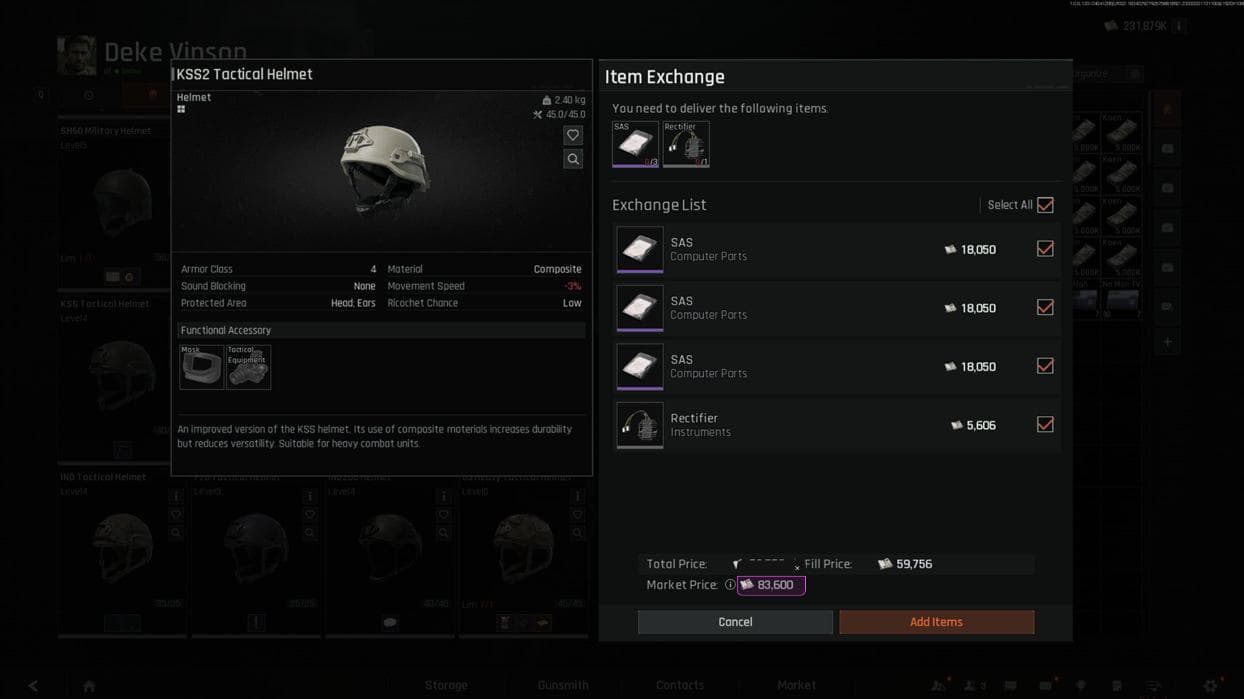
- Open Contacts → Deke Vinson.
- Select any item, for example, an armor vest.
- Click the item.
- In the opened window, find the Total price parameter.
- Place the scan region over the value next to this parameter.
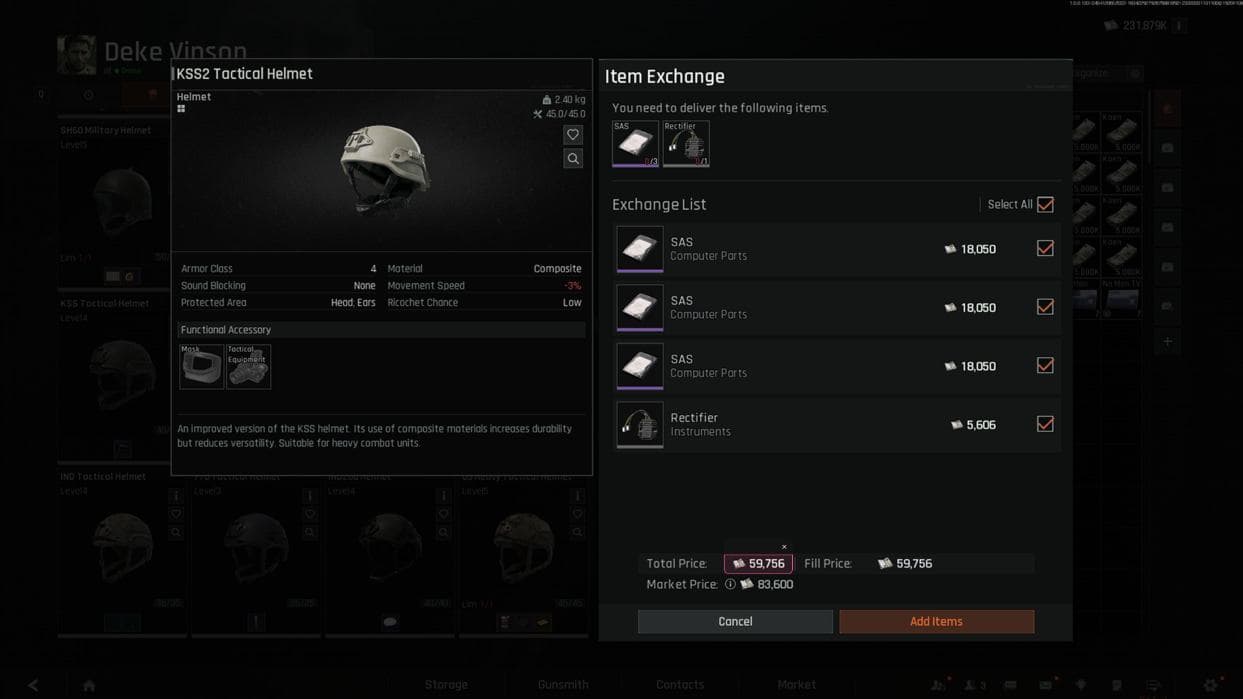
Sell Price Items
In the same Deke Vinson item window, find the Market price parameter and place the scan region over this value.
Final Check Before Launch
Before launching the bot, make sure that:
- the program is activated;
- the game language is set to English;
- the resolution is set to 1920×1080;
- Windows display scaling is set to 100%;
- the required ammo types are added to favorites;
- unnecessary items are removed from favorites;
- all scan regions are configured accurately;
- scan regions do not include extra interface elements.