

Euphon Guide | Valorant
 23.03.2026
Euphon Guide | Valorant
Disabling Windows Defender
1. Manual shutdown
This method is suitable for temporarily disabling protection before installing software.
- Open the Start menu and start typing Windows Security.
- Open the found Windows Security application.
- Go to the Virus & threat protection section.
- In the "Virus and threat protection settings" section, click the Manage settings link.
- Set the following switches to the Off position:
- Real-time protection
- Tamper protection
Necessary components
Launch of Euphon
First, you need to register on the site!
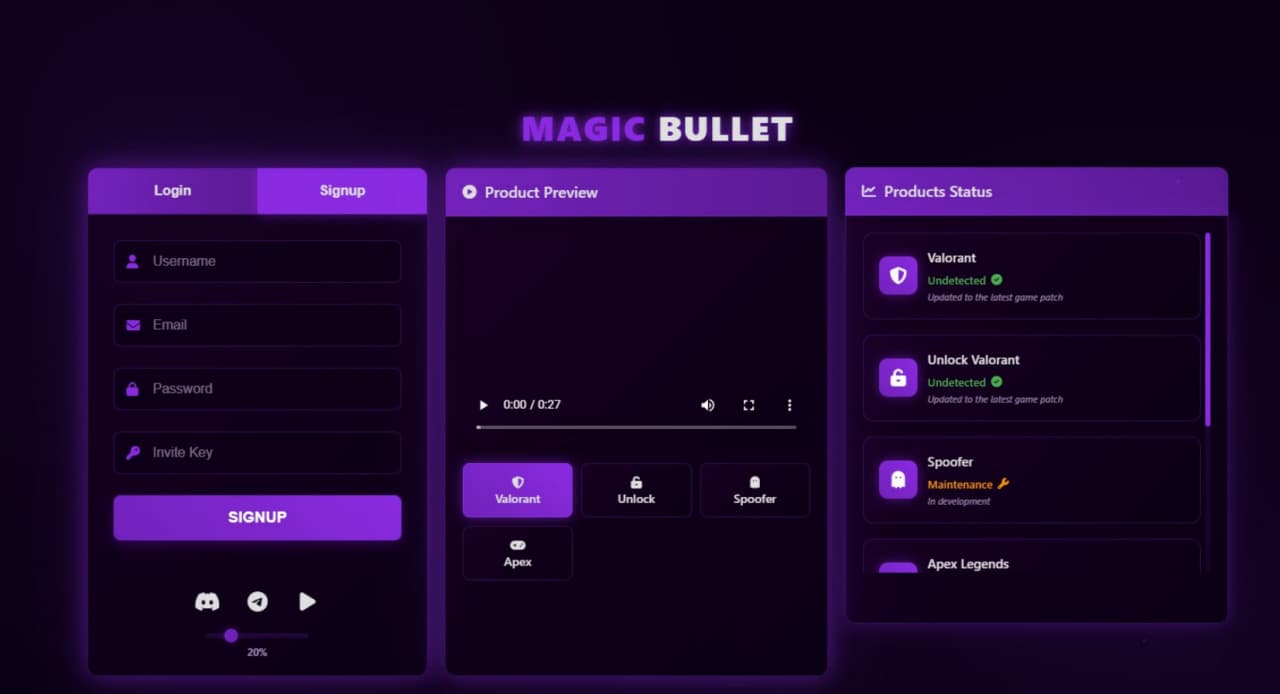
If the site doesn't load or freezes while the loader is opening, use a VPN.
Registration
- Enter your details: Username, Email, Password and Invite key (your purchased product key).
Download and installation
- Go to your Personal Account (Dashboard).
- Enter your activation key (the same key you entered before) and download the loader.
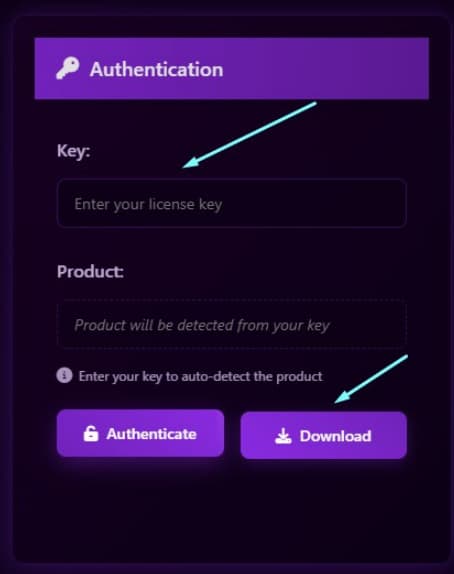
- Unzip the archive contents to a convenient folder (use WinRAR or 7-Zip).
- Run the loader file AS ADMINISTRATOR.
- Wait until the message: Waiting for auth request appears.
Authorization
- Without closing the loader, return to your Personal Account (Dashboard).
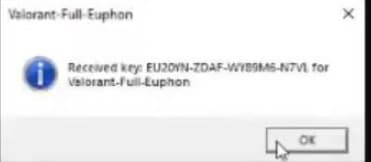
- Click the Authenticate button on the website.
- A window will pop up with your key, in which you need to click "OK"
- Without closing the loader, return to your Personal Account (Dashboard).
Launch
- After successful loading, the loader will show the status:
Waiting for Valorant
- Launch the Valorant game.
- The loader will launch automatically. It may take between 30 seconds and 3 minutes to integrate into the game. Enjoy! THE MENU OPENS BY PRESSING THE DELETE BUTTON
If the cheat didn't embed, try again. If the loader simply closed, try opening the game first, then the loader itself.
COMMON MISTAKES AND THEIR SOLUTIONS
If you encounter loader errors while launching the software, follow the instructions at the link below:
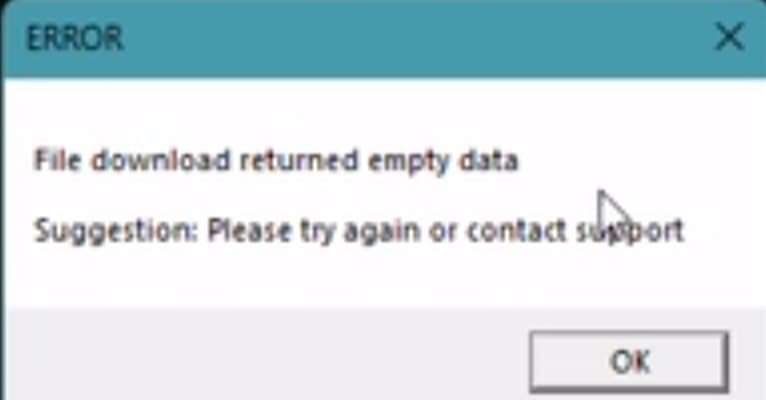
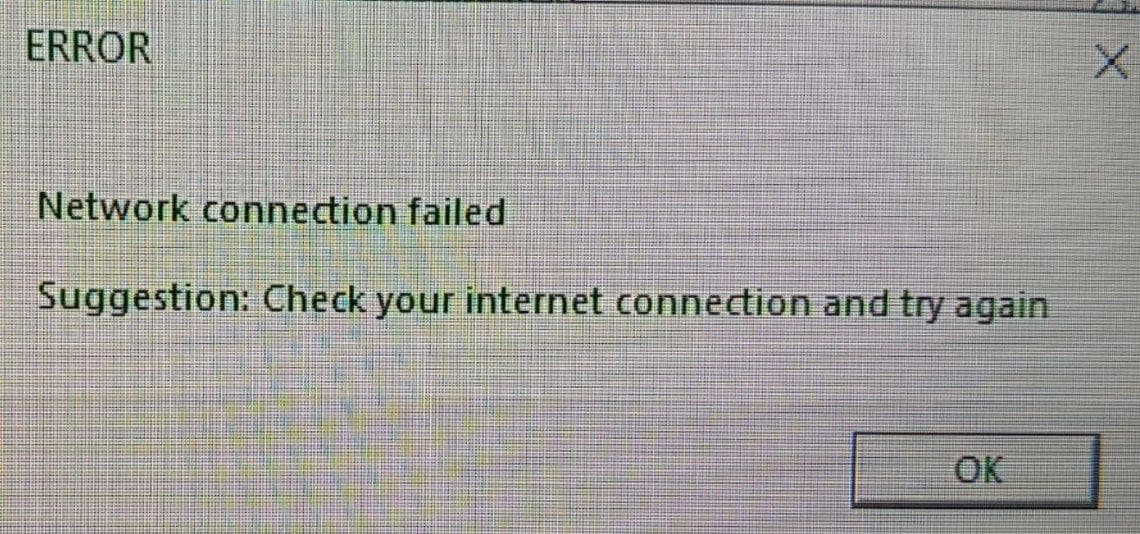
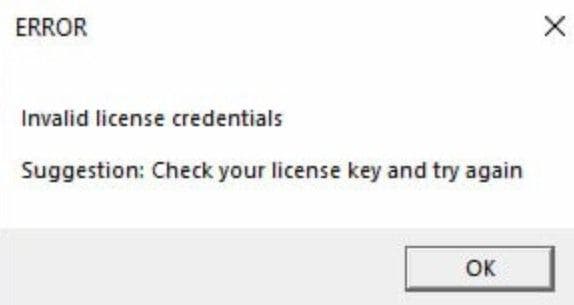
If you encounter these errors, the first thing to do is check your VPN connection or use one.
If you have done everything described above and this error remains, follow these steps:
- Make sure that all components (Visual runtime\DirectX runtime) from the main instructions are installed.
- Restart your PC.
- Synchronize time on your PC
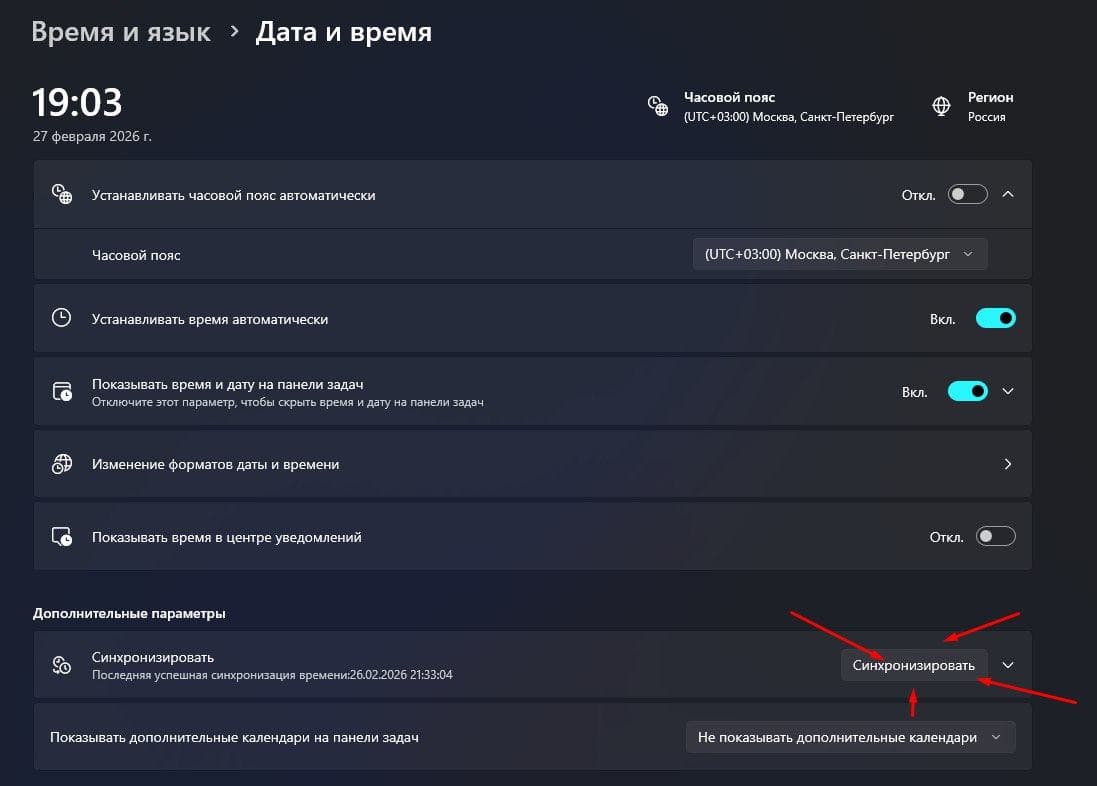
4. Run the loader again as administrator.
5. If you have problems with the loader (it just closes), then try running the loader from another folder that is located in the same archive nearby.
6. If you have completed everything and the error remains, please contact support.