

Instructions for Covcheg External Rust
 17.03.2026
⚙️ Preparing the system
Be sure to complete all steps before use.
1️⃣ Enable virtualization in BIOS
📺 Instructions:https://youtu.be/LQIyowZMiY8
You can check it in the Task Manager.
2️⃣ Enable Hyper-V
- Open Control Panel
- Enable the Hyper-V component
- Restart your PC
If there is no component:
- download BAT (click)
- run as administrator
- restart your PC
After this, Hyper-V will appear.
3️⃣ Check system disk format
The disk must have the format:
💽 GPT
Instructions:https://remontka.pro/gpt-or-mbr-disk
❗ If the format is MBR, you will need to reinstall Windows.
4️⃣ Check BIOS boot mode
The mode should be:
🖥 UEFI
Instructions:https://remontcompa.ru/zhestkiy-disk/3240-kak-vkljuchit-uefi-v-biose.html
5️⃣ Disable Secure Boot
Instructions:https://remontcompa.ru/zhestkiy-disk/392-kak-otklyuchit-secure-boot.html
✅ Completing setup
This completes the preparation of the system.
If you cannot complete any item, contact technical support.
⚠️ For the software to work correctly, all steps must be completed.
✔️ Now you can proceed to launching the software.
🚀 Software download process
⚠️ Important: The software can only be launched from removable media (flash drive). The loader must be removed from the downloads folder and other directories.
❗ After closing the loader menu, you must remove the flash drive from the PC, otherwise there is a risk of getting an EAC BAN.
📌 Getting started
1️⃣ Preparation
- Download the product loader from the link.
- Connect a removable storage device (flash drive) to the PC.
- Move the loader to the flash drive.
- Close the Steam client via tray:
➡️ RMB on Steam → Quit Steam
2️⃣ Launching the loader
After completing 1 point of instructions:
- Launch the loader from the flash drive
- Wait for the loader menu to appear
⚠️ Important to remember
When you start the Rust game, the flash drive with the loader must be physically disconnected from the PC.
❗ Points 1 and 2 must be completed before each launch, otherwise there is a risk of an EAC ban.
3️⃣ Product Download
- Click the "Run" button in the loader
- Wait for the product to load
If you have completed all the requirements from the “System Preparation” section, the loader will prompt you to restart the system.
➡️ Click Yes
The computer will restart automatically.
If any requirement is not met, the loader will notify you about it.
🔄 After system reboot
1️⃣Overwolf installation
Download and install the program Overwolf link.
2️⃣ Installing Arkbuddy
- Open the Overwolf App Library
- Find the Arkbuddy app
- Install it
- Launch the application
3️⃣ Checking the overlay
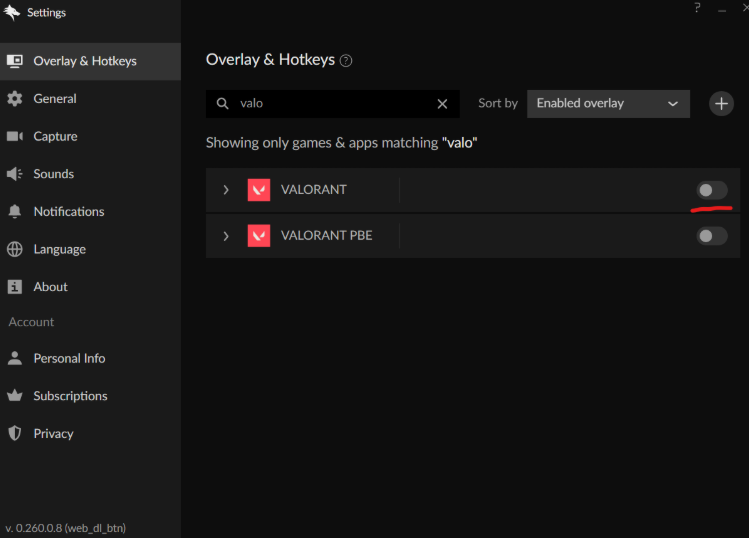
- Open Overwolf settings
- Go to the tab:
⚙️ Overlay & Hotkeys
- Make sure overlay is disabled for Rust
⚠️ The screenshot may show Valorant, but you need to check Rust.
4️⃣ Checking the sight
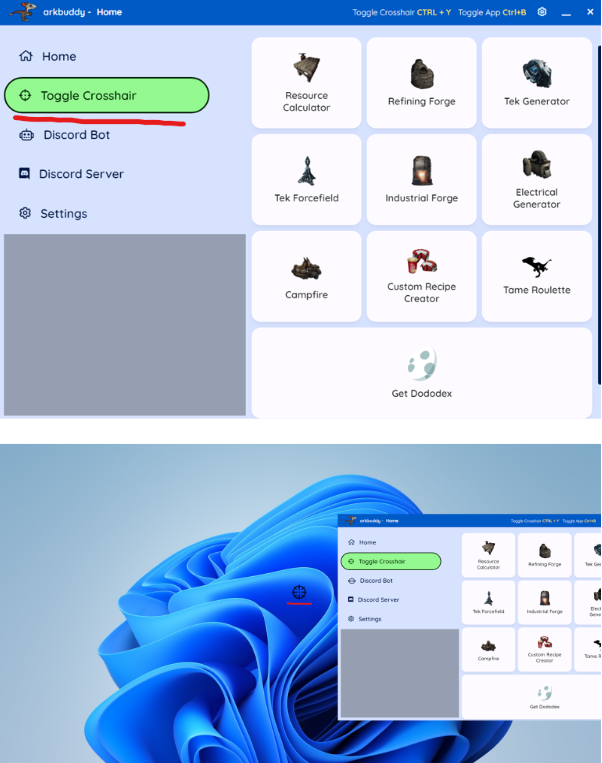
- Open Arkbuddy
- Click the button:
🎯 Toggle Crosshair
Make sure the crosshair appears on the screen.
▶️ Launching the cheat
- Launch the loader, strictly following steps 1 and 2 of the instructions
- Click "Run"
Next:
- Wait until the loader menu closes
- A message appears:
💬 Start the game and press F5 in game main menu
- Click OK
⚠️ Follow the loader's messages during the loading process.
If an error occurs, contact technical support.
🎮 Launch in game
- Launch Rust
- In the main menu of the game, press:
⌨️ F5
Until the product menu appears.
✅If everything is done correctly:
- The loader will notify you of successful loading
- A software menu will appear in the game
❗ If the menu does not appear, contact technical support.