

Instructions for launching the Covcheg cheat for Valorant
 02.02.2026
Instructions for launching the Covcheg cheat for Valorant
Loader: Click
Important: After downloading the software and launching the game, wait 3-5 minutes in the main menu until the product status in the upper left corner changes to "READY!" Once the status changes to "READY!", you can enter the match.
Software download process:
Установите программу Overwolf (NECESSARILY!)
- In the Overwolf app library, find and install the app called Arkbuddy. Once installed, launch it.
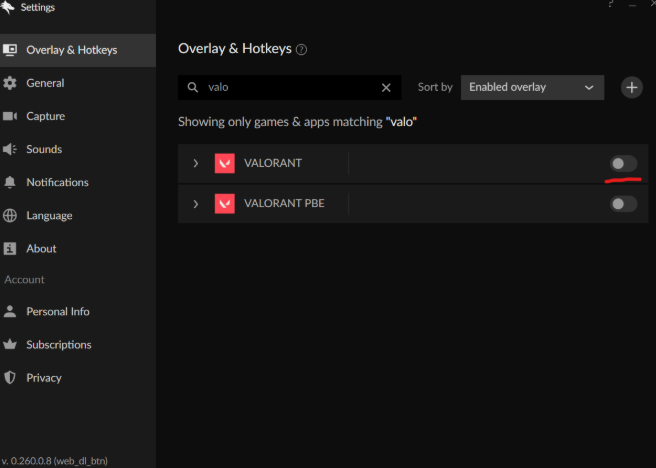
Go to Overwolf's settings. In the Overlay & Hotkeys tab, ensure the in-game overlay is disabled for Valorant, as shown in the screenshot below.
- Close the game completely, or better yet, restart your computer (it is recommended to do this every time you launch it).
- Connect a removable drive (flash drive) to your PC and move the folder from the archive to the flash drive.
- Run loader.exe. Wait for the loader to ask for a key. Enter the key you received upon payment and press Enter.
- When a dialog box appears asking you to remove the flash drive, physically remove the flash drive from your PC, then click OK.
When the loader prompts "Open Arkbuddy Crosshair and Press F5," you should go to the Arkbuddy app and press the "Toggle Crosshair" button. Make sure the crosshair from that app appears on your screen. Then press F5 and wait for the product menu to appear.
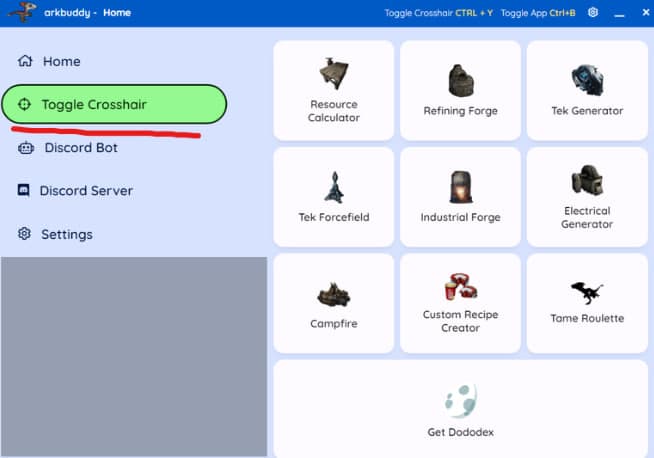
After completing this step, the loader should notify you that the product has loaded successfully. A function menu should appear in the upper left corner. You can then launch the target game and use the product. If the menu does not appear or the loader returns an error, please contact the product's technical support.
To properly and reliably disable the software after use, we recommend using the F10 key, as indicated in the product's functions menu!
Problems and their solutions:
Problem: The product menu appears, but in the match ESP does not display opponents.
Solution: Make sure you're testing the product outside of a shooting range, as the cheat won't display bots there. Test it in a real match.
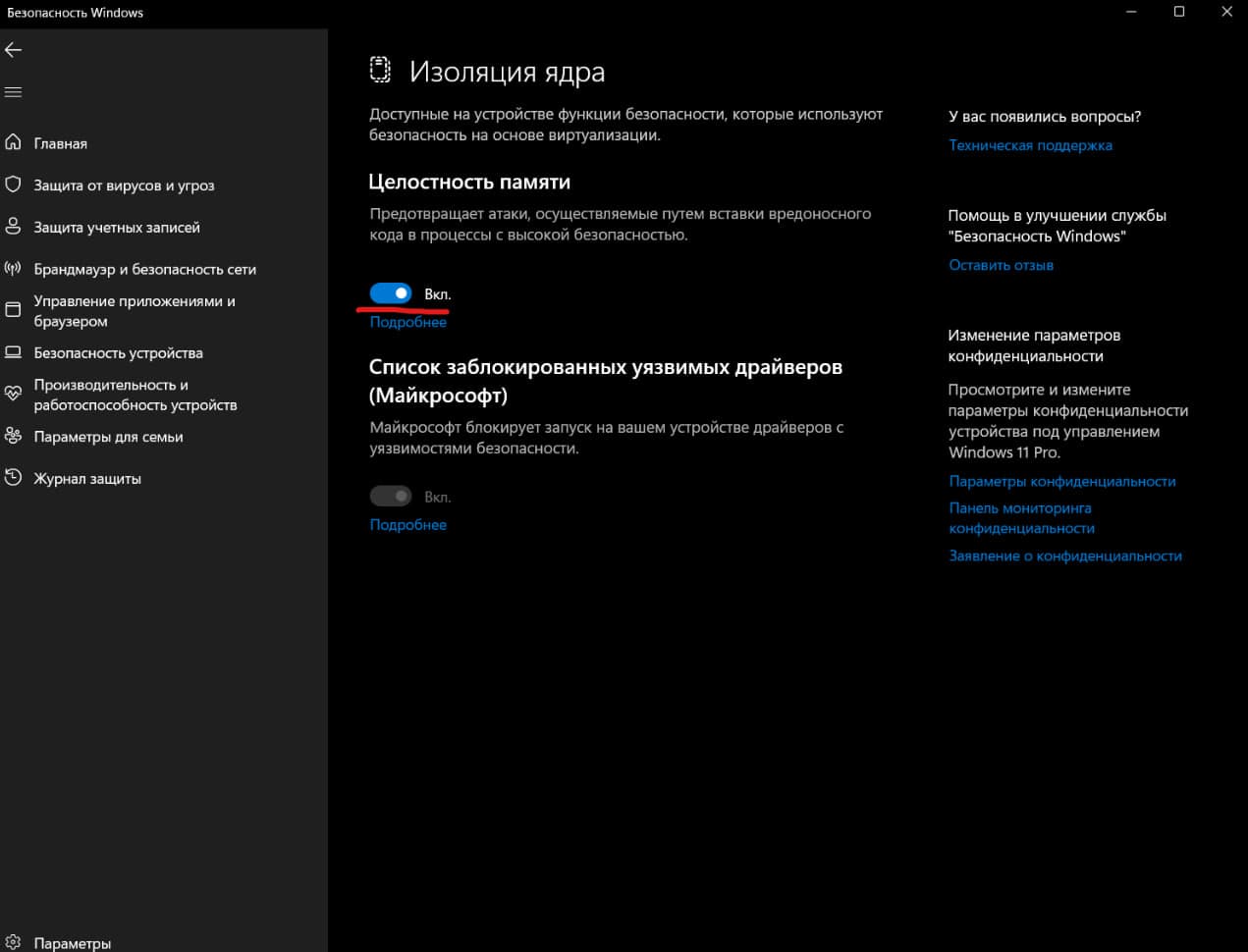
If ESP still does not display enemies, make sure that you have "High Memory Integrity" (HVCI) enabled in Windows Security settings.
Problem: The software does not initialize; the yellow product initialization message is constantly lit in the upper left corner.
Solution: Restart your computer. If HVCI is enabled, disable it. If it's already disabled, try enabling it (see image above).
Try waiting for the initialization directly in the match, and not in the main menu.