

Instructions for using the UBGG Permanent spoofer
 19.11.2025
Reinstalling Windows
Setting ISO (click)
Download Media Creation Tool from the link above - click the Download Now button
Open Media Creation Tool
Select an item:
Create installation media (USB device, DVD, or ISO file) for another PC
Leave the recommended settings as default
Select "ISO file"
Specify the folder to save the ISO
When the ISO is ready, download Rufus
https://github.com/pbatard/rufus/releases/download/v4.5/rufus-4.5.exe/
1. Open Rufus and select the following options
2. Click “Select” and go to the directory where you saved the ISO
3. Device – select your USB flash drive (8 GB or larger)

Select the last two options
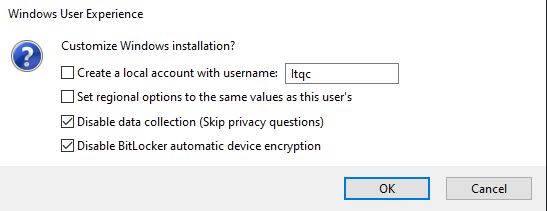
Click OK and wait for Rufus to finish formatting the USB flash drive
Your USB flash drive should look like this:
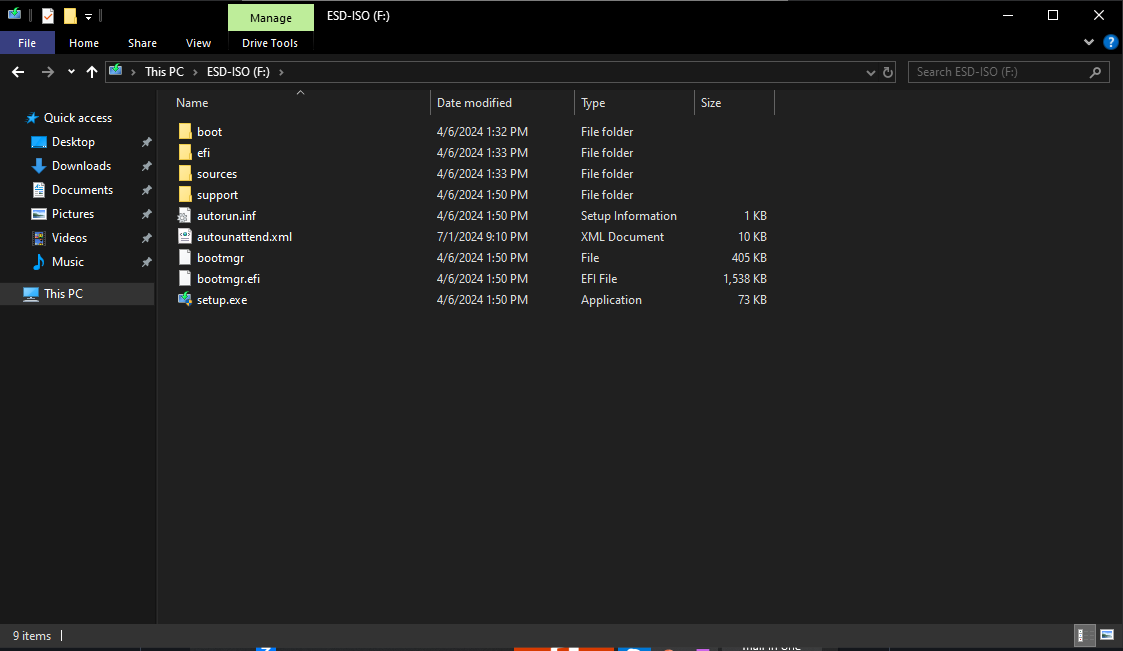
Before continuing, if you use Wi-Fi, be sure to download the Wi-Fi drivers to the USB flash drive.
Drivers can be downloaded from your motherboard manufacturer's website.
To find out the motherboard model, press Win + R, enter msinfo32, and find it in the window that opens.

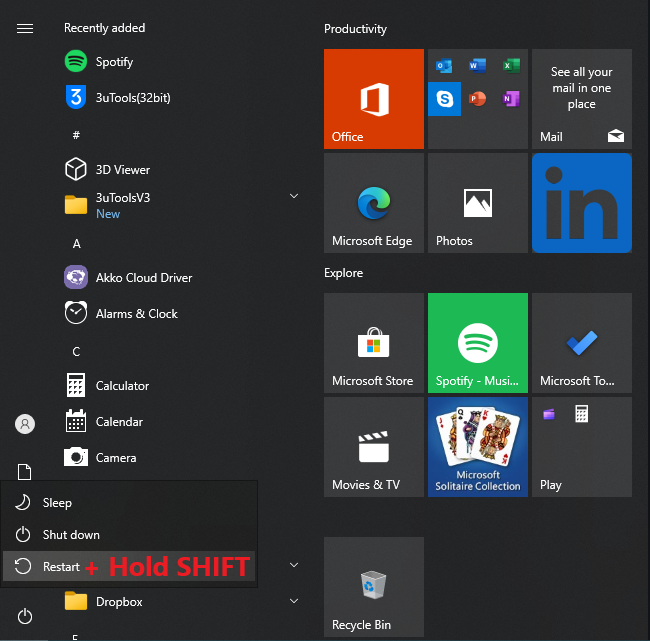
Hold SHIFT and click "Restart"
Select “Use device” and indicate your flash drive

Choose Windows 10 Pro
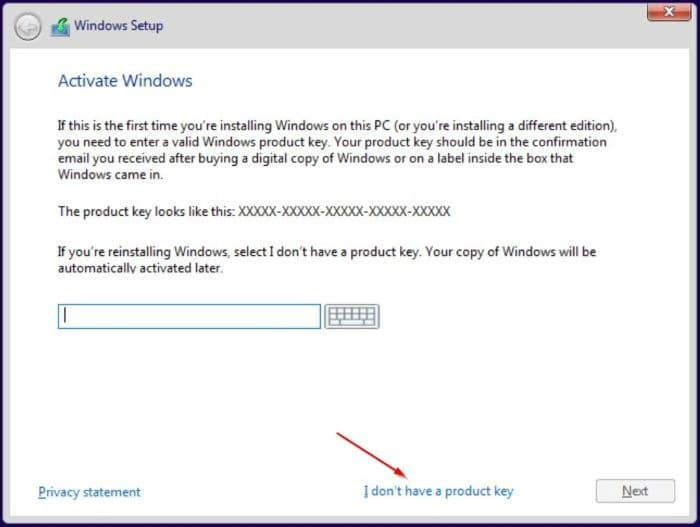
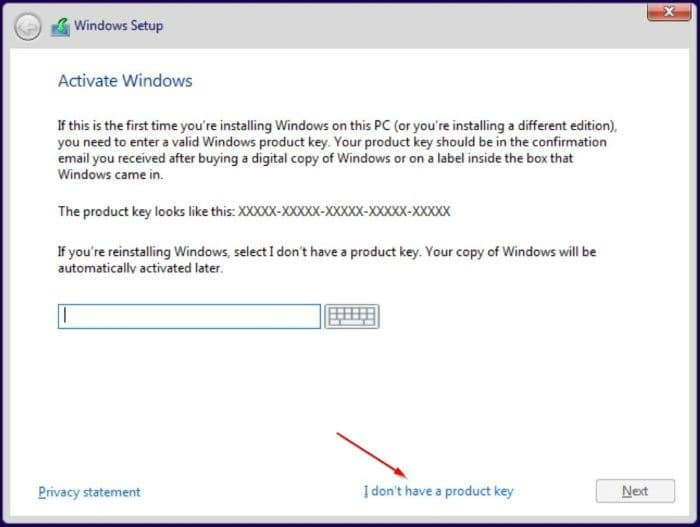
Select “I don’t have a product key” (if this doesn’t appear, don’t worry)
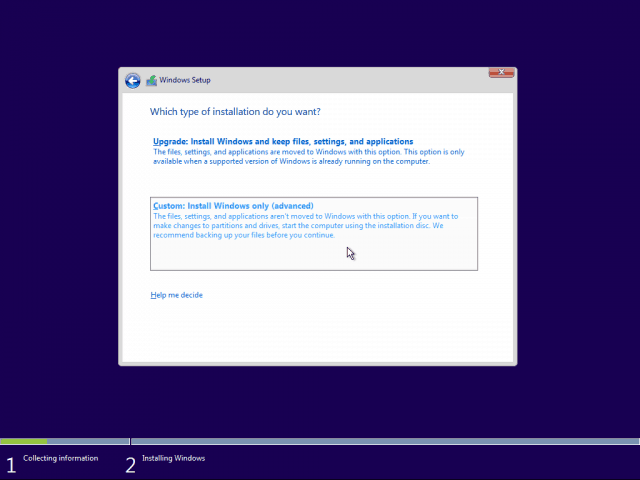
Select "Custom: Windows installation only (advanced users)"
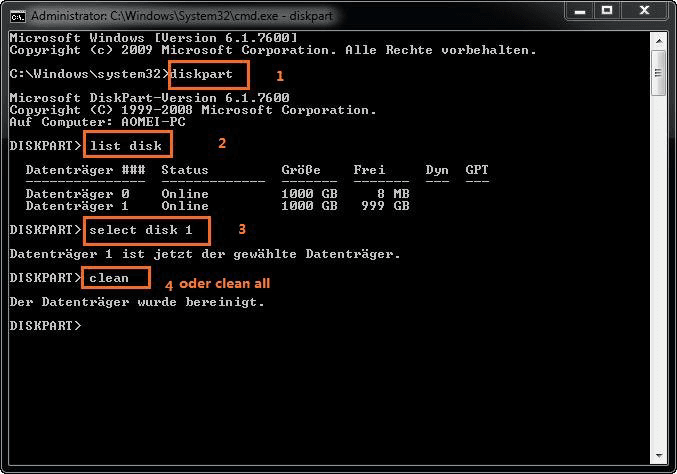
Press SHIFT + F10.
Type diskpart in the command line
Enter select disk # (where # is the number of each disk) and clean for each disk except the flash drive
Your flash drive is most likely the last disk on the list (DO NOT DELETE IT)
Close the command line and click "Update"
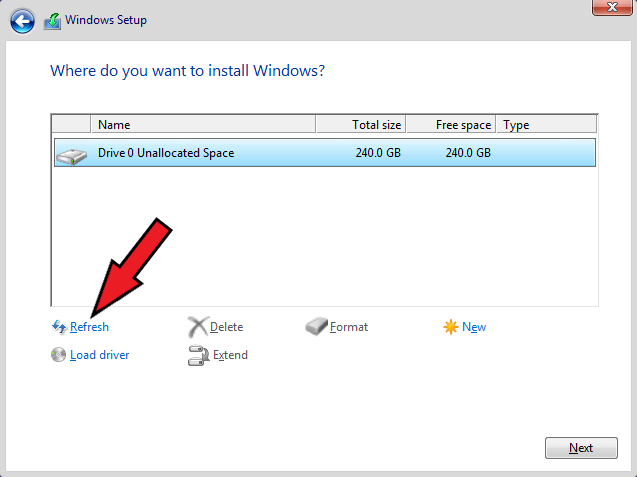
Select your primary drive and click “Next”
The installation process will begin
Windows setup
Follow these steps exactly (don't connect to the internet until you finish the setup)
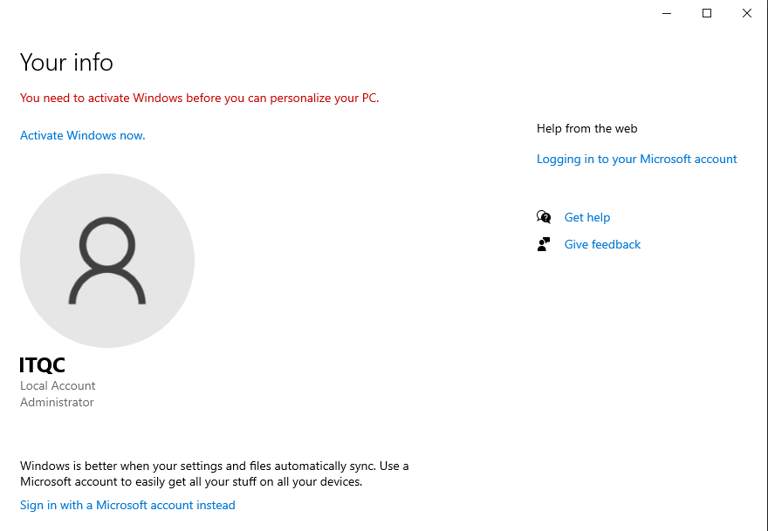
DO NOT sign in to your Microsoft account (example)
Setting up a spoofer
Download loader (click me)
All the necessary programs specified in the guide, as well as the loader itself, are already inside the application.Download the application from the link above, create a folder on your desktop (use only English (Latin) letters) and move the application there.Everything is ready - then just follow the instructions and download the necessary programs through the application.
Before opening the application above, download and run install_all.bat as an administrator and then restart your computer. (https://www.techpowerup.com/download/visual-c-redistributable-runtime-package-all-in-one/?amp=)
Disabling Defender
Disable the defender using this guide: https://getcheats.io/blog/67ae4d25855e1df9c23aab94
Disabling updates
1. Open Mureh Installer
2. Download Wub
3. Unpack the files
4. Run Wub.x64.exe
5. Disable Windows updates and click "Apply"
BIOS firmware (BIOS firmware update)
HOW TO FLASH YOUR BIOS:
Warning: Incorrect BIOS flashing can damage your system. Proceed at your own risk. Make sure you have the correct BIOS version and stable power supply. Contact support if you need help!
Determining the motherboard model and system information
1. Open "System Information" (enter msinfo32 in the search)
2. Find the BaseBoard Product and BaseBoard Manufacturer fields (Motherboard model and manufacturer)
3. Remember or write down BIOS Version/Date
Note: if the information in the system is inaccurate or in doubt, go to the UEFI/BIOS settings and check the data manually.
ASUS:
First download and run this tool, select OPTION 1 or 2 (follow the downloader instructions) - [MANDATORY]
Make sure you download a different BIOS version (preferably one version lower than the current one)
Format the flash drive to FAT32 (RMB on the flash drive → Format → select FAT32 in “File system”) If FAT32 is not available, use this tool: CLICK HERE
Flashing the BIOS twice is very important! No need for two different versions - just repeat the firmware of the same version twice
Instructions here: https://streamable.com/5bgtkf
MSI:
- Make sure you download a different BIOS version (preferably one version lower than the current one)
- Format the flash drive to FAT32 (RMB on the flash drive → Format → select FAT32 in “File system”) If FAT32 is not available, use this tool: Click here
- Flashing the BIOS twice is very important! No need for two different versions - just repeat the firmware of the same version twice
Instructions here: https://streamable.com/i8xgwh
Gigabyte:
- Make sure you download a different BIOS version (preferably one version lower than the current one)
- Format the flash drive to FAT32 (RMB on the flash drive → Format → select FAT32 in “File system”) If FAT32 is not available, use this tool: CLICK HERE
- Flashing the BIOS twice is very important! No need for two different versions - just repeat the firmware of the same version twice
- Instructions: https://streamable.com/nz6yv7
ASROCK:
- Make sure you download a different BIOS version (preferably one version lower than the current one)
- Format the flash drive to FAT32 (RMB on the flash drive → Format → select FAT32 in “File system”) If FAT32 is not available, use this tool: CLICK HERE
- Flashing the BIOS twice is very important! No need for two different versions - just repeat the firmware of the same version twice
Instructions: https://youtu.be/dUCWRqOdLUw
Download Loader
Download Visual C++ Redistributable Runtimes All-In-One
Open Mureh Installer
Download Visual C++ Runtimes
Unpack the archive
Run install_all.bat as administrator
Restart your PC
Download DirectX Runtimes
- Open Mureh Installer
- Download DirectX
- Uncheck "Install the Bing Bar"
- Click “Next” until installation is complete
After:
Open Mureh Installer
Choose PermSpoofer
Enter the key you were given upon purchase
Unzip PermSpoofer
Серийные номера:
Открой Mureh Checker.exe, скопируй все в документ и сохрани
Do these steps before Spoof and after Spoof, then compare your Serial Numbers
Spoof HWID:
- Launch Loader
- Enter the key (check the “Remember me” box)
- Login
Don't enable GPU Spoof
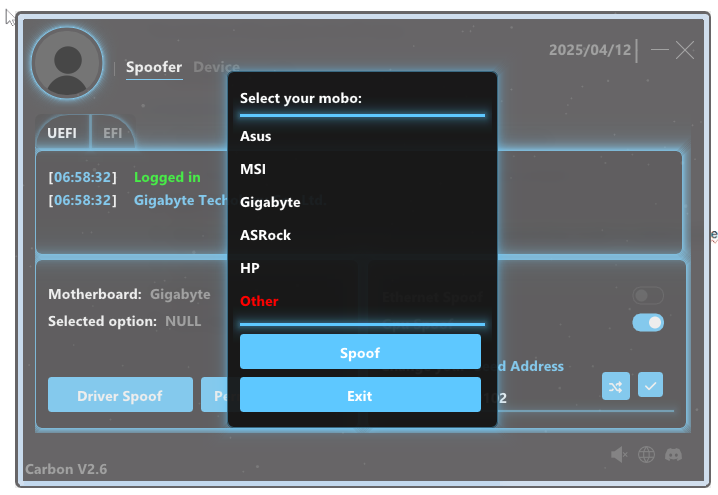
Click UEFI Spoof
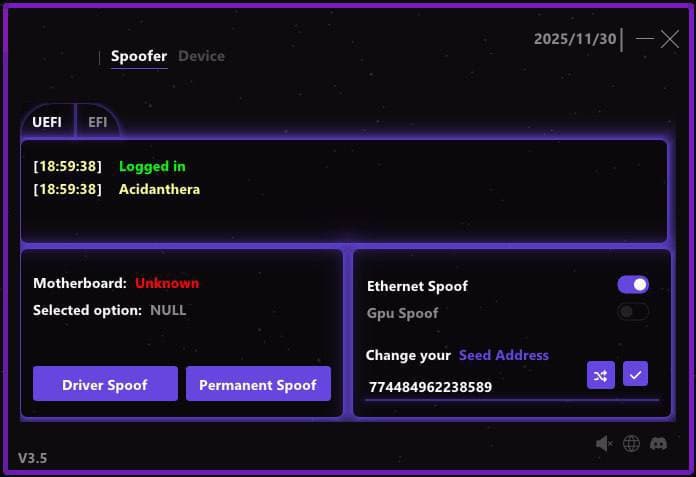
- Select your motherboard and click “Spoof” (if you have a different one, click “Other”).
- Restart your PC
- Open Checker and compare serial numbers
- Now proceed to setting up the device (Device Setup)
IF YOU HAVE HP: (HP USERS)
Select Permanent Spoof > HP MPM Unlock
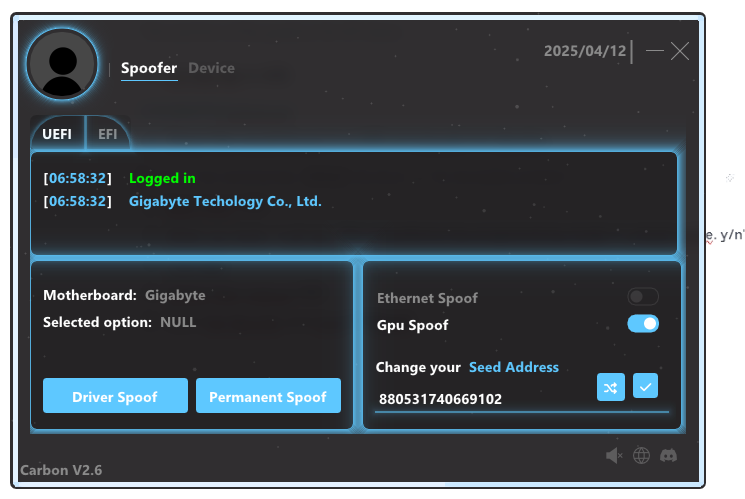
Choose HP MPM Unlock
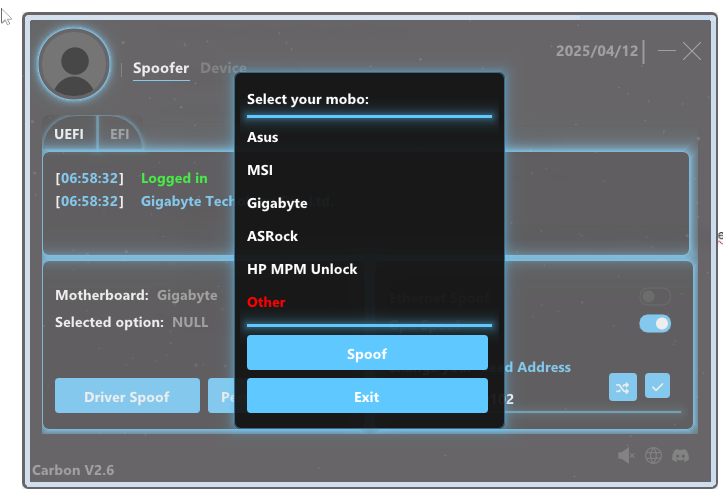
Boot your computer from USB (if you need help, open a ticket) -> after rebooting, select Permanent Spoof and click HP, now it should just say HP, not “HP MPM unlock”
Boot from USB and make sure the files are copied to the disk.
Boot from USB.
When loading, a message will appear: “Set manufacturing programming mode to unlock mode. y/n"
Enter yes.
Delete files/disconnect USB.

Launch Loader again, select HP and click Spoof.
Device setup (MANDATORY!)
Please read the below procedure carefully:
https://kinescope.io/nZWQkFspGj5DTRjAmKLXdF
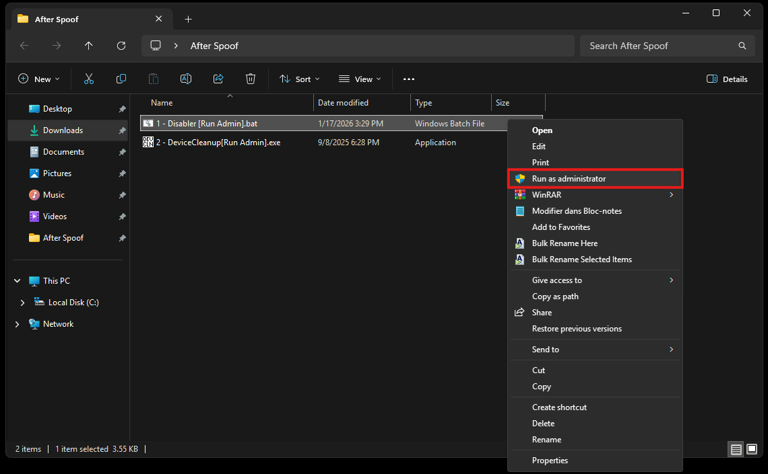
1. Right-click on the file “1 - Disabler [Run Admin].bat” and select “Run as administrator”.
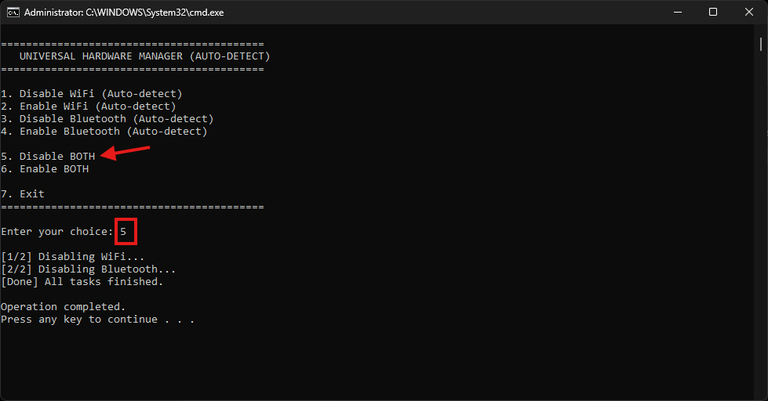
2. A command prompt will open. Enter 5 to select "Disable BOTH (WiFi & Bluetooth)", then press Enter.
Cleaning devices
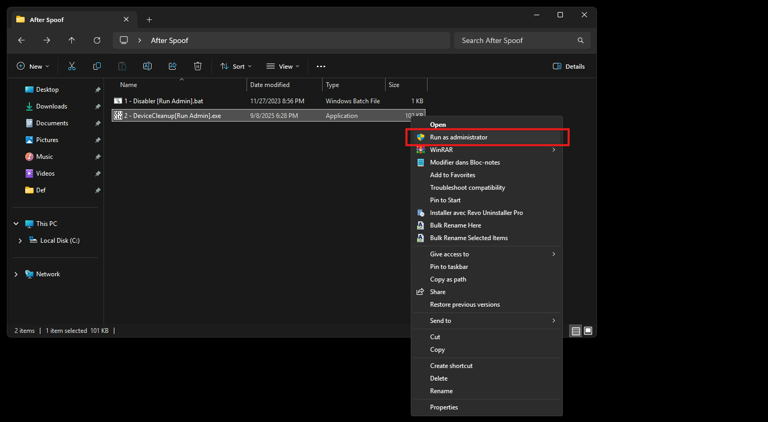
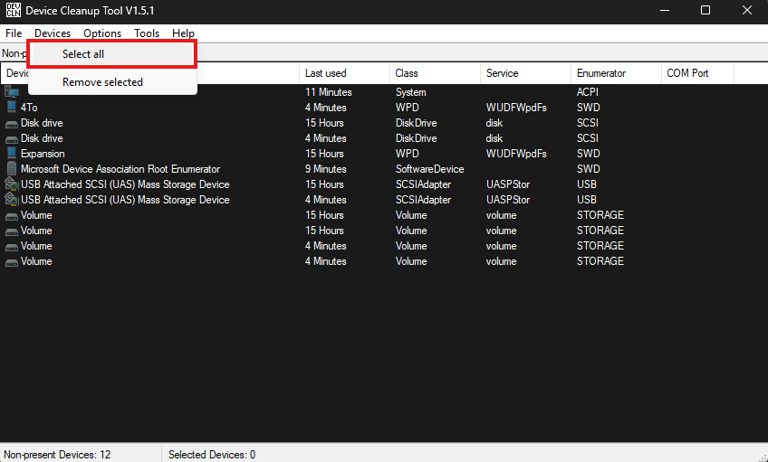
1. Right-click on the file “2 - DeviceCleanup [Run Admin].exe” and select “Run as administrator”.
2. In the top menu, go to the “Devices” section and click “Select all”.
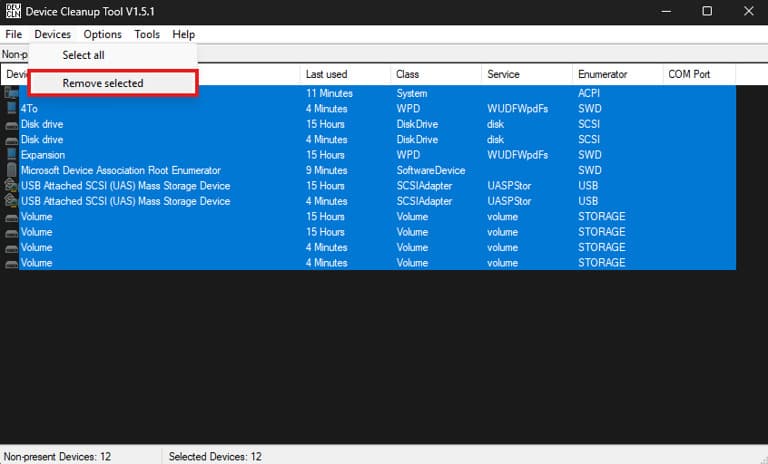
3. Go to the "Devices" section again and click "Remove selected".
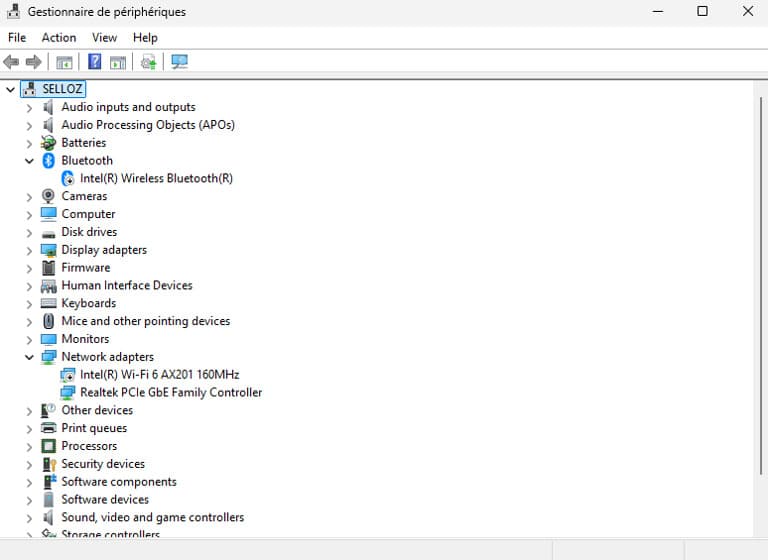
4. Check: Open Device Manager. Your list should be cleared (hidden and disabled devices removed).
Manual action required
If Wi-Fi or WAN Miniport adapters are still displayed, manually disable them
(Right click → Disable device) to avoid delay or blocking.
Then repeat cleaning the devices.
After using the spoofer:
After you have changed and checked that the serial numbers have changed, run Debug.exe
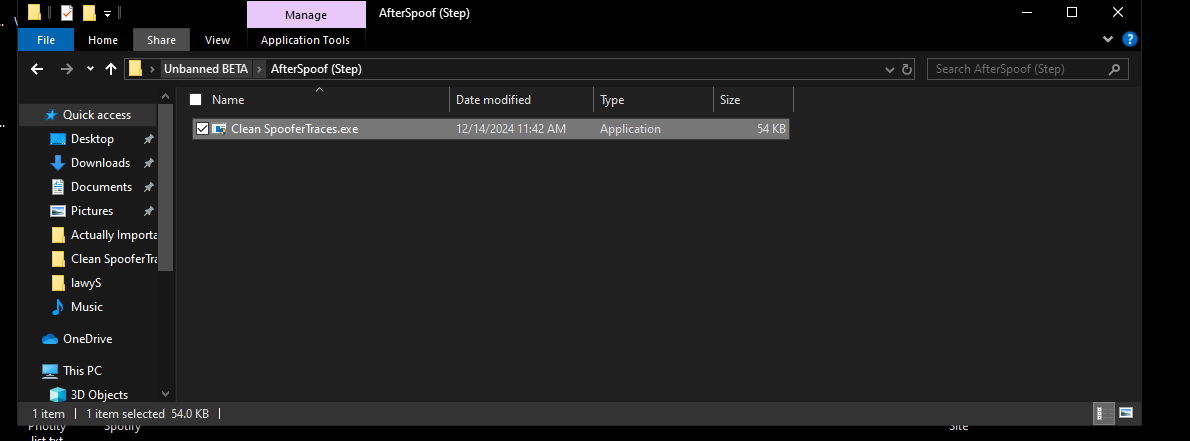
Select option "1". This will remove the bootloader and spoofer cache.

When you're done, delete CleanSpooferTraces.exe.
DO NOT access third party programs that require a login (Logitech G HUB, GeForce Experience, Razer, Medal, Microsoft, OneDrive, SteelSeries).
Use a VPN for 10-14 days after the spoof. AdGuard VPN, WireGuard or IP Vanish are recommended. (Only for Games: Fortnite, Delta Force, Arena Breakout)
DO NOT log into an account that has received a 24-hour ban or VPN kick - always use a new account (for example, in Fortnite).
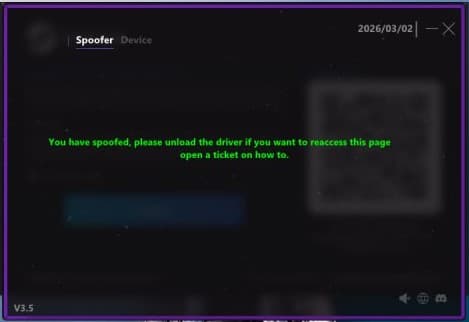
Unload driver
If you get this error when trying to spoof again, you need to unload the driver.
1. Open Debug in the spoofer folder and press 7 (it's hidden).
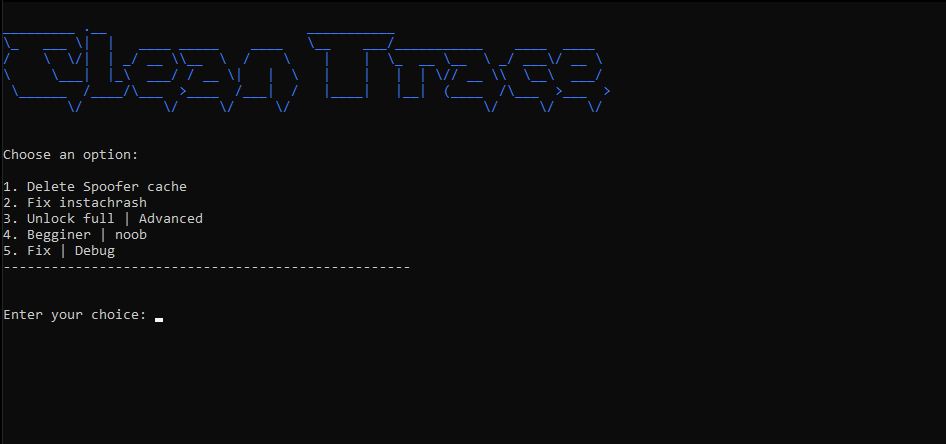
After that, restart your computer and you're done.