

Instructions for launching the Neptune DMA cheat
 27.08.2025
📘 Neptune Guide
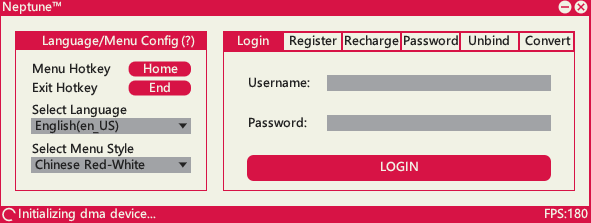
- Download the loader from the official website: Neptune
- Run the loader on the second computer
- Register in itSelect an Image
- Log in and enter the key
- Launch the game and the cheat
🛰️ Support for akao Service
📦 Adapted Boxes
- KMBOX b+
- KMBOX net box
- Lurker
- Keyboard & Mouse Magic Box
- CAT Box
- DHZ Box
👉 If your box is not supported, please contact your higher-level agent.
⬇️ Download loader and other files
🔗 Download from Official Website
🛰️ Neptune Radar
(1) Local Radar
Used only on your device.
(2) Shared Radar
Allows sharing radar data with other users.
🔧 Step-by-Step Instructions
- Log in to your purchased server.We recommend Tencent Cloud servers ($99/year).This tutorial uses Tencent Cloud as an example.
- Go to the Tencent Cloud web portal → click the Console icon in the top-right corner.
- In the console, locate your purchased Lightweight Server → click View.
- Select your server operating system:Choose Windows → click to view server details.
- In the server details page, click on Firewall.
- Add required ports in firewall settings:You may enter port 7891, or allow all ports.
- Important note about other providers:Big providers (like Tencent Cloud) usually allow firewall port setup directly in the website panel.Smaller providers or private servers may require adding ports directly inside the server.⚠️ If you already added ports via website firewall, skip this step.
- After adding ports, start your login server.
Download the shared radar configuration file:👉 Click here to download - Extract the configuration file into the server directory, then run as Administrator.
- ⚠️ Most servers don’t have decompression tools pre-installed.
- If you cannot open the archive, download WinRAR 👉 Download here
- Keep the CMD window open (do not close it).
- This completes the configuration.
- Open the assistant → enter your IP + port → click Connect Radar.
- Your shared radar link will appear.
- Replace the middle IP with your server’s public IP.
- Example: PublicIP:7891
- Open your radar link in a browser.
- At this stage it won’t work yet.
- You must configure it in the webpage (see screenshot in guide).
- After completing all steps, your radar will work normally.
- ✅ To share with teammates: send them your radar address.
- They must configure the webpage settings exactly as you did.
🛠️ Troubleshooting
1. Kernel Environment Resolution Error
This error occurs due to key initialization failure. Possible reasons:
- System version too low → cannot send key state.✅ Solution: update the host system.
- System auto-updated patch → version mismatch.✅ Solution: restart the host and reopen the software. If not working → try Method 3.
⚙️ Method 3 — Virtual Memory Settings
- Recommended: 32 GB RAM.
- With 16 GB RAM, virtual memory will overflow into SSD → kernel failure.
- Restart after setting virtual memory.
⚠️ Important: setting 0 MB may cause game crashes. Use 16 MB, 68 MB, 128 MB until stable.
🔄 If still failing → reinstall system (Win10 Pro 22H2 recommended).👉 Reinstallation tools download
After updating system, disable auto updates:👉 Auto update disable tool
2. Offset Acquisition Error: 0x10000001
Cause: not enough memory. The exe text section is paged to virtual memory.
✅ Solutions:
- Update the game to the latest version / verify integrity.
- Download latest Cloud Changer from official website.
- Adjust virtual memory (see Section 1).
⚠️ Setting 0 MB may cause crash. Use 16 MB, 68 MB, 128 MB.
3. Server Connection Failure
- Sync PC time.
- Run Network Repair Tool 👉 Download
- If failed → restart router (power off for 3–5 mins).
- If still failing → use Love Acceleration 👉 Official site
4. Locking / Aiming Shaking
- Adjust input interval (see screenshot).
5. Prompt: "New Game Version Available"
- Place the Launcher in the game folder and run it.
6. Old Version Process Timeout
- Open Task Manager → end the process manually by ID (see screenshot).
7. Menu Too Large (Secondary Screen Issue)
- Go to Registry:HKEY_LOCAL_MACHINE\SOFTWARE\Neptune
- Find monitor_index.
- If 01 00 → change to 00 00.
- If 00 00 → change to 01 00.